Annotate PDF Add-on

Drop document here to upload
Select from device
Up to 100 MB for PDF and up to 25 MB for DOC, DOCX, RTF, PPT, PPTX, JPEG, PNG, JFIF, XLS, XLSX or TXT

Last updated on Oct 12, 2026

Annotate PDF Add-on

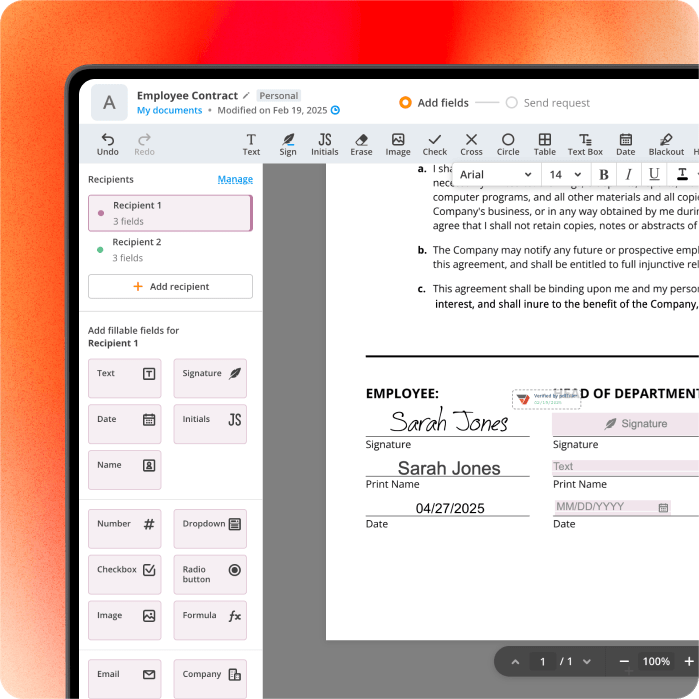
Annotate PDF documents quickly using the pdfFiller Chrome extension or Google Workspace add-ons, streamlining your workflow.

What is the pdfFiller Chrome Extension and Add-ons?

The pdfFiller Chrome extension and Google Workspace add-ons are tools designed to enhance your ability to annotate PDF documents. These tools provide browser-level access, allowing you to work directly within your web browser without needing to visit the pdfFiller website. The Chrome extension adds a convenient "Fill" button to your browser, enabling you to open and edit PDFs instantly. The Google Workspace add-ons integrate with Google Docs and Google Drive, allowing you to access pdfFiller's PDF tools directly within these applications. This integration simplifies your document workflows, making it easier to manage and annotate PDF documents as needed.

How to Install the pdfFiller Chrome Extension

  • Visit the Chrome Web Store and search for "pdfFiller".
  • Click on "Add to Chrome" to install the extension.
  • Sign in to your pdfFiller account or create a new one.
  • Locate the pdfFiller extension icon in your Chrome toolbar.

How the Chrome Extension Works

The pdfFiller Chrome extension simplifies the process of annotating PDFs. Once installed, you will see a "Fill" button appear on any PDF you encounter in your browser. Clicking this button opens the PDF in the pdfFiller editor, where you can easily annotate, fill out forms, and make edits. This functionality allows you to work on your documents without any complicated setup, making it ideal for small and medium businesses looking to enhance their productivity.

Editing, Filling, and Signing PDFs via the Extension

With the pdfFiller Chrome extension, you can annotate PDF documents effectively. Core operations include editing text, filling in forms, and signing documents electronically. You can add comments directly to the PDF, making it easier to collaborate with colleagues or clients. The intuitive interface ensures that you can perform these tasks quickly, allowing you to focus on your work rather than navigating complex software.

Converting PDFs via the Extension

The pdfFiller Chrome extension also offers PDF conversion capabilities. You can convert PDFs to various formats, making it easy to share and edit documents as needed. This feature is user-friendly, allowing you to convert files without any technical knowledge. Whether you need to convert a PDF to Word or another format, the extension simplifies the process.

Creating and Managing PDFs via the Extension

Document management features in the pdfFiller Chrome extension include the ability to create, merge, split, and compress PDFs. You can easily combine multiple documents into one PDF or split a large PDF into smaller files. This flexibility is essential for professionals who need to manage various document types efficiently, ensuring that you can keep your files organized and accessible.

Using the pdfFiller Add-on for Google Docs

The pdfFiller add-on for Google Docs allows you to integrate PDF editing directly into your document workflow. To install, navigate to the Google Workspace Marketplace, search for "pdfFiller," and add the add-on. Once installed, you can access pdfFiller's features within Google Docs, enabling you to annotate and edit PDFs without leaving the document you're working on. This integration enhances your productivity by keeping all your tools in one place.

Using the pdfFiller Add-on for Google Drive

To use the pdfFiller add-on for Google Drive, go to Google Drive, access the settings, and manage apps to find the pdfFiller add-on. After installation, you can open, edit, and annotate PDFs stored in your Google Drive directly. This feature ensures that you can work on your documents from anywhere, making it a valuable tool for professionals who rely on cloud storage.

PDF Viewer and Reader Features

The pdfFiller Chrome extension also functions as a PDF viewer and reader. You can open and read PDFs directly in your browser, making it easy to review documents without needing additional software. The viewer is designed for ease of use, allowing you to navigate through pages and zoom in on content as needed. This feature enhances your overall experience when working with PDF documents.

Scenarios for Using the Chrome Extension

Here are a few scenarios illustrating how the pdfFiller Chrome extension can benefit different roles:

  • A small business owner needs to annotate a lease agreement quickly. Using the extension, they can add comments and sign the document in seconds.
  • A freelancer is working on a project proposal. They use the pdfFiller add-on in Google Docs to annotate their PDF directly, ensuring all feedback is captured in one place.
  • A legal professional needs to review a contract. They utilize the Chrome extension to fill in necessary details and add comments for their team, streamlining the review process.

How Does pdfFiller Compare?

Adobe Acrobat Chrome Extension offers comprehensive PDF editing features but requires a subscription for full functionality. Users may find it more complex than pdfFiller's straightforward interface. Smallpdf Chrome Extension provides basic PDF tools but lacks the extensive template library and integration options of pdfFiller. It may not meet the needs of users requiring advanced features. DocHub allows PDF editing and signing but has limited integration with Google Workspace compared to pdfFiller. Users may miss out on seamless document workflows.

Summary and Next Steps

In summary, the pdfFiller Chrome extension and Google Workspace add-ons provide a powerful solution for annotating PDF documents. With easy installation and integration, you can access these tools directly from your browser or Google applications. Start enhancing your document workflows today by installing the pdfFiller Chrome extension or add-ons for Google Docs and Google Drive.

Try most popular PDF tools

Discover a full set of tools to handle any document task.

Edit PDFs

Make quick PDF edits online.

Sign

Add legally binding signatures.

Merge

Combine multiple PDFs.

Request signatures

Send a document for signing.

Convert

Transform PDFs into other formats.

Rearrange

Change the order of pages.

Share

Send PDFs for review or editing.

Compress

Reduce PDF file sizes.

Use pdfFiller where you already work

1. Connect your tools

pdfFiller, built into your existing workflow

  • Sign and fill PDFs directly in your browser Install the pdfFiller Chrome extension and open any PDF you find online directly in the editor — without downloading it first. Fill in fields, add your signature, and save or send the completed document. The tools you need are one click away, wherever you are on the web.
  • Work with Google Drive files without leaving Drive Connect pdfFiller to your Google Drive and open any document directly in the editor. Fill it, sign it, use AI to summarize or extract key information, and save the updated file back to the same Drive folder. No downloading, no re-uploading, no version confusion.
  • Embed a fillable form on your website Turn any pdfFiller form into an embeddable widget and add it to your website without a single line of code. Visitors fill it out directly on your page — no redirects, no external links, no broken experience on mobile. Submissions come into your pdfFiller account, structured and ready to act on.
  • Let AI do the repetitive work Whether you’re working from Drive, the browser, or an embedded form — AI features are available wherever pdfFiller is. Generate a form from a description, summarize a lengthy document, extract key fields, or get a draft ready in seconds. The same AI tools, across every integration.
  • Keep everything in one account, wherever it started Documents filled through the browser extension, edited from Google Drive, or submitted through an embedded form — everything lands in your pdfFiller account. Searchable, organized, and accessible from any device. One place for every document, no matter where it came from.

Who needs this?

Explore how professionals across industries use pdfFiller to edit PDFs.

Healthcare

Patient intake forms, consent documents, and referral authorizations need to reach patients before appointments, collect signatures, and land in a HIPAA-compliant system. Send forms via link, let patients fill and sign them from any device, and store everything encrypted — without a fax machine or a paper trail.

  • Patient intake and consent forms
  • Authorization and release forms (HIPAA)
  • Referral and prior authorization forms
  • Medical history and registration forms
Healthcare
  • G2 — Users Most Likely To Recommend
  • G2 — Grid Leader in Small-Business
  • G2 — High Performer
  • G2 — Regional Leader
  • G2 — Easiest To Do Business With
  • G2 — Best Meets Requirements
  • G2 — Best Support

pdfFiller scores top ratings on review platforms

pdfFiller is rated 4.6 out of 5 stars across 1,000+ G2 reviews.

Wonderful and very useful program, you should have an option for weekly or per-day subscription/fee.
Anonymous Customer
Excellent!! I am a Notary and I have been able to complete Grant Deeds with this program
sharon h
Registering pdfFiller Registering pdfFiller, uploading a pdf file, conversion to a Word document, saving and opening Word document all went smoothly!
NE
I've been using the trial version of… I've been using the trial version of the pdfFiller and am very impressed and happy with the program. Am suggesting that we sign up. The program is very easy to use; very pleased with it.
Jo Torres
GREAT CUSTOMER SERVICE & SUPORT. EASY TO USE. BEST BILLING SOFTWARE I'VE USED! MAKES MY JOB SO MUCH EASIER ;) **** ** 
Sara H
Honestly was a lot better than I expected.
Valentin B

The document tool your small business needs to edit, share, sign, and stay compliant

pdfFiller workspace for creating, filling and managing PDF forms

PDF editing is just the beginning

Turn any document into a reusable template

How to Edit PDFs Across Devices with pdfFiller

Need to update a resume, contract, or HR form while on the go? In this tutorial, we’ll show you step-by-step how to edit PDFs across devices—from iPhone and Android to Mac and Windows. With pdfFiller, it’s simple to edit PDF files on mobile or desktop, add signatures, insert images, and share documents securely—all without extra software.

FAQs

If you can't find what you're looking for, please contact us anytime!

The Annotate PDF Add-on is a powerful tool that enhances your ability to edit and comment on PDF documents directly within pdfFiller. By using this add-on, you can easily highlight text, add sticky notes, and insert shapes, making collaboration with remote teams or legal professionals more efficient. This tool is particularly beneficial for those who need to review documents quickly and provide feedback without the hassle of printing or scanning. For optimal use, ensure you familiarize yourself with the various annotation tools available in the add-on to maximize your document management efficiency.

Yes, the Annotate PDF Add-on is designed for cross-platform compatibility, allowing you to access and annotate your PDFs from any device with internet connectivity. Whether you’re using a desktop, tablet, or smartphone, you can seamlessly switch between devices while maintaining your annotations. This flexibility is essential for remote professionals and legal teams who often work on the go. To ensure a smooth experience, always keep your browser updated and check for any compatibility issues with your device.

The Annotate PDF Add-on prioritizes document security by employing robust encryption protocols during both upload and storage. This means that your annotations and sensitive information remain protected from unauthorized access. Additionally, pdfFiller complies with industry-standard security measures, making it a reliable choice for legal teams and SMEs handling confidential documents. For enhanced security, consider using password protection for your annotated PDFs, ensuring that only authorized users can access the files.

To maximize the effectiveness of the Annotate PDF Add-on in team collaborations, start by establishing clear guidelines for annotations. Encourage team members to use specific colors for different types of comments, such as feedback or questions, to avoid confusion. Additionally, utilize the comment summary feature to keep track of all annotations in one place, making it easier to address feedback systematically. Regularly review and resolve comments to maintain document clarity and ensure that all team members are aligned. This structured approach enhances collaboration and streamlines the document review process.

Yes, the Annotate PDF Add-on can be integrated with various document management tools, enhancing your overall workflow. By connecting pdfFiller with platforms like Google Drive or Dropbox, you can easily import and export annotated PDFs, ensuring a seamless document management experience. This integration is particularly useful for remote professionals who rely on multiple tools for their work. To set up integration, follow the instructions provided in the pdfFiller help center to link your accounts and streamline your document processes.

If you experience issues with the Annotate PDF Add-on, first check your internet connection and ensure that your browser is up to date. If problems persist, consult the pdfFiller support resources, which offer troubleshooting tips and FAQs. You can also reach out to customer support for personalized assistance. Keeping your software updated and regularly checking for any known issues can help prevent future problems, ensuring a smooth annotation experience.

There is no strict limit to the number of annotations you can make using the Annotate PDF Add-on; however, performance may vary depending on the size of the PDF and the complexity of the annotations. For optimal performance, try to keep your documents organized and limit excessive annotations that could clutter the document. Regularly saving your work and using the add-on’s features to manage annotations effectively will help maintain document clarity and usability.

What businesses achieve with pdfFiller

Discover how you can benefit too.

I tell my employees that if you need to have stuff filled out, hey, check out pdfFiller, that's what I use. Yes, I would and I do recommend it.

Hope Discovery ABA Services

One tool. Every document task.

One workflow shouldn’t take five tools

Start free trial