Annotate PDF Chrome Extension
Annotate PDF documents directly in your browser using the pdfFiller Chrome extension for seamless workflow integration.
What Does the pdfFiller Chrome Extension Do?
The pdfFiller Chrome extension allows you to access essential PDF tools directly from your Chrome browser. With this extension, you can easily annotate PDF documents without needing complex software. It supports various PDF operations, including editing, filling, and signing documents. Trusted by over 68 million users, pdfFiller offers a straightforward solution that requires no installation, making it accessible from any device.
Installing the pdfFiller Chrome Extension
- Visit the Chrome Web Store and search for "pdfFiller."
- Click on "Add to Chrome" to install the extension.
- Sign in to your pdfFiller account to activate the extension.
- Find the pdfFiller icon in your Chrome toolbar for easy access.
- This extension is compatible with all devices running Chrome.
How the Chrome Extension Works
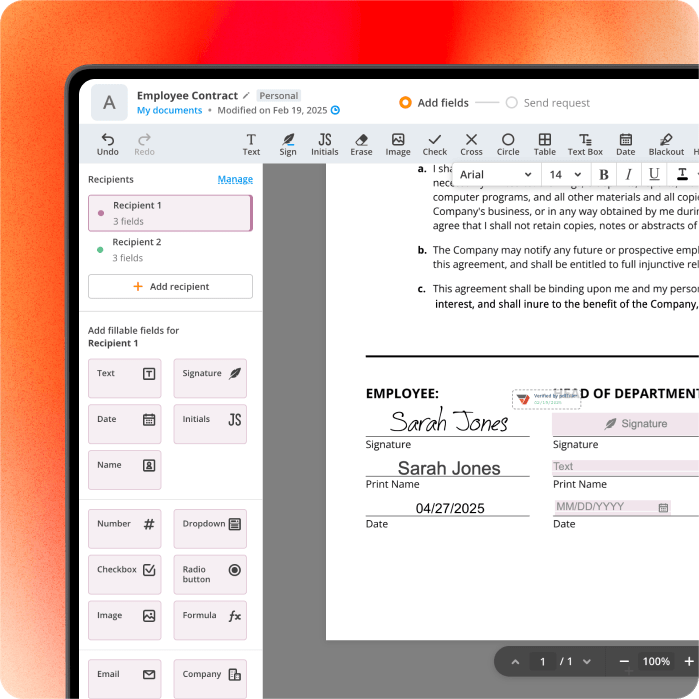
Once installed, the pdfFiller extension adds a "Fill" button that appears on PDFs you encounter in your browser. Clicking this button opens the pdfFiller editor, allowing you to annotate PDF documents effortlessly. You can navigate through various tools to highlight text, add comments, and fill forms directly on any online PDF.
Editing, Filling, and Signing PDFs
The pdfFiller Chrome extension provides core editing features that enable you to annotate PDF documents efficiently. You can fill forms directly within the PDF and add comments or notes as needed. Additionally, it supports legally binding e-signatures, ensuring that your signed documents are valid. This fast document turnaround enhances your productivity, allowing you to complete tasks in seconds.
Converting PDFs via the Extension
With the pdfFiller Chrome extension, you can convert PDFs into various formats easily. The conversion process is simple and retains the original document formatting, ensuring that your content looks professional. No additional software is needed, allowing you to convert documents directly from your browser without complications.
Creating and Managing PDFs
The pdfFiller extension also allows you to create new PDFs from scratch. You can merge multiple documents into one, split large files into smaller sections, and compress files to save space. Additionally, you can save your documents directly to Google Drive, making document management straightforward and efficient.
Using the pdfFiller Add-on for Google Docs
You can install the pdfFiller add-on from the Google Workspace Marketplace to integrate its capabilities within Google Docs. This add-on allows you to edit PDFs directly in your documents, providing easy access to templates and enhancing your workflow without complicated integration steps.
Using the pdfFiller Add-on for Google Drive
The Google Drive add-on enables you to access PDFs stored in your Drive. You can edit and sign these documents directly, saving changes back to Drive seamlessly. The user-friendly interface ensures that managing your PDFs is a hassle-free experience.
PDF Viewer and Reader Functionality
The pdfFiller Chrome extension functions as a PDF viewer, allowing you to open PDFs directly in your browser. Basic viewing tools are available, enabling you to navigate through documents without needing additional software. It supports all PDF formats, ensuring compatibility with your files.
Scenarios for Using the Extension
- A small business owner can annotate PDF contracts quickly, ensuring all terms are clear before signing.
- A freelancer can highlight important sections in client proposals, making revisions straightforward.
- A project manager can use the extension to fill out and sign project agreements directly in the browser.
- An accountant can annotate tax documents, adding notes for clients without printing or scanning.
Supported File Types via the Extension
The pdfFiller Chrome extension supports various common file formats, including PDF, DOCX, and images. However, certain file types may require uploading to the full editor for editing capabilities. Ensure your documents are in supported formats to utilize all features effectively.
How Does pdfFiller Compare?
Adobe Acrobat Chrome extension offers advanced features but requires a subscription. pdfFiller provides essential tools at no cost, making it a more accessible option for small businesses. Smallpdf Chrome extension has a simple interface but lacks comprehensive editing options, whereas pdfFiller includes a wider range of PDF operations. DocHub is good for basic annotations but limited in document management, while pdfFiller excels in both annotation and management capabilities.
Summary and Next Steps
To annotate PDF documents effectively, you can access the pdfFiller Chrome extension, the Google Docs add-on, or the Google Drive add-on. Each access point provides unique features to enhance your document management experience. Start using pdfFiller today to streamline your PDF workflows.