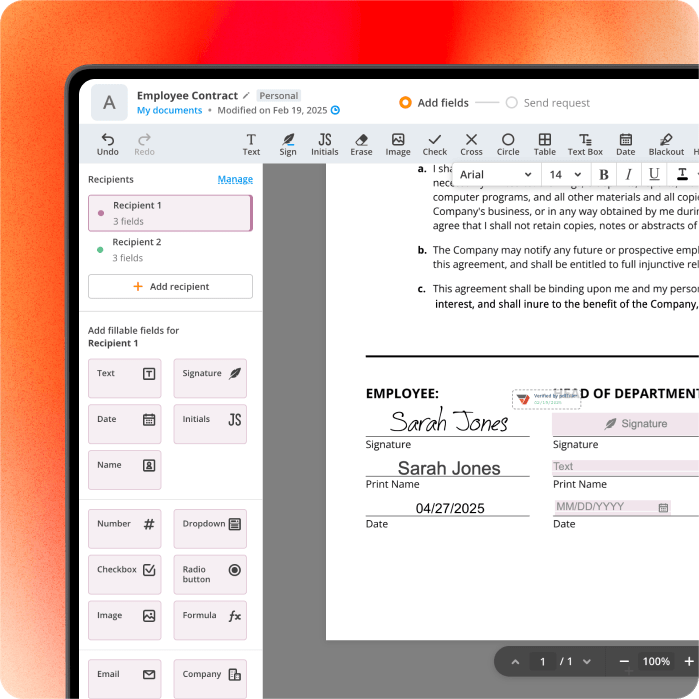
Annotate PDF Extension

Drop document here to upload
Select from device
Up to 100 MB for PDF and up to 25 MB for DOC, DOCX, RTF, PPT, PPTX, JPEG, PNG, JFIF, XLS, XLSX or TXT

Last updated on Oct 12, 2026

Annotate PDF Extension

Annotate PDF files directly in your browser using the pdfFiller extension.

What is the pdfFiller Chrome Extension?

The pdfFiller Chrome extension is a powerful tool that allows you to annotate PDF documents directly from your browser. With this extension, you can access PDF tools without needing to download any software. It is compatible with Google Workspace apps, making it a great choice for small businesses that rely on these tools. Installation is straightforward and can be done directly from the Chrome Web Store, ensuring that you can start annotating PDFs quickly and easily.

  • Access PDF tools directly from your browser without complex installations.
  • Compatible with Google Workspace apps to enhance your document workflow.
  • Easy installation from the Chrome Web Store allows for immediate use.
  • Designed specifically for small businesses to simplify PDF management.

How to Install the pdfFiller Chrome Extension

  • Visit the Chrome Web Store to find the pdfFiller extension.
  • Click the 'Add to Chrome' button to initiate the installation process.
  • Sign in to your pdfFiller account to access your documents.
  • Locate the extension in the Chrome toolbar for easy access.

How Does the Extension Work?

Using the pdfFiller Chrome extension is straightforward. You can open any PDF document in your browser and utilize the extension's features to annotate it. The 'Fill' button provides access to various editing tools that allow you to highlight text, add comments, and make other annotations. Once you have made your changes, you can save them directly to your device, ensuring that your edits are preserved.

  • Open any PDF in your browser to start the annotation process.
  • Use the 'Fill' button to access a range of editing tools available.
  • Annotate, highlight, and add comments to your PDF documents easily.
  • Save changes directly to your device for future reference.

Editing and Signing PDFs with the Extension

The pdfFiller extension offers robust editing and signing capabilities. You can edit text and images within your PDFs, making it easy to update documents as needed. Additionally, you can add legally binding e-signatures, which is essential for professionals who need to sign agreements digitally. This extension also allows for collaboration with team members, making it a valuable tool for small businesses.

  • Edit text and images in PDFs to keep your documents up to date.
  • Add legally binding e-signatures to your documents for authenticity.
  • Collaborate with team members to enhance document workflows.
  • Access your documents from any device for flexibility in editing.

Converting PDFs with the Extension

The pdfFiller extension also provides conversion capabilities, allowing you to convert PDFs to various formats. You can merge and split PDFs easily, which is useful for managing multiple documents. Additionally, the extension offers compression tools to make sharing files more manageable. Accessing these conversion tools is straightforward, enhancing your overall PDF management experience.

  • Convert PDFs to various formats to meet your document needs.
  • Merge and split PDFs easily to organize your documents effectively.
  • Compress PDF files for easier sharing without losing quality.
  • Access conversion tools directly from the extension for convenience.

Using the Google Docs Add-on

Integrating pdfFiller with Google Docs is simple and enhances your document collaboration. You can install the pdfFiller add-on from the Google Workspace Marketplace, which allows you to access its tools directly within Google Docs. This integration enables you to annotate documents seamlessly and save changes back to Google Drive, making it a practical choice for teams working on collaborative projects.

  • Install the pdfFiller add-on from the Google Workspace Marketplace.
  • Access pdfFiller tools directly within Google Docs for easy annotation.
  • Annotate documents directly in Google Docs to streamline your workflow.
  • Save changes back to Google Drive for easy document management.

Using the Google Drive Add-on

With the pdfFiller extension, you can also use it in conjunction with Google Drive. This allows you to access pdfFiller directly from your Google Drive account, making it easy to edit and sign PDFs stored there. The integration provides seamless document management, ensuring that you can handle various file formats without hassle.

  • Access pdfFiller directly from Google Drive for easy document management.
  • Edit and sign PDFs stored in Drive without needing to download them.
  • Enjoy seamless document management with integrated tools.
  • Compatible with various file formats for versatile usage.

Scenarios for Using the Extension

The pdfFiller extension is ideal for various scenarios. Freelancers can use it to annotate contracts efficiently, while small businesses can review proposals with ease. Professionals can sign agreements digitally, ensuring that processes are expedited. Teams can collaborate on project documents, enhancing productivity and communication.

  • A freelancer annotating contracts can streamline their workflow with ease.
  • A small business reviewing proposals can enhance their document management.
  • Professionals signing agreements can do so quickly and securely.
  • Teams collaborating on project documents can improve their efficiency.

Security and Data Handling

Security is a priority when using the pdfFiller extension. It employs TLS encryption to protect data in transit, ensuring that your documents remain secure. The extension also has automatic document deletion timelines, which help maintain privacy. Compliance with data protection regulations is a key feature, along with secure storage of your documents.

  • TLS encryption protects data in transit from unauthorized access.
  • Automatic document deletion timelines help maintain user privacy.
  • Compliance with data protection regulations ensures secure handling.
  • Secure storage of documents protects sensitive information effectively.

How Does pdfFiller Compare?

When evaluating pdfFiller against other PDF tools, it stands out for several reasons. It offers more templates than many competitors, making it easier to find the right document format. The interface is user-friendly compared to Adobe Acrobat, which can be overwhelming for new users. Additionally, pdfFiller provides affordable pricing tailored for small businesses, with no hidden fees, making it a transparent choice for document management.

  • pdfFiller offers more templates than competitors, enhancing usability.
  • Its easy-to-use interface is more approachable than Adobe Acrobat.
  • Affordable pricing for small businesses makes it accessible.
  • No hidden fees ensure transparency in pricing and services.

Summary and Next Steps

In summary, the pdfFiller extension is a versatile tool that simplifies PDF annotation and management. You can access it via the Chrome Web Store, and it integrates seamlessly with Google Docs and Drive. This extension supports various PDF operations, making it ideal for small businesses and professionals looking to enhance their document workflows.

  • Access the extension via the Chrome Web Store to get started.
  • Integrates with Google Docs and Drive for enhanced collaboration.
  • Supports various PDF operations to meet your business needs.
  • Ideal for small businesses and professionals seeking efficiency.

Try most popular PDF tools

Discover a full set of tools to handle any document task.

Edit PDFs

Make quick PDF edits online.

Sign

Add legally binding signatures.

Merge

Combine multiple PDFs.

Request signatures

Send a document for signing.

Convert

Transform PDFs into other formats.

Rearrange

Change the order of pages.

Share

Send PDFs for review or editing.

Compress

Reduce PDF file sizes.

Use pdfFiller where you already work

1. Connect your tools

pdfFiller, built into your existing workflow

  • Sign and fill PDFs directly in your browser Install the pdfFiller Chrome extension and open any PDF you find online directly in the editor — without downloading it first. Fill in fields, add your signature, and save or send the completed document. The tools you need are one click away, wherever you are on the web.
  • Work with Google Drive files without leaving Drive Connect pdfFiller to your Google Drive and open any document directly in the editor. Fill it, sign it, use AI to summarize or extract key information, and save the updated file back to the same Drive folder. No downloading, no re-uploading, no version confusion.
  • Embed a fillable form on your website Turn any pdfFiller form into an embeddable widget and add it to your website without a single line of code. Visitors fill it out directly on your page — no redirects, no external links, no broken experience on mobile. Submissions come into your pdfFiller account, structured and ready to act on.
  • Let AI do the repetitive work Whether you’re working from Drive, the browser, or an embedded form — AI features are available wherever pdfFiller is. Generate a form from a description, summarize a lengthy document, extract key fields, or get a draft ready in seconds. The same AI tools, across every integration.
  • Keep everything in one account, wherever it started Documents filled through the browser extension, edited from Google Drive, or submitted through an embedded form — everything lands in your pdfFiller account. Searchable, organized, and accessible from any device. One place for every document, no matter where it came from.

Who needs this?

Explore how professionals across industries use pdfFiller to edit PDFs.

Healthcare

Patient intake forms, consent documents, and referral authorizations need to reach patients before appointments, collect signatures, and land in a HIPAA-compliant system. Send forms via link, let patients fill and sign them from any device, and store everything encrypted — without a fax machine or a paper trail.

  • Patient intake and consent forms
  • Authorization and release forms (HIPAA)
  • Referral and prior authorization forms
  • Medical history and registration forms
Healthcare
  • G2 — Users Most Likely To Recommend
  • G2 — Grid Leader in Small-Business
  • G2 — High Performer
  • G2 — Regional Leader
  • G2 — Easiest To Do Business With
  • G2 — Best Meets Requirements
  • G2 — Best Support

pdfFiller scores top ratings on review platforms

pdfFiller is rated 4.6 out of 5 stars across 1,000+ G2 reviews.

This app has enabled me to complete all required documentation requirements for my new business.
Nelson K
Had a moment of learning like how to… Had a moment of learning like how to rotate document but have been overall very satisfied for what I wanted to do.
jehovah0123
PDFfiller is super amazing . it eases things.
Louis M
Proper Customer care and great functionality Had a problem with the subscription, the Customer care instantly refunded me. 5/5 for professionality
Enrico
So far I am really liking pdfFiller So far I am really liking pdfFiller. It's simple to use and has many tools at your finger tips that makes filling out paperwork even easier when you can't get ink for your printer, or you own your business where filling out important documents just looks much neater when done on computer than your own chicken scratch.
Zackary Davis
Ryan - Support Team Ryan on the Support Team was extremely helpful and patient. He walked me through all of the steps to complete the form to my satisfaction. Thank you Ryan for teaching me!
Elyssa Michelle

The document tool your small business needs to edit, share, sign, and stay compliant

pdfFiller workspace for creating, filling and managing PDF forms

PDF editing is just the beginning

Turn any document into a reusable template

How to Edit PDFs Across Devices with pdfFiller

Need to update a resume, contract, or HR form while on the go? In this tutorial, we’ll show you step-by-step how to edit PDFs across devices—from iPhone and Android to Mac and Windows. With pdfFiller, it’s simple to edit PDF files on mobile or desktop, add signatures, insert images, and share documents securely—all without extra software.

FAQs

If you can't find what you're looking for, please contact us anytime!

The Annotate PDF Extension is a powerful tool that allows users to add comments, highlights, and annotations directly on PDF documents. This extension significantly enhances document collaboration by enabling multiple users to provide feedback and make edits in real-time. For remote professionals and legal teams, this means streamlined communication and faster decision-making. To maximize its effectiveness, consider using the extension in conjunction with pdfFiller’s cloud-based document management system, which ensures all changes are saved securely and can be accessed from any device.

To ensure document security while using the Annotate PDF Extension, always utilize pdfFiller’s built-in security protocols, including encryption and access controls. This extension allows you to annotate PDFs without compromising sensitive information. For added security, regularly review user permissions and utilize password protection for shared documents. This approach not only safeguards your data but also maintains compliance with industry standards, making it ideal for legal teams and SMEs.

Yes, the Annotate PDF Extension is designed for cross-platform compatibility, allowing users to annotate PDFs on various devices, including desktops, tablets, and smartphones. This flexibility is essential for remote professionals who may need to access documents on the go. To ensure a seamless experience, always use the latest version of your browser and the pdfFiller application. This way, you can annotate, collaborate, and manage documents from anywhere, enhancing productivity.

The Annotate PDF Extension includes features such as text highlighting, sticky notes, and drawing tools, all designed to improve user experience. These tools allow users to provide clear feedback and make necessary edits directly on the document. For SMEs, this means less time spent on back-and-forth emails and more efficient document revisions. To fully leverage these features, familiarize yourself with the extension’s toolbar and shortcuts, which can significantly speed up your workflow.

The Annotate PDF Extension integrates seamlessly with pdfFiller’s document management tools, allowing users to annotate, eSign, and share documents without switching platforms. This integration is particularly beneficial for legal teams who require a comprehensive solution for document automation and collaboration. To optimize your workflow, utilize the extension in conjunction with pdfFiller’s templates and forms, ensuring all your documents are easily accessible and editable in one place.

If the Annotate PDF Extension is not functioning properly, first ensure that your browser is updated to the latest version, as compatibility issues can arise with outdated software. Additionally, check your internet connection and clear your browser cache to resolve any temporary glitches. If problems persist, consult pdfFiller’s support resources or community forums for specific troubleshooting tips. This proactive approach can save you time and ensure smooth document collaboration.

There is no strict limit to the number of annotations you can make with the Annotate PDF Extension; however, excessive annotations may affect document readability. It’s best to keep annotations concise and relevant to maintain clarity, especially for legal documents. For optimal organization, consider categorizing comments or using color codes for different types of feedback. This practice not only enhances collaboration but also ensures that all team members can easily navigate the document.

What businesses achieve with pdfFiller

Discover how you can benefit too.

I tell my employees that if you need to have stuff filled out, hey, check out pdfFiller, that's what I use. Yes, I would and I do recommend it.

Hope Discovery ABA Services

One tool. Every document task.

One workflow shouldn’t take five tools

Start free trial