







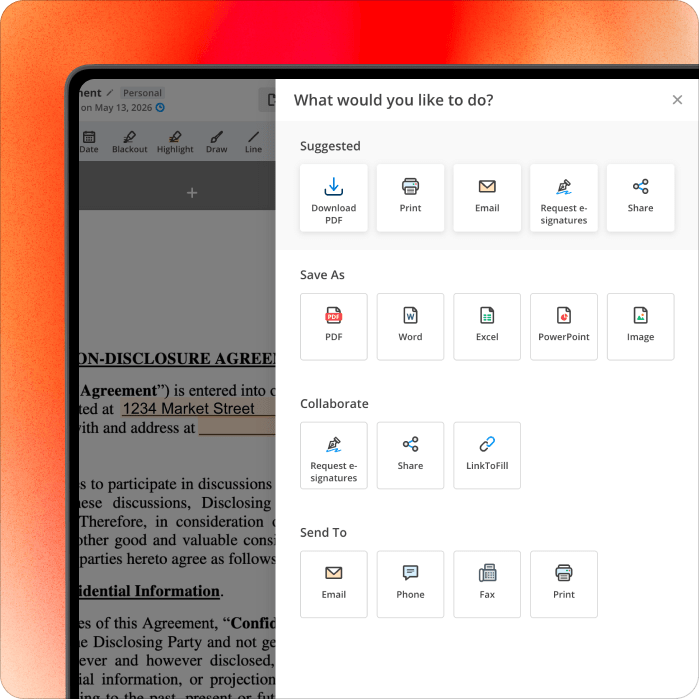
Extract Text from PDF in Bill of Sale For Free

Drop document here to upload
Select from device
Up to 100 MB for PDF and up to 25 MB for DOC, DOCX, RTF, PPT, PPTX, JPEG, PNG, JFIF, XLS, XLSX or TXT

Last updated on Sep 9, 2026

Try most popular PDF tools

Discover a full set of tools to handle any document task.

Edit PDFs

Make quick PDF edits online.

Sign

Add legally binding signatures.

Merge

Combine multiple PDFs.

Request signatures

Send a document for signing.

Convert

Transform PDFs into other formats.

Rearrange

Change the order of pages.

Share

Send PDFs for review or editing.

Compress

Reduce PDF file sizes.

How to extract text from scanned PDFs with pdfFiller

Upload your document

Extract text from scanned PDFs and do more online

  • Turn image-based PDFs into searchable, editable documents Pull text out of scanned pages, photos, and image-only PDFs instantly. Our OCR engine recognizes characters across multiple languages and converts them into selectable, copyable, searchable content—without downloading software or converting the file first. Works on any device, directly in your browser.
  • Fill out and edit scanned forms you couldn't touch before Once OCR processes your document, form fields and static text become editable. Type directly over scanned lines, correct errors, update dates or amounts, and add your own text anywhere on the page—the same way you'd edit a regular document. No more printing, handwriting, and scanning back.
  • Find any word or phrase inside your document After recognition, your PDF becomes fully searchable. Jump to specific clauses in a contract, locate a name in a multi-page report, or ctrl+F through a scanned lease agreement—exactly like a native digital file.
  • Redact, sign, and send—without leaving the editor After unlocking your document with OCR, complete the rest of your workflow in one place. Permanently redact sensitive information like SSNs or account numbers, add a legally binding signature, or send the file out for others to sign via a secure link—no switching tools.
  • Compress and finalize your document Cropping and resizing can leave your file larger than expected. Use the built-in compression tool to reduce file size with one click before downloading or sharing—without sacrificing quality.

Who needs this?

Explore how professionals across industries use pdfFiller to edit PDFs.

Education

Educators and administrators use pdfFiller to edit lesson plans, sign permission slips, and collaborate on curriculum updates. Create fillable forms for enrollment or evaluations, and organize PDFs with ease, all on one platform.

  • Lesson plans
  • Permission slips
  • Enrollment forms
  • Course registration forms
Education
  • G2 — Users Most Likely To Recommend
  • G2 — Grid Leader in Small-Business
  • G2 — High Performer
  • G2 — Regional Leader
  • G2 — Easiest To Do Business With
  • G2 — Best Meets Requirements
  • G2 — Best Support

pdfFiller scores top ratings on review platforms

pdfFiller is rated 4.6 out of 5 stars across 1,000+ G2 reviews.

fast sand easy for a first time user, than you for developing this program
Anonymous Customer
I had a Subscription for PDF filler It… I had a Subscription for PDF filler It worked well. Easy to use very user-friendly. Unfortunately, my financial circumstances are such. I had to cancel my subscription on the day it had renewed. I sent an email. Sara could not have been more helpful. My subscription was canceled, and I received an immediate return of the fee. Very happily satisfied.
Christine Coyne
It was fine. I accomplished what I needed to.
Lucille C
juuhgyggre great i use it all the time
bhjgfytf
Being a young 70+ Being a young 70+, I initially had some issues but managed to overcome them relatively easily, and I am very satisfied with the product, and the results I have achieved..
John Jefferson
Great tool It is a veritable tool and aids productivity.
mike

Extract text from any scanned PDF—instantly

Make image-based documents searchable, editable, and ready to sign. No software required.

pdfFiller workspace for creating, filling and managing PDF forms

PDF editing is just the beginning

Edit, store and transfer documents backed by pdfFiller’s enterprise-grade security, compliance and reliability.

More than a PDF editor

How to Edit Scanned PDF Documents

Need to edit text in a scanned PDF document without recreating the file from scratch? In this pdfFiller tutorial, you’ll learn how to use OCR (Optical Character Recognition) to recognize scanned text, make edits, and prepare documents such as resumes, contracts, HR forms, applications, and business records for your workflow. See how pdfFiller makes working with scanned documents straightforward—from running OCR and editing recognized text to choosing the best editing method and exporting your finished PDF.

FAQ

If you can't find what you're looking for, please contact us anytime!

The most effective method to extract text from a PDF in a Bill of Sale is to use a dedicated PDF editing tool like pdfFiller. This platform allows you to upload your PDF document, select the text extraction feature, and easily copy the required text. Unlike generic PDF readers, pdfFiller provides enhanced functionality for document automation and editing, ensuring accuracy and efficiency. For best results, ensure that your PDF is not password-protected, as this can hinder the extraction process.

Yes, you can extract text from scanned PDFs in a Bill of Sale using Optical Character Recognition (OCR) technology available in pdfFiller. This feature converts images of text into editable and searchable data. Simply upload your scanned PDF, activate the OCR feature, and pdfFiller will process the document to extract the text. This is particularly useful for legal teams and remote professionals who often deal with scanned documents. Always check the extracted text for accuracy, as OCR may occasionally misinterpret characters.

Using pdfFiller to extract text from a PDF in a Bill of Sale is secure, as the platform employs robust security protocols to protect your documents. Data encryption, secure cloud storage, and compliance with privacy regulations ensure that your sensitive information remains confidential. When choosing an online tool, always verify its security measures, especially for legal documents. pdfFiller’s commitment to security makes it a reliable choice for SMEs and legal teams needing secure document management.

To ensure the accuracy of the extracted text from a Bill of Sale, use pdfFiller’s built-in proofreading tools after extraction. After extracting the text, compare it with the original document to catch any discrepancies. Additionally, using the OCR feature can enhance accuracy for scanned documents. Regularly updating your software can also improve text recognition capabilities. This attention to detail is crucial for legal teams and professionals who rely on precise documentation.

Extracting text from a PDF in a Bill of Sale offers several benefits, including improved document automation and easier data management. By converting the PDF text into editable formats, you can quickly incorporate information into other documents or databases, enhancing workflow efficiency. This is particularly valuable for remote professionals who need to share and collaborate on legal documents. Furthermore, having editable text allows for easier updates and modifications, ensuring that your Bill of Sale remains current and accurate.

Yes, pdfFiller allows you to automate the extraction process for multiple Bills of Sale, saving you time and effort. By utilizing batch processing features, you can upload several PDFs at once and extract text from all of them simultaneously. This is especially beneficial for legal teams handling numerous transactions. To maximize efficiency, consider integrating pdfFiller with other document management systems to streamline your workflow and maintain organization.

If you encounter issues while extracting text from a PDF in a Bill of Sale, first check if the document is password-protected or scanned, as these factors can complicate extraction. Ensure you are using the latest version of pdfFiller, as updates often fix bugs and improve functionality. If problems persist, consult the pdfFiller support resources or reach out to their customer service for assistance. They can provide specific troubleshooting steps to resolve your issue efficiently.

What businesses achieve with pdfFiller

Discover how you can benefit too.

I tell my employees that if you need to have stuff filled out, hey, check out pdfFiller, that's what I use.

Therapy Hope Discovery

Extract Text from PDF in Bill of Sale

Extract text from scanned PDFs quickly using pdfFiller's OCR tool.

What is OCR and How Does It Work?

Optical Character Recognition (OCR) technology converts different types of documents, such as scanned paper documents or PDFs, into editable and searchable data. This technology is particularly useful for extracting text from PDF files that have been scanned, allowing users to work with the content in a more flexible manner. The primary difference between native and scanned PDFs lies in their format; native PDFs contain text that is already selectable and editable, while scanned PDFs consist of images of text, requiring OCR to make the text accessible. Common use cases for OCR include digitizing printed documents, automating data entry, and enabling text search in scanned files.

Why You Need OCR for Scanned PDFs

Editing scanned PDFs can be challenging due to the limitations of the format. Without OCR, the text in scanned documents remains uneditable, making it difficult to update or modify content. Converting scanned text into editable formats allows for easier document management and enhances workflow efficiency. Real-world scenarios where OCR is beneficial include updating contracts, correcting errors in scanned invoices, and extracting data from forms. The impact on document workflows is significant, as it streamlines processes and reduces the time spent on manual data entry.

How to Access OCR and Scan Tools in pdfFiller

To locate the OCR tools within pdfFiller, start by opening the pdfFiller interface. The OCR button can be found in the toolbar at the top of the screen. You can also access the All Tools panel for additional features. To upload documents for OCR, simply drag and drop your scanned PDFs into the designated area or use the upload button. For new users, navigating the interface is straightforward, with intuitive icons and prompts guiding you through the process.

Step-by-Step: Running OCR on Your Document

  • Upload your scanned PDF by dragging it into the upload area or selecting it from your files.
  • Select the OCR option from the toolbar to initiate the text recognition process.
  • Choose the language of the text in your document to improve recognition accuracy.
  • Start the OCR process by clicking the designated button, allowing pdfFiller to analyze and extract the text.

Editing a Scanned PDF After OCR

To edit text after running OCR, first, enter Edit Mode by clicking the edit button. Once in Edit Mode, you can modify the recognized text as needed, correcting any errors that may have occurred during the OCR process. After making your changes, ensure you save the document to retain your edits. Common editing tools available include text formatting options, the ability to add images, and the option to insert annotations, making it easy to enhance your scanned PDF.

Scanning Images and Photos to PDF

To convert images to PDFs, pdfFiller supports various formats such as JPG and PNG. Begin by uploading your images through the upload interface. Once uploaded, pdfFiller will automatically convert the images into a PDF format. However, it is important to note that there may be limitations regarding the quality of the scanned images, as lower-resolution photos may not yield optimal results in the final PDF.

Extracting Text from Scanned Documents

To extract text from scanned PDFs, start by selecting the appropriate templates for extraction within pdfFiller. Utilize the Extract in Bulk feature to process multiple documents at once, streamlining your workflow. Once the extraction is complete, you can download the extracted data as a spreadsheet for easy access and manipulation. Common use cases for text extraction include gathering data from forms, compiling information from multiple invoices, and creating searchable databases from scanned documents.

Cleaning Up Scanned PDFs

Improving the quality of scanned documents can significantly enhance OCR accuracy. pdfFiller offers various Clean Up filters that can be applied to scanned PDFs. To apply filters, navigate to the Clean Up options and select the desired filter. The impact of these Clean Up features on OCR accuracy is notable, as clearer images lead to better text recognition. Additionally, steps to sharpen scanned images can help ensure that the final document is both readable and professional.

Comparison with Other OCR Tools

When comparing pdfFiller's OCR capabilities with competitors, Adobe Acrobat offers comprehensive OCR features but is often more complex and costly, which may overwhelm users seeking simple solutions. Smallpdf provides a user-friendly interface but lacks some advanced features available in pdfFiller, potentially falling short for businesses with specific needs. ABBYY FineReader is known for its high accuracy but requires a steep learning curve and higher investment, making it less suitable for small businesses.

Next Steps After Extracting Text

After extracting text from your scanned PDFs, you can save and share the extracted content easily. Integrate the extracted text into your existing workflows to enhance productivity. Consider the next steps for document editing, such as formatting the text or incorporating it into legal documents, ensuring that your extracted data is utilized effectively in your business processes.

Extract text from scanned PDFs and keep every document moving.

One workflow shouldn’t take five tools

Start free trial