Print Bill of Sale
Print your bill of sale quickly and easily using pdfFiller's intuitive print feature.
What Does the Print Feature Do in pdfFiller?
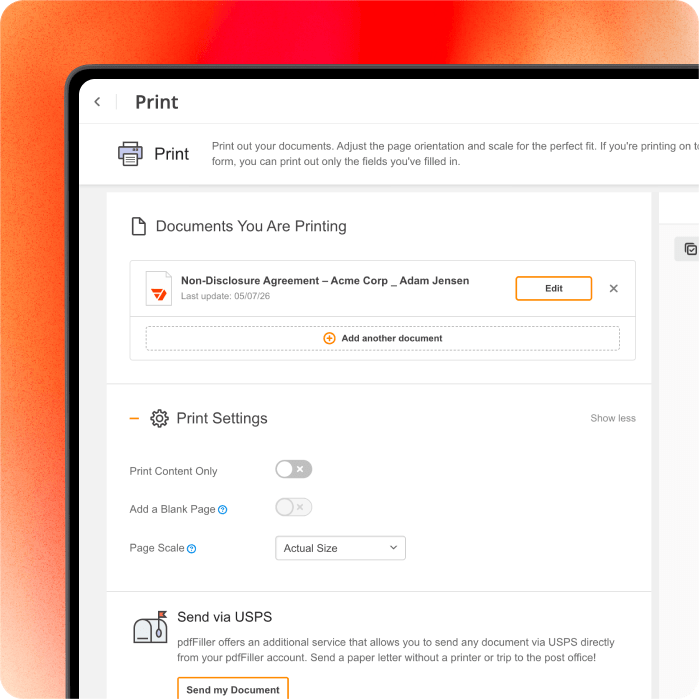
The print feature in pdfFiller allows you to efficiently print a bill of sale. You can access this feature directly from your My Docs section, where all your documents are stored. To find the print icon, simply look for the printer symbol located in the toolbar. When you click on this icon, it opens the browser print dialog, enabling you to select your printer and adjust settings as needed. The user-friendly interface ensures that even those with minimal technical skills can navigate the printing process without complications.
How to Print a Bill of Sale Document
- Locate your bill of sale document in the My Docs section of pdfFiller.
- Click on the Print icon to initiate the printing process.
- Select your preferred printer from the list of available options.
- Confirm the print job by clicking the Print button in the dialog box.
Printing a Bill of Sale to PDF
To print a bill of sale as a PDF, use the Save as PDF option available in the print dialog. This option allows you to retain the document's formatting, ensuring that all details remain intact. Access this feature through the print dialog by selecting the appropriate option before confirming your print job. This method is particularly useful for keeping a digital copy of your bill of sale while ensuring that it looks professional.
Printing a Bill of Sale with Comments
When printing a bill of sale that includes comments, it is essential to ensure that all annotations are visible in the printed output. Adjust your print settings to include comments, as missing annotations can lead to misunderstandings. The importance of comments cannot be overstated, as they often provide crucial context for the transaction documented in the bill of sale.
Printing Password-Protected Bills of Sale
To print locked documents, you must first meet access requirements set by the document's creator. This means you should have the necessary permissions to view and print the bill of sale. It is important to note that you cannot circumvent security measures, as doing so poses significant risks. Always ensure you have the right permissions before attempting to print password-protected documents.
Printing Double-Sided Bills of Sale
To print on both sides of the paper, select the duplex printing option in your printer settings. This feature not only saves paper but also presents a more professional appearance for your bill of sale. Understanding the benefits of double-sided printing can help you make a more environmentally friendly choice while maintaining the quality of your documents.
Printing Multiple Bills of Sale at Once
- Select multiple bills of sale documents from your My Docs section.
- Utilize batch printing options to print all selected documents simultaneously.
- This method saves time and improves efficiency for small business documents.
- Ensure that all documents are correctly formatted before initiating batch printing.
Printing Fillable Forms and Bills of Sale
When printing fillable forms, it is crucial to ensure that all field data is retained. Adjust your print settings specifically for forms to maintain accuracy in the printed output. The importance of preserving data integrity cannot be overlooked, as any data loss during printing can lead to complications in transactions.
Printing from Different Browsers and Devices
- Check for browser compatibility to ensure smooth printing experiences.
- Follow device-specific instructions for optimal results when printing.
- Be aware of common issues that may arise with unsupported browsers.
- Test the print feature on different devices to identify any discrepancies.
Scenarios for Printing a Bill of Sale
- A real estate agent may need to print a bill of sale for a property transaction, ensuring all details are clear and professional.
- A car dealer prints a bill of sale to finalize a vehicle sale, providing a physical copy for the buyer.
- A freelancer may print a bill of sale for services rendered, ensuring that all terms are documented for both parties.
How Does pdfFiller Compare?
Adobe Acrobat offers extensive editing features but requires a subscription for full functionality. Users may find it complex for simple printing tasks.
Smallpdf provides a user-friendly interface for PDF tasks but lacks advanced printing options. It may not support all document types effectively.
DocuSign focuses on e-signatures and document management but does not prioritize printing features. Users may need additional tools for printing needs.