









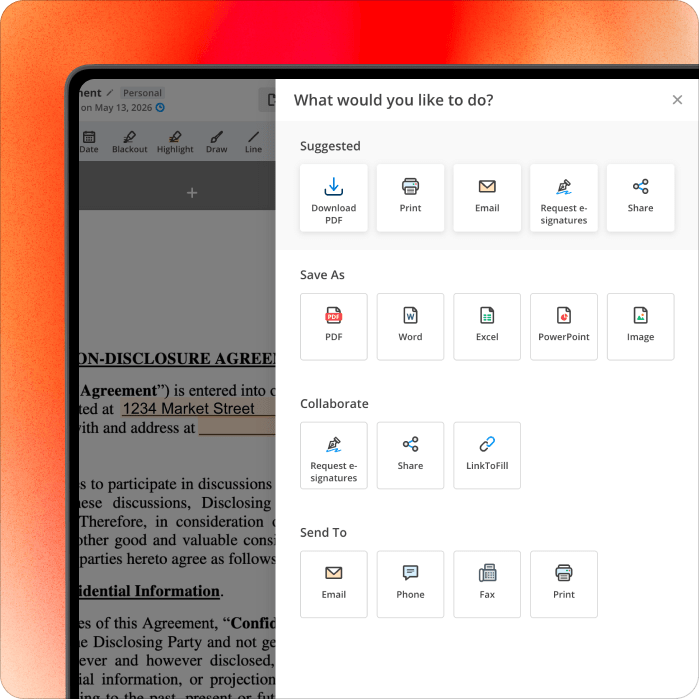


Extract Text from PDF in CV
Extract text from scanned PDFs easily using pdfFiller's OCR tool.
What is OCR and How Does It Work?
OCR, or Optical Character Recognition, is a technology that converts different types of documents, such as scanned paper documents or images captured by a digital camera, into editable and searchable data. The primary difference between native and scanned PDFs lies in their format; native PDFs are created from digital sources, while scanned PDFs are images of printed documents. Understanding OCR is essential for editing scanned documents, as it transforms these images into editable text. Common use cases for OCR technology in business include digitizing invoices, processing forms, and archiving historical documents, making it a valuable tool for enhancing productivity.
Why You Need OCR for Scanned PDFs
Editing scanned PDFs can be challenging due to their image-based format, which does not allow for direct text manipulation. OCR technology addresses these challenges by converting scanned text into editable text, enabling you to make necessary changes easily. This conversion is particularly beneficial for document types such as contracts, reports, and forms that require frequent updates. Additionally, using OCR can save time by automating the text extraction process, allowing you to focus on more critical tasks.
How to Access OCR Tools in pdfFiller
- Open pdfFiller and log into your account to access the main dashboard.
- Locate the OCR tool in the toolbar at the top of the interface.
- If you don't have a document open, you can still access OCR through the All Tools panel.
- Click on the OCR option to begin the text extraction process.
- Explore user-friendly interface features that guide you through the OCR process.
Steps to Extract Text from PDF Using OCR
- Upload your scanned PDF document to pdfFiller.
- Select the OCR tool from the toolbar to initiate the text extraction.
- Follow the prompts to apply OCR to your document, ensuring all text is recognized.
- Review the extracted text for accuracy and make necessary edits.
- Utilize editing options to refine the text as needed after OCR processing.
- Convert the scanned PDF to a Word document if further editing is required.
- Save your changes and download the edited document in your preferred format.
- For optimal results, ensure your scanned PDF is of high quality before applying OCR.
Editing a Scanned PDF After OCR
Editing a scanned PDF after applying OCR involves a two-step process. First, you need to ensure that the OCR has accurately converted the text. Then, you can access Edit Mode within pdfFiller to make changes. Tools available in Edit Mode include text editing, formatting options, and the ability to add images or annotations. Common editing tasks include correcting typos, updating information, and adjusting layout. For instance, a legal assistant may need to edit a scanned contract to reflect new terms, showcasing the practical application of OCR in everyday tasks.
Scanning Images to PDF Without OCR
To scan images to PDF without using OCR, start by uploading your images directly into pdfFiller. This process differs from OCR, as it does not convert text within images into editable formats. Supported image formats include JPEG, PNG, and BMP. Use cases for scanning images include creating portfolios, compiling visual assets, or archiving photographs. This method is straightforward and effective for preserving the original quality of images.
Extracting Text from Scanned Documents
There are various methods for extracting text from scanned documents, including using OCR tools like pdfFiller. The platform also offers bulk extraction features, allowing you to process multiple documents simultaneously. Common formats for extracted text include Word and plain text files, which can be used for further editing or analysis. Practical applications in business include digitizing records, creating searchable databases, and facilitating data entry tasks.
Cleaning Up Scanned PDFs for Better OCR
Improving OCR results can be achieved through various cleanup techniques. pdfFiller provides Clean Up filters that enhance the quality of scanned PDFs. Benefits of sharpening PDFs include clearer text recognition and reduced errors during the OCR process. Steps to enhance scan quality involve adjusting brightness, contrast, and removing any background noise. For example, a marketing professional may clean up a scanned brochure to ensure all text is legible before using it in a presentation.
How Does pdfFiller Compare to Alternatives?
Adobe Acrobat offers extensive features but can be complex for small businesses, with a trade-off of higher costs and a steep learning curve. ABBYY FineReader is known for its accuracy but lacks a user-friendly interface, requiring more technical knowledge. In contrast, pdfFiller provides a simple interface with essential features, making it more accessible for everyday tasks. Smallpdf offers a straightforward interface but lacks advanced functionalities compared to pdfFiller, limiting its use for more complex tasks.
Next Steps for Using OCR in Your Workflow
Integrating OCR into your daily tasks can significantly enhance your document management processes. The benefits of a digital workflow include increased efficiency, reduced paper usage, and easier access to information. Explore the features of pdfFiller to streamline your document workflows and consider further learning opportunities to maximize your use of OCR technology. Taking these steps will help you leverage OCR effectively in your business operations.