







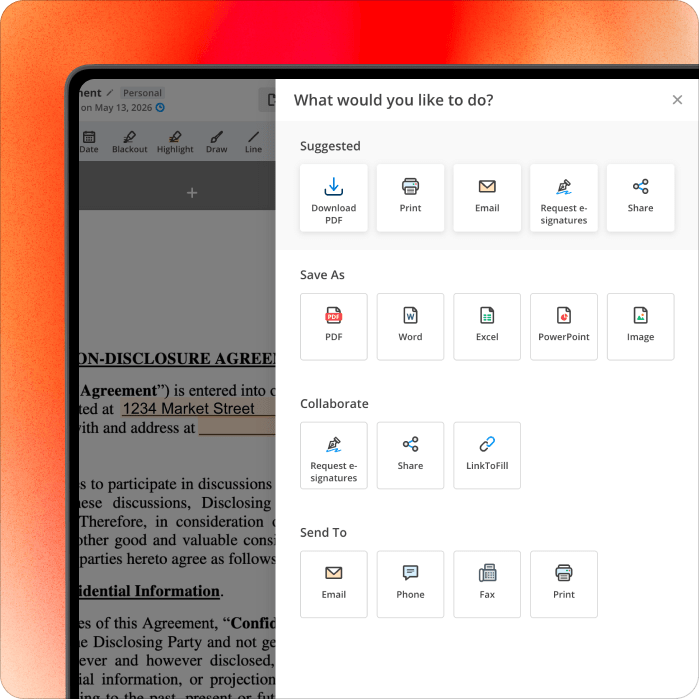
Extract Text from PDF in Invoice Template For Free

Drop document here to upload
Select from device
Up to 100 MB for PDF and up to 25 MB for DOC, DOCX, RTF, PPT, PPTX, JPEG, PNG, JFIF, XLS, XLSX or TXT

Last updated on Sep 9, 2026

Try most popular PDF tools

Discover a full set of tools to handle any document task.

Edit PDFs

Make quick PDF edits online.

Sign

Add legally binding signatures.

Merge

Combine multiple PDFs.

Request signatures

Send a document for signing.

Convert

Transform PDFs into other formats.

Rearrange

Change the order of pages.

Share

Send PDFs for review or editing.

Compress

Reduce PDF file sizes.

How to extract text from scanned PDFs with pdfFiller

Upload your document

Extract text from scanned PDFs and do more online

  • Turn image-based PDFs into searchable, editable documents Pull text out of scanned pages, photos, and image-only PDFs instantly. Our OCR engine recognizes characters across multiple languages and converts them into selectable, copyable, searchable content—without downloading software or converting the file first. Works on any device, directly in your browser.
  • Fill out and edit scanned forms you couldn't touch before Once OCR processes your document, form fields and static text become editable. Type directly over scanned lines, correct errors, update dates or amounts, and add your own text anywhere on the page—the same way you'd edit a regular document. No more printing, handwriting, and scanning back.
  • Find any word or phrase inside your document After recognition, your PDF becomes fully searchable. Jump to specific clauses in a contract, locate a name in a multi-page report, or ctrl+F through a scanned lease agreement—exactly like a native digital file.
  • Redact, sign, and send—without leaving the editor After unlocking your document with OCR, complete the rest of your workflow in one place. Permanently redact sensitive information like SSNs or account numbers, add a legally binding signature, or send the file out for others to sign via a secure link—no switching tools.
  • Compress and finalize your document Cropping and resizing can leave your file larger than expected. Use the built-in compression tool to reduce file size with one click before downloading or sharing—without sacrificing quality.

Who needs this?

Explore how professionals across industries use pdfFiller to edit PDFs.

Education

Educators and administrators use pdfFiller to edit lesson plans, sign permission slips, and collaborate on curriculum updates. Create fillable forms for enrollment or evaluations, and organize PDFs with ease, all on one platform.

  • Lesson plans
  • Permission slips
  • Enrollment forms
  • Course registration forms
Education
  • G2 — Users Most Likely To Recommend
  • G2 — Grid Leader in Small-Business
  • G2 — High Performer
  • G2 — Regional Leader
  • G2 — Easiest To Do Business With
  • G2 — Best Meets Requirements
  • G2 — Best Support

pdfFiller scores top ratings on review platforms

pdfFiller is rated 4.6 out of 5 stars across 1,000+ G2 reviews.

Really Great Technology in Signing and Filling out Documents
Michael P
Super easy to use and very professional app
Yigal
Really enjoying it as I get used to the features.
Vince H
Awesome!! Awesome!! This is really helping me in my business.
Nicole Brown
Awesome customer service! Received a prompt and courteous reply to my query. The customer service you provide has been exceptional, right from the onset. I will not hesitate to call upon your services again in the future. Many thanks and keep up the awesome work!
Sherwood
A Comprehensive and User-Friendly PDF Editing & Document Management Solution I recently started using pdfFiller for my document needs, and my overall experience has been very positive. The platform offers a wide array of features that make handling PDFs and documents incredibly efficient. All-in-One Functionality: pdfFiller truly lives up to its promise as an "all-in-one" solution. Whether you need to edit, merge, split, sign, or even rearrange pages, everything is available in one intuitive dashboard. This has streamlined my workflow significantly by eliminating the need to juggle multiple applications.
Deborah Swan

Extract text from any scanned PDF—instantly

Make image-based documents searchable, editable, and ready to sign. No software required.

pdfFiller workspace for creating, filling and managing PDF forms

PDF editing is just the beginning

Edit, store and transfer documents backed by pdfFiller’s enterprise-grade security, compliance and reliability.

More than a PDF editor

How to Edit Scanned PDF Documents

Need to edit text in a scanned PDF document without recreating the file from scratch? In this pdfFiller tutorial, you’ll learn how to use OCR (Optical Character Recognition) to recognize scanned text, make edits, and prepare documents such as resumes, contracts, HR forms, applications, and business records for your workflow. See how pdfFiller makes working with scanned documents straightforward—from running OCR and editing recognized text to choosing the best editing method and exporting your finished PDF.

FAQ

If you can't find what you're looking for, please contact us anytime!

To efficiently extract text from a PDF in an invoice template using pdfFiller, simply upload your PDF file to the platform and utilize the 'Text' tool to select and copy the desired text. This method allows for quick extraction without compromising document integrity. For best results, ensure your invoice template is well-structured. Additionally, consider using the OCR (Optical Character Recognition) feature if your PDF contains scanned images of text, enhancing accuracy in extraction.

When extracting text from PDF invoice templates with pdfFiller, your data is protected by robust security protocols, including end-to-end encryption and secure cloud storage. This ensures that sensitive information remains confidential during the extraction process. Always verify that your documents are stored securely and consider using password protection for added security. Regularly review your security settings to maintain compliance with data protection regulations.

Yes, you can automate the extraction of text from PDF invoice templates for multiple documents using pdfFiller's document automation features. By creating templates and using batch processing, you can streamline the extraction process, saving time and reducing manual errors. This is particularly useful for legal teams and SMEs that handle large volumes of invoices. Make sure to set up your templates correctly to maximize efficiency and accuracy.

If the text extraction from your PDF invoice template is inaccurate, first check the quality of the original document. Low-quality scans can lead to errors. Use pdfFiller's OCR feature to improve accuracy, especially for scanned documents. If issues persist, manually adjust the extracted text using the editing tools available in pdfFiller. Regularly updating your invoice templates can also help minimize extraction errors in the future.

Yes, pdfFiller allows you to extract text from PDF invoice templates on mobile devices through its mobile app. This cross-platform compatibility ensures that you can manage documents and extract text on the go. Simply download the app, upload your PDF, and use the extraction tools available. For optimal performance, ensure your mobile device is updated and has a stable internet connection.

pdfFiller stands out among other tools for extracting text from PDF invoice templates due to its user-friendly interface and comprehensive features, including eSigning and collaboration tools. Unlike many competitors, pdfFiller offers seamless integration with cloud storage services and supports various file formats. This makes it a versatile choice for remote professionals and legal teams looking for a secure, all-in-one document management solution.

To prepare PDF invoice templates for optimal text extraction, ensure that your documents are clear and well-structured. Use standard fonts and avoid excessive graphics that may interfere with text recognition. Additionally, save your invoices in a high-resolution format to enhance OCR accuracy. Regularly review and update your templates to align with best practices in document automation, making the extraction process smoother and more efficient.

What businesses achieve with pdfFiller

Discover how you can benefit too.

I tell my employees that if you need to have stuff filled out, hey, check out pdfFiller, that's what I use.

Therapy Hope Discovery

Extract Text from PDF in Invoice Template

Extract text from your PDF invoice quickly and easily using pdfFiller's OCR tool.

What is OCR and How Does it Work?

OCR, or Optical Character Recognition, is a technology that converts different types of documents, such as scanned paper documents or images, into editable and searchable data. When applied to scanned PDFs, OCR enables users to extract text from PDF files that were previously non-editable. This process is particularly beneficial for small and medium-sized businesses that need to manage documents efficiently. By using OCR, you can transform scanned PDFs into editable text, making it easier to update and share important information.

Why You Need OCR for Scanned PDFs

Scanned PDFs are essentially images of documents, which means they cannot be edited or searched without OCR. This limitation can hinder productivity, especially when you need to extract text from PDF invoices for accounting or record-keeping purposes. Editable documents are crucial for effective document management, allowing you to make changes quickly and accurately. Common use cases include updating invoice details, correcting errors, or extracting data for analysis. Without OCR, these tasks become time-consuming and cumbersome.

How to Access OCR Tools in pdfFiller

  • Log in to your pdfFiller account.
  • Upload your scanned PDF document to the platform.
  • Locate the OCR tool in the toolbar at the top of the screen.
  • Select the language of the text in your document.
  • Click the "Start OCR" button to begin the process.
  • Access the OCR tool card from the All Tools panel without opening a document.

Step-by-Step Guide to Extracting Text

  • Upload your scanned PDF invoice to pdfFiller.
  • Click on the OCR tool in the toolbar.
  • Select the appropriate language for the text recognition.
  • Click "Start OCR" to process the document.
  • Once OCR is complete, switch to Edit Mode to modify the extracted text.
  • Make any necessary edits to the text in the document.
  • Save your changes and download the updated document.
  • Share or print the document as needed.

Converting Scanned PDFs to Editable Formats

To convert scanned PDFs into editable formats like Word or Excel, you first need to apply OCR to the document. Once the text is recognized, you can export the document in your desired format. Supported formats include DOCX and XLSX, allowing for easy editing and manipulation of the extracted data. However, it’s important to note that the quality of the original scan can affect the accuracy of the conversion process. Ensure your scanned documents are clear and legible for the best results.

Extracting Text from Invoice Templates

When dealing with invoice templates, extracting text can streamline your accounting processes. Common invoice formats include PDF and image files, which can be processed using OCR. To extract text effectively, ensure that the invoice is scanned at a high resolution. This will improve the accuracy of the OCR process. Additionally, familiarize yourself with the layout of your invoices to identify key areas for extraction, such as totals, dates, and line items.

Cleaning Up Scanned PDFs for Better OCR Results

Improving the quality of your scanned documents can significantly enhance OCR accuracy. Use pdfFiller's Clean Up tools to remove any black borders, deskew images, and despeckle the document. These adjustments help create a clearer image for the OCR process, leading to better text recognition. High-quality scans ensure that the extracted text is accurate and reduces the need for extensive editing afterward.

Security Measures for Your Documents

pdfFiller prioritizes the security of your documents during the OCR process. All uploaded files are protected with TLS encryption while in transit. Additionally, pdfFiller has strict data handling practices in place, ensuring that your documents are automatically deleted after a specified retention period. Compliance with industry standards further enhances the security of your sensitive information, giving you peace of mind while using the platform.

How Does pdfFiller Compare?

Adobe Acrobat offers extensive features but can be complex for small businesses. Users may find it overwhelming without dedicated IT support.

Smallpdf provides a simple interface but lacks advanced OCR capabilities compared to pdfFiller. It may not meet all professional needs.

ABBYY FineReader is known for accuracy but comes with a higher price point. It may not be cost-effective for small businesses needing basic OCR.

Next Steps After Extracting Text

After extracting text from your PDFs, you can proceed to edit the document as needed. Use pdfFiller's editing tools to make changes, fill in forms, or add signatures. Once your document is finalized, you can share it directly from the platform or download it for offline use. This workflow allows you to manage your documents efficiently, ensuring that all necessary information is easily accessible and editable.

Extract text from scanned PDFs and keep every document moving.

One workflow shouldn’t take five tools

Start free trial