Print NDA For Free

Drop document here to upload
Select from device
Up to 100 MB for PDF and up to 25 MB for DOC, DOCX, RTF, PPT, PPTX, JPEG, PNG, JFIF, XLS, XLSX or TXT

Last updated on Sep 10, 2026

Print NDA

Print your NDA in seconds using pdfFiller's intuitive interface, accessible from any device.

What Does the Print Feature Do in pdfFiller?

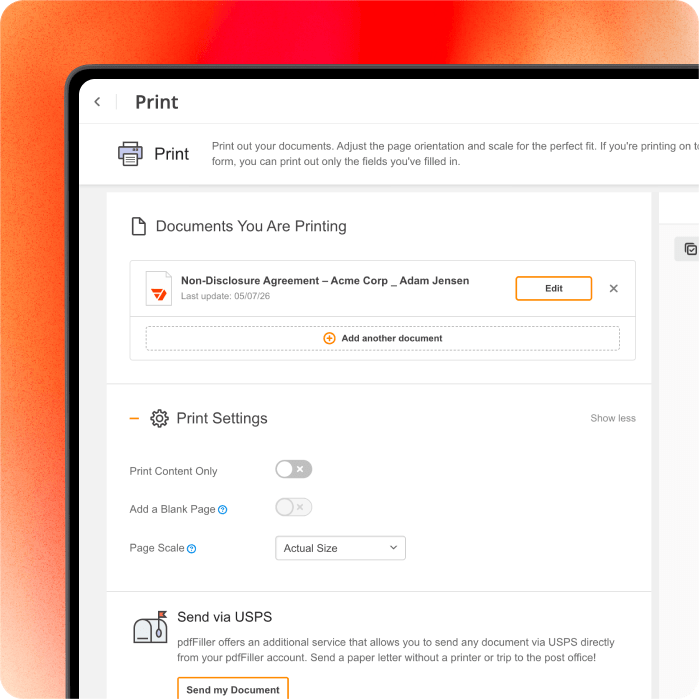
The print feature in pdfFiller allows you to easily print documents directly from your account. You can access this feature via the My Docs section or the preview panel of any document. Each document row includes a print icon that triggers your browser's native print dialog, making it straightforward to finalize and share legal documents. This user-friendly approach saves time and simplifies the process for small and medium-sized businesses needing to print NDAs quickly.

How to Print a PDF Document

  • Locate your NDA document in the My Docs section of pdfFiller.
  • Click the Print icon and select your preferred printer from the list.
  • Confirm your print settings, ensuring they match your requirements before proceeding.

Printing to PDF (Save as PDF via Print Dialog)

You can also save your NDA as a PDF using the browser's Save as PDF option. This method does not require any additional software and is ideal for sharing digital copies of your documents. By selecting this option, you ensure that your NDA retains its formatting and can be easily distributed without losing any information.

Printing a PDF with Comments

When printing an NDA that includes comments or annotations, it's essential to ensure these are visible in the printed output. You can enable comments in the print settings to ensure that all annotations are included. This feature is particularly useful for collaborative reviews, allowing all parties to see feedback directly on the printed document.

Printing Password-Protected or Locked PDFs

When dealing with password-protected or locked PDFs, you must meet specific access requirements to print these documents. Limitations on printing may apply based on the document's security settings, so it's crucial to understand these protocols before attempting to print. Always ensure you have the necessary permissions to avoid any issues.

Printing Double-Sided (Duplex) PDFs

To print double-sided documents, select the duplex option in the print dialog. This feature not only saves paper but also reduces the overall environmental impact of printing. Ensure your printer is compatible with double-sided printing to take advantage of this option.

Printing Multiple PDF Files

You can select multiple documents in the My Docs section of pdfFiller for batch printing. This option allows you to print several NDAs at once, saving you time and streamlining your document workflow. Batch printing is particularly beneficial for legal teams managing multiple agreements simultaneously.

Printing Fillable Forms and Documents

When printing fillable forms, it is crucial to ensure that the data entered is preserved in the printed output. To achieve this, follow the steps to print filled forms correctly, ensuring that all information is retained. This process is vital for maintaining data integrity in printed documents.

Printing from Specific Browsers and Devices

Printing from pdfFiller is compatible with popular browsers like Chrome, Firefox, and Edge. Each browser may have specific instructions for printing, so it's essential to follow device-specific guidelines. Troubleshooting common issues can also help ensure a smooth printing experience across different platforms.

How Does pdfFiller Compare?

Adobe Acrobat offers extensive editing features but requires a subscription. In contrast, pdfFiller provides essential printing capabilities without hidden fees. Smallpdf is good for basic tasks but lacks advanced features like bulk printing, while pdfFiller supports multiple document types and workflows, making it a more versatile choice for small businesses.

Try most popular PDF tools

Discover a full set of tools to handle any document task.

Edit PDFs

Make quick PDF edits online.

Sign

Add legally binding signatures.

Merge

Combine multiple PDFs.

Request signatures

Send a document for signing.

Convert

Transform PDFs into other formats.

Rearrange

Change the order of pages.

Share

Send PDFs for review or editing.

Compress

Reduce PDF file sizes.

How to print, fax, or notarize a document

1. Upload or open your document

Print, fax, notarize, and store — all in one place

  • Print any document from anywhere Upload your PDF and send it to any printer — at the office, at home, or at a local print shop — directly from your pdfFiller account. No downloading, no formatting issues. Your document comes out exactly as it looks on screen.
  • Send a fax without a fax machine Some industries still run on fax — healthcare, legal, insurance, government. pdfFiller lets you send and receive faxes directly from your browser. Upload the document, enter the number, and it's gone. No hardware, no dedicated fax line, no extra subscription.
  • Get documents notarized online Notarization no longer means booking an appointment and driving across town. Connect with a commissioned notary online, complete the session by video, and get your document notarized in minutes — legally valid, fully digital.
  • Sign before you send Add your signature, initials, or date stamp directly inside your document—then print, fax, or share it. Sign a contract before faxing it to the bank, or add initials to a lease before sending it to a client. Draw, type, or upload once, then reuse it across any document.
  • Pull from any cloud, save back instantly Connect Google Drive, Dropbox, Box, or OneDrive and work with files directly — no downloading, no re-uploading. Pull a document, fill it, sign it, fax it, and save it back to the same folder it came from.

Who needs this?

Explore how professionals across industries use pdfFiller to edit PDFs.

Healthcare

Patient forms, referral requests, insurance claims — healthcare runs on paperwork that needs to move fast and stay compliant. Print intake forms directly from your account, fax referrals to specialists without a fax machine, and get consent forms notarized online without scheduling an in-person appointment. HIPAA-compliant storage keeps every document secure.

  • Patient intake and registration forms
  • Referral letters and specialist requests
  • Insurance claims and prior authorization forms
  • Consent forms requiring notarization
Healthcare
  • G2 — Users Most Likely To Recommend
  • G2 — Grid Leader in Small-Business
  • G2 — High Performer
  • G2 — Regional Leader
  • G2 — Easiest To Do Business With
  • G2 — Best Meets Requirements
  • G2 — Best Support

pdfFiller scores top ratings on review platforms

pdfFiller is rated 4.6 out of 5 stars across 1,000+ G2 reviews.

Saved me hours and makes working remote from the office so much easie
Diana
So far, so good. Looking forward to testing sending this and having someone fill out and send back to me.
Jenny D
it has been a very helpful website for me to manage documents for my business while I am on the go.
Olivia G
love it love it, i never thought this existed
AbdulGaniyu AbdulAzeez
Using it occasionally. But easy and quick to use.
Shahul
good Very good, love this, helps a lot.
Synthia Gonzalez

Print, fax, notarize, and store PDFs without the back-and-forth

No extra tools, no wasted time.

pdfFiller workspace for creating, filling and managing PDF forms

PDF editing is just the beginning

More than a PDF editor

What’s New in pdfFiller: AI, Editing, eSignatures & Document Management

Discover the latest pdfFiller features and new features designed to make document work easier for small businesses, teams, freelancers, and individuals. In this full feature walkthrough, you’ll see how to create, edit, fill, manage, store, and eSign documents for everyday workflows like resumes, contracts, HR forms, applications, invoices, onboarding paperwork, and more — all in one place.

FAQs

If you can't find what you're looking for, please contact us anytime!

To print an NDA using pdfFiller, simply open the document in the platform, click on the 'Print' option in the toolbar, and select your printer settings. This straightforward process ensures that your Non-Disclosure Agreement is printed securely and accurately. After editing or signing your NDA, ensure that all necessary fields are completed before printing. For best results, check the print preview to confirm that the layout meets your expectations.

When printing an NDA from pdfFiller, you benefit from robust security features that protect your sensitive information. pdfFiller employs encryption protocols to safeguard your documents during editing and printing. Additionally, you can set permissions to restrict access to your NDA, ensuring that only authorized individuals can view or print it. Always verify that your document is secure by using password protection for sensitive NDAs before sharing or printing.

Yes, you can print an NDA on different devices using pdfFiller, thanks to its cross-platform compatibility. Whether you are using a desktop, tablet, or smartphone, simply log into your pdfFiller account, access your NDA, and print directly from your device. This flexibility allows remote professionals and legal teams to manage their documents efficiently, regardless of location. Ensure your device has a compatible printer set up for seamless printing.

If your NDA doesn't print correctly from pdfFiller, first check your printer settings to ensure they are configured properly. Common issues include incorrect paper size or orientation settings. If the problem persists, try downloading the NDA as a PDF file and printing it directly from your device's PDF viewer. This can resolve formatting issues. Additionally, ensure that your internet connection is stable while using pdfFiller to avoid disruptions during the printing process.

Yes, you can print a signed NDA from pdfFiller easily. After all parties have eSigned the document, simply navigate to the signed NDA in your account, and select the 'Print' option. This feature allows you to obtain a hard copy of your legally binding agreement for your records. For added convenience, consider downloading the signed NDA as a PDF before printing to ensure you have a backup copy stored securely.

To ensure that your printed NDA is legally compliant, make sure all necessary elements are included, such as the parties' names, effective date, and signature lines. pdfFiller provides templates that adhere to legal standards, which can be customized to fit your needs. Before printing, review the document thoroughly to confirm that all clauses are clear and that it meets the specific requirements of your jurisdiction. Consulting with a legal professional can also provide additional assurance.

Using pdfFiller for printing NDAs offers several advantages, including ease of use, security, and document automation. The platform allows you to edit, sign, and print your NDA all in one place, streamlining your workflow. Additionally, pdfFiller's cloud-based system ensures that your documents are accessible from anywhere, making it ideal for remote professionals and legal teams. By utilizing pdfFiller, you can maintain control over your NDAs while ensuring they are printed accurately and securely.

What businesses achieve with pdfFiller

Discover how you can benefit too.

I tell my employees that if you need to have stuff filled out, hey, check out pdfFiller, that's what I use. Yes, I would and I do recommend it.

Hope Discovery ABA Services

One tool. Every document task.

One workflow shouldn’t take five tools

Start free trial