Print Power of Attorney For Free

Drop document here to upload
Select from device
Up to 100 MB for PDF and up to 25 MB for DOC, DOCX, RTF, PPT, PPTX, JPEG, PNG, JFIF, XLS, XLSX or TXT

Last updated on Sep 9, 2026

Print Power of Attorney

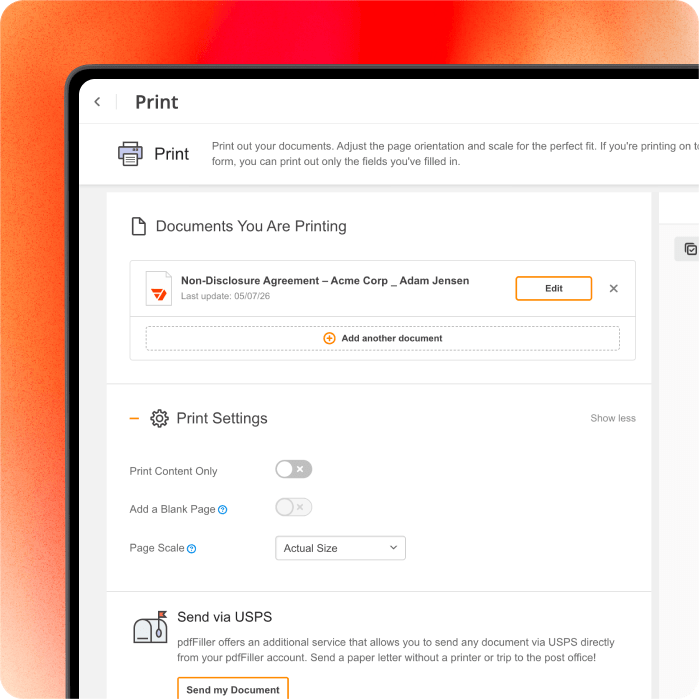
Print your Power of Attorney document quickly using pdfFiller's easy-to-use print feature.

What Does the Print Feature Do in pdfFiller?

The print feature in pdfFiller allows you to efficiently print documents, including your Power of Attorney. To access this feature, navigate to the My Docs section where your documents are stored. Look for the print icon, which is typically located in the toolbar. When you click on this icon, it opens the browser print dialog, enabling you to select your printing preferences without any complex setups. This straightforward process ensures that you can print documents quickly and effectively.

How to Print a PDF Document

To print your Power of Attorney document, first, locate the specific PDF file you wish to print. Once you have found it, select your printer from the available options. After selecting the printer, confirm the print action by clicking the print button in the dialog box. This step-by-step guide ensures that you can print documents without any confusing instructions, allowing for a smooth printing experience.

How to Print to PDF

If you want to save your Power of Attorney as a PDF while printing, access the print dialog in your browser. Look for the option that allows you to save as PDF instead of printing directly. This feature is useful for creating a digital copy of your document, ensuring that you have a backup without needing file conversion features.

Printing a PDF with Comments

When printing your Power of Attorney, it’s important to ensure that any comments or annotations are included. Check the visibility of annotations in the print settings to confirm that comments will appear in the printed document. This step prevents missing comments, which can be crucial for legal forms.

Printing Password-Protected PDFs

To print a locked Power of Attorney document, you must meet specific access requirements. Ensure you have the necessary permissions to open and print the document. Security considerations are vital, as circumventing encryption is not advisable. This process helps maintain the integrity of sensitive documents.

How to Print Double-Sided PDFs

To select duplex printing options for your Power of Attorney, access the printer settings before confirming the print job. Look for duplex settings that allow you to print on both sides of the paper. Ensure your browser is compatible with these settings to avoid single-sided printing, which can waste paper.

Printing a PDF as a Booklet

When formatting your Power of Attorney for booklet printing, you need to choose the appropriate booklet layout options in the print settings. Supported browsers will typically have this feature available. This guide on booklet formatting ensures that your document is printed correctly for easy reading.

Printing Multiple PDF Files

To print several Power of Attorney documents at once, start by selecting multiple documents from your My Docs section. Utilize the batch printing options available in pdfFiller, which allows you to print multiple files simultaneously. This method saves time compared to printing one document at a time.

Printing Fillable Forms and Documents

When printing fillable forms like your Power of Attorney, it’s essential to ensure that field data is visible in the printed document. Adjust the print settings to preserve the data entered in the fields. This focus on fillable forms prevents data loss during the printing process.

Printing from Specific Browsers and Devices

When printing your Power of Attorney, it’s important to follow browser-specific instructions to ensure compatibility. Different devices may have unique print dialogs, so check the settings based on the browser you are using. This guidance helps avoid issues with unsupported browsers that may hinder the printing process.

Print Scenarios for Professionals

For professionals like lawyers, real estate agents, and small business owners, printing a Power of Attorney document can vary based on specific needs. For instance, a lawyer may need to print multiple copies for client signatures, while a real estate agent might require a version with e-signatures for quick transactions. Understanding these role-specific scenarios ensures that the document types are printed correctly and meet the necessary legal standards.

How Does pdfFiller Compare?

Adobe Acrobat offers extensive editing features, but requires complex setup and higher costs.

Smallpdf provides basic PDF tools, but lacks advanced printing options available in pdfFiller.

DocuSign focuses on e-signatures, but does not offer comprehensive document printing capabilities like pdfFiller.

Try most popular PDF tools

Discover a full set of tools to handle any document task.

Edit PDFs

Make quick PDF edits online.

Sign

Add legally binding signatures.

Merge

Combine multiple PDFs.

Request signatures

Send a document for signing.

Convert

Transform PDFs into other formats.

Rearrange

Change the order of pages.

Share

Send PDFs for review or editing.

Compress

Reduce PDF file sizes.

How to print, fax, or notarize a document

1. Upload or open your document

Print, fax, notarize, and store — all in one place

  • Print any document from anywhere Upload your PDF and send it to any printer — at the office, at home, or at a local print shop — directly from your pdfFiller account. No downloading, no formatting issues. Your document comes out exactly as it looks on screen.
  • Send a fax without a fax machine Some industries still run on fax — healthcare, legal, insurance, government. pdfFiller lets you send and receive faxes directly from your browser. Upload the document, enter the number, and it's gone. No hardware, no dedicated fax line, no extra subscription.
  • Get documents notarized online Notarization no longer means booking an appointment and driving across town. Connect with a commissioned notary online, complete the session by video, and get your document notarized in minutes — legally valid, fully digital.
  • Sign before you send Add your signature, initials, or date stamp directly inside your document—then print, fax, or share it. Sign a contract before faxing it to the bank, or add initials to a lease before sending it to a client. Draw, type, or upload once, then reuse it across any document.
  • Pull from any cloud, save back instantly Connect Google Drive, Dropbox, Box, or OneDrive and work with files directly — no downloading, no re-uploading. Pull a document, fill it, sign it, fax it, and save it back to the same folder it came from.

Who needs this?

Explore how professionals across industries use pdfFiller to edit PDFs.

Healthcare

Patient forms, referral requests, insurance claims — healthcare runs on paperwork that needs to move fast and stay compliant. Print intake forms directly from your account, fax referrals to specialists without a fax machine, and get consent forms notarized online without scheduling an in-person appointment. HIPAA-compliant storage keeps every document secure.

  • Patient intake and registration forms
  • Referral letters and specialist requests
  • Insurance claims and prior authorization forms
  • Consent forms requiring notarization
Healthcare
  • G2 — Users Most Likely To Recommend
  • G2 — Grid Leader in Small-Business
  • G2 — High Performer
  • G2 — Regional Leader
  • G2 — Easiest To Do Business With
  • G2 — Best Meets Requirements
  • G2 — Best Support

pdfFiller scores top ratings on review platforms

pdfFiller is rated 4.6 out of 5 stars across 1,000+ G2 reviews.

PDFfiller is excellent. I will tell my associates, family and friends.
Michelle d
Best and easy to use. Really helped me out.
Anonymous Customer
This was very helpful in completing my assigned task
Bryan B
easy to use easy to use and the price is very reasonable.
antonio jones
The form I required not accessible to download online.This made the process easier.Thank you
Nancy A
It is a great tool that anybody can use. It does not matter what type of business, school, or type of work you do you will get out of this service if you have to continually deal with PDF documents. Do you need to sign something? Check. Do you need to change a shipping label by a major retailer for a return? check. Tax documents? check. For real, I'm just a regular stay at home dad and I use this AT LEAST twice a month.
Anonymous Customer

Print, fax, notarize, and store PDFs without the back-and-forth

No extra tools, no wasted time.

pdfFiller workspace for creating, filling and managing PDF forms

PDF editing is just the beginning

More than a PDF editor

What’s New in pdfFiller: AI, Editing, eSignatures & Document Management

Discover the latest pdfFiller features and new features designed to make document work easier for small businesses, teams, freelancers, and individuals. In this full feature walkthrough, you’ll see how to create, edit, fill, manage, store, and eSign documents for everyday workflows like resumes, contracts, HR forms, applications, invoices, onboarding paperwork, and more — all in one place.

FAQs

If you can't find what you're looking for, please contact us anytime!

A Print Power of Attorney (POA) is a legal document that allows you to designate someone to act on your behalf in legal or financial matters. You need one when you want to ensure that your affairs are managed by a trusted individual, especially if you are unable to do so yourself due to absence or incapacity. For instance, if you are traveling abroad or facing health issues, having a Print Power of Attorney in place ensures that your financial transactions, property management, and legal decisions can continue smoothly. To create a Print Power of Attorney, consider using a reliable document automation tool like pdfFiller, which allows you to customize templates securely and efficiently.

To securely print a Power of Attorney document, first, ensure that you are using a trusted platform like pdfFiller that offers robust security protocols for document management. After drafting your POA, you can download it in a secure PDF format. When printing, use a secure printer that is not accessible to unauthorized individuals. Additionally, consider printing in a private setting to maintain confidentiality. After printing, store the original document in a safe place and share copies only with trusted parties. This approach not only protects sensitive information but also ensures that your Power of Attorney remains effective and secure.

The key components of a Print Power of Attorney include the names and addresses of both the principal (the person granting authority) and the agent (the person receiving authority), a clear statement of the powers granted, and the signature of the principal. Additionally, it should include the date of execution and may require witnesses or notarization, depending on state laws. It's crucial to specify whether the powers are durable (effective even if the principal becomes incapacitated) or non-durable. For enhanced clarity and compliance, using a template from pdfFiller can help ensure that all necessary components are included and correctly formatted.

Yes, you can revoke a Print Power of Attorney at any time, as long as you are mentally competent. To revoke it, you must create a written document stating your intention to revoke the POA, which should include the date, your signature, and a statement that clearly identifies the original POA. It's advisable to notify the agent and any institutions or individuals that were relying on the original document. Additionally, using pdfFiller allows you to easily create a revocation document and securely manage your legal documents in one place, ensuring that your intentions are clear and legally binding.

Common mistakes when creating a Print Power of Attorney include failing to specify the powers granted, not including a durable clause, and neglecting to have the document properly signed and witnessed. It's also important to avoid using generic templates without customization, as they may not meet your specific needs or comply with local laws. To prevent these issues, utilize a legal document service like pdfFiller, which provides customizable templates and guidance to ensure that your Print Power of Attorney is comprehensive and legally sound.

A Print Power of Attorney differs from a Living Will in that a POA grants someone the authority to make decisions on your behalf regarding financial and legal matters, while a Living Will specifically outlines your wishes regarding medical treatment and end-of-life care. The POA can be effective during your lifetime and may remain in effect even if you become incapacitated, whereas a Living Will only comes into play when you are unable to communicate your medical preferences. Understanding these differences is crucial for effective estate planning, and pdfFiller can assist you in creating both documents securely and efficiently.

When choosing an agent for your Print Power of Attorney, consider their trustworthiness, reliability, and understanding of your values and wishes. It’s essential to select someone who is responsible and capable of managing your affairs, as they will have significant authority over your financial and legal decisions. Additionally, think about their availability and willingness to take on this responsibility, as well as their ability to handle potential conflicts. Using pdfFiller to draft your POA can help you clearly outline the powers granted and any specific instructions for your agent, ensuring that your intentions are well communicated.

What businesses achieve with pdfFiller

Discover how you can benefit too.

I tell my employees that if you need to have stuff filled out, hey, check out pdfFiller, that's what I use. Yes, I would and I do recommend it.

Hope Discovery ABA Services

One tool. Every document task.

One workflow shouldn’t take five tools

Start free trial