











OCR Resignation Letter
Convert your scanned resignation letter into an editable format using OCR.
What is OCR and How Does It Work?
Optical Character Recognition (OCR) is a technology that converts different types of documents, such as scanned paper documents, PDF files, or images captured by a digital camera, into editable and searchable data. OCR applies to scanned PDFs by recognizing the text within the images and converting it into a format that can be edited. The primary difference between native and scanned PDFs is that native PDFs contain text that can be selected and edited, while scanned PDFs are essentially images of text. Using OCR for document editing offers several benefits, including the ability to quickly convert scanned documents into editable formats, improving workflow efficiency and accessibility.
Why You Need OCR for Scanned PDFs
Editing scanned documents can be challenging due to their image-based format, which does not allow for direct text manipulation. OCR addresses these challenges by enabling text recognition, making it easier to incorporate scanned documents into your workflows. This technology improves document accessibility, allowing users to edit and share important information without the need for complex software. Real-world applications of OCR technology include converting resumes, contracts, and resignation letters into editable formats, streamlining the editing process.
How to Access OCR Tools in pdfFiller
- Locate the OCR button in the pdfFiller toolbar.
- Access OCR from the All Tools panel for a comprehensive list of features.
- Select your preferred language for OCR processing to ensure accurate recognition.
- Upload your scanned resignation letter by dragging and dropping or using the upload button.
Step-by-Step: Running OCR on Your Resignation Letter
- Upload your scanned resignation letter to pdfFiller.
- Select the OCR option from the available features.
- Choose the language for recognition to enhance accuracy.
- Review the output generated by OCR for any errors or misinterpretations.
- Edit the recognized text as needed to ensure it matches the original letter.
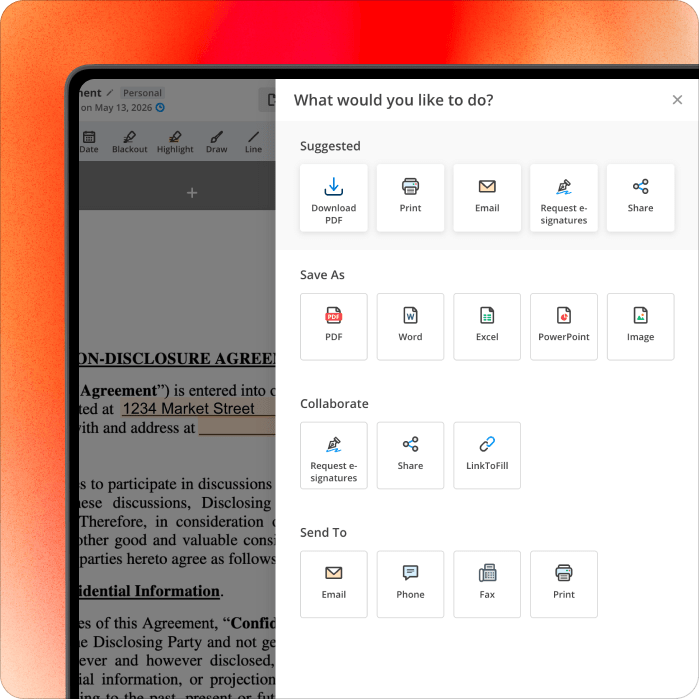
- Save the edited document in your desired format.
- Download or share the finalized resignation letter directly from pdfFiller.
Editing Your Scanned PDF After OCR
After running OCR on your resignation letter, enter Edit Mode to make changes. This mode allows you to modify the text, adjust formatting, and add any necessary annotations. Once you have made your changes, save the edited document to preserve your updates. Common editing tools available include text boxes, highlighting, and annotation features, which enhance the editing experience and ensure your document is polished and professional.
Scanning Images to PDF: A Quick Guide
To convert images to PDF, start by uploading JPG or PNG images into pdfFiller. Follow the steps for converting images to PDF, which typically involve selecting the images and choosing the PDF format for output. Be aware of limitations such as file size restrictions and image quality, which can affect the final PDF. The benefits of converting images to PDF include easier sharing, improved accessibility, and the ability to combine multiple images into a single document.
Extracting Text from Scanned Documents
To extract text from scanned documents using OCR, follow these steps for bulk text extraction: upload the scanned document, select the OCR feature, and initiate the extraction process. After extraction, you can download the recognized data in a text format for further use. Common use cases for text extraction include digitizing old records, creating editable documents from printed materials, and archiving important information. However, be mindful of limitations, such as potential inaccuracies in recognition, especially with poor-quality scans.
Cleaning Up Scanned PDFs: Tips and Tools
To clean up scanned PDFs, utilize tools designed for enhancing document quality. Start by removing imperfections such as stains or marks on the scanned pages. You can also sharpen scanned PDFs to improve readability. The benefits of clean PDFs for editing include a more professional appearance and easier text recognition during the OCR process, which ultimately enhances the editing experience.
How Does pdfFiller Compare to Alternatives?
When comparing pdfFiller with Adobe Acrobat, users may find Adobe's features comprehensive but complex for simple tasks. In contrast, pdfFiller offers a more intuitive interface, making it easier for small and medium-sized businesses to manage documents. Smallpdf provides basic OCR capabilities but lacks the advanced editing options available in pdfFiller. ABBYY FineReader is known for its accuracy but often requires a steep learning curve, while pdfFiller serves as a simpler alternative for quick edits.
Next Steps: Using Your OCR Resignation Letter
After completing the OCR process on your resignation letter, finalize the document by reviewing all changes and ensuring accuracy. You can share your document securely via email or cloud storage services. Additionally, consider options for signing digitally to expedite the submission process. Going paperless not only saves time but also contributes to a more efficient workflow.