Print Resignation Letter For Free

Drop document here to upload
Select from device
Up to 100 MB for PDF and up to 25 MB for DOC, DOCX, RTF, PPT, PPTX, JPEG, PNG, JFIF, XLS, XLSX or TXT

Last updated on Sep 9, 2026

Print Resignation Letter

Print your resignation letter quickly and easily with pdfFiller.

What Does the Print Feature Do in pdfFiller?

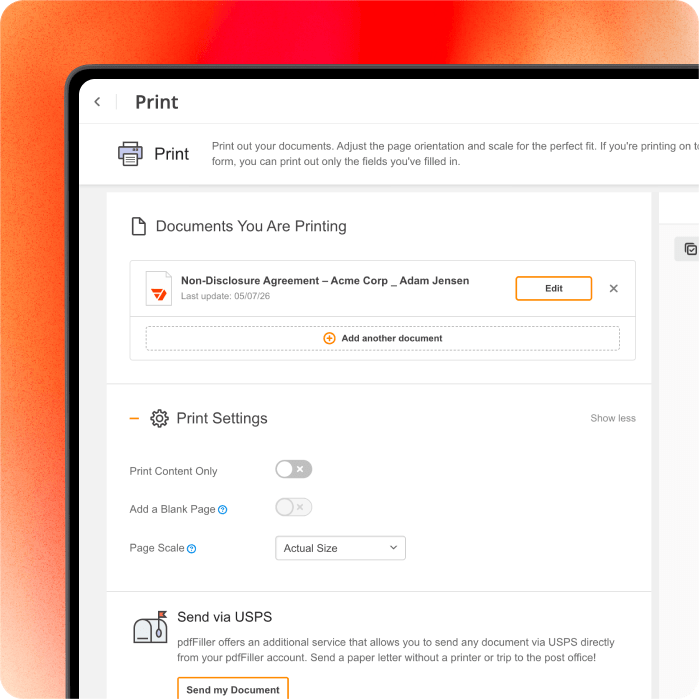
The print feature in pdfFiller allows you to easily print your resignation letter directly from your documents. You can access the print option from both the My Docs section and the preview panel, making it convenient to initiate printing without needing to open the editor. This functionality is compatible with various browsers, ensuring that you can print your documents regardless of your preferred platform. It is ideal for quick document handling, allowing HR managers, freelancers, and small business owners to manage their printing needs efficiently.

How to Print a PDF Document

  • Select the resignation letter document from My Docs.
  • Click the Print icon to open the print dialog box.
  • Choose your printer and adjust the settings as needed.
  • Confirm your selections to print the document.

Printing a PDF with Comments

When you print a resignation letter with comments added in pdfFiller, those comments will be visible in the printed output. The print settings allow you to include annotations, which is particularly useful for collaborative documents where feedback is essential. Before printing, ensure that all comments are visible to maintain the integrity of the document. This feature helps ensure that important notes are not lost during the printing process.

Printing Password-Protected PDFs

To print a password-protected resignation letter, you must have access to the document. pdfFiller does not bypass security features, so you need to follow standard print procedures. Always check the permissions before attempting to print, as unauthorized attempts may result in failure to access the document. This ensures that sensitive information remains secure while allowing authorized personnel to print necessary documents.

Printing Double-Sided PDFs

To print a resignation letter on both sides of the paper, select the duplex option in the print dialog. Ensure your printer is compatible with duplex printing to take advantage of this feature. Double-sided printing is an excellent way to save paper, especially for lengthy documents. It not only helps the environment but also presents a more professional appearance for your printed materials.

Printing Multiple PDF Files

If you need to print several resignation letters or other documents at once, you can select multiple files in My Docs. Use the print option for batch processing, which saves time compared to printing each document individually. Before starting the batch print, check the print settings for each document to ensure they meet your requirements. This method is particularly beneficial for HR managers handling multiple employee resignations.

Printing Fillable Forms and Documents

When printing fillable forms, it is crucial to ensure that the data entered is preserved in the printed output. Field data will be retained if you check the form fields before printing. This feature is especially useful for official submissions where accurate information is necessary. Make sure your print settings reflect the form data to avoid any discrepancies in the printed document.

Printing from Specific Browsers and Devices

pdfFiller supports printing from various browsers, including Chrome, Edge, and Firefox. Before printing, check your device's compatibility to ensure a smooth printing experience. It is also essential to verify that your printer settings are correctly configured. Testing the print functionality on your device can help identify any issues before you attempt to print important documents.

Printing PDF Documents for Organizations and Teams

For organizations and teams, pdfFiller offers bulk printing options for team documents. Streamlined workflows allow for efficient printing processes, ensuring that team members can access the documents they need. It is important to manage access permissions for team members to maintain document security during printing. This collaborative approach enhances productivity and ensures that all team members can print necessary documents without delays.

How to Print DOCX and Other Document Types

To print DOCX files or other document types through pdfFiller, first open the files in the application. Follow standard print procedures similar to those used for PDF documents. Before printing, check the formatting to ensure it appears as intended. pdfFiller is compatible with various document types, making it a versatile tool for all your printing needs.

Print Scenarios for Different Roles

Different roles have unique printing needs when it comes to resignation letters. For example, an HR manager may need to print documents for employee exits, while a freelancer might print letters for client communication. Small business owners often require printed official documents for record-keeping. Each scenario highlights specific print needs that pdfFiller can address effectively.

Limitations and Known Constraints

While pdfFiller offers robust printing features, there are some limitations to be aware of. Browser-specific print dialog behaviors can vary, which may affect how documents are printed. Additionally, duplex support can differ based on printer type, and there may be maximum file size limits for print operations. Some advanced features may only be available on paid plans, so it is essential to review your subscription details.

Security and Data Handling During Printing

pdfFiller implements security measures to protect your documents during printing. All documents are transmitted with TLS encryption to ensure data security. Uploaded files are automatically deleted after a certain timeline, complying with data handling regulations. Secure print processes are in place for sensitive documents, ensuring that your information remains protected throughout the printing process.

Comparison with Adobe Acrobat and Smallpdf

pdfFiller offers simpler access to print features compared to Adobe Acrobat, which has more complex workflows. While Smallpdf may lack some advanced printing options, pdfFiller is designed for ease of use, making it an ideal choice for those who prioritize efficiency in document management.

Free vs. Paid Access for Printing

When considering printing options, it's important to note that the free plan has limited printing capabilities. Upgrading to a paid plan unlocks full printing features, allowing for greater flexibility and access to additional functionalities. Always check the plan details to understand what specific features are available, as access to comments may vary by plan.

Summary and Next Steps

To effectively print your resignation letter, review the print access points in pdfFiller. Explore related features that enhance document management and consider upgrading for improved capabilities. Utilizing templates can also streamline your document creation process, making it easier to manage your printing needs in the future.

Try most popular PDF tools

Discover a full set of tools to handle any document task.

Edit PDFs

Make quick PDF edits online.

Sign

Add legally binding signatures.

Merge

Combine multiple PDFs.

Request signatures

Send a document for signing.

Convert

Transform PDFs into other formats.

Rearrange

Change the order of pages.

Share

Send PDFs for review or editing.

Compress

Reduce PDF file sizes.

How to print, fax, or notarize a document

1. Upload or open your document

Print, fax, notarize, and store — all in one place

  • Print any document from anywhere Upload your PDF and send it to any printer — at the office, at home, or at a local print shop — directly from your pdfFiller account. No downloading, no formatting issues. Your document comes out exactly as it looks on screen.
  • Send a fax without a fax machine Some industries still run on fax — healthcare, legal, insurance, government. pdfFiller lets you send and receive faxes directly from your browser. Upload the document, enter the number, and it's gone. No hardware, no dedicated fax line, no extra subscription.
  • Get documents notarized online Notarization no longer means booking an appointment and driving across town. Connect with a commissioned notary online, complete the session by video, and get your document notarized in minutes — legally valid, fully digital.
  • Sign before you send Add your signature, initials, or date stamp directly inside your document—then print, fax, or share it. Sign a contract before faxing it to the bank, or add initials to a lease before sending it to a client. Draw, type, or upload once, then reuse it across any document.
  • Pull from any cloud, save back instantly Connect Google Drive, Dropbox, Box, or OneDrive and work with files directly — no downloading, no re-uploading. Pull a document, fill it, sign it, fax it, and save it back to the same folder it came from.

Who needs this?

Explore how professionals across industries use pdfFiller to edit PDFs.

Healthcare

Patient forms, referral requests, insurance claims — healthcare runs on paperwork that needs to move fast and stay compliant. Print intake forms directly from your account, fax referrals to specialists without a fax machine, and get consent forms notarized online without scheduling an in-person appointment. HIPAA-compliant storage keeps every document secure.

  • Patient intake and registration forms
  • Referral letters and specialist requests
  • Insurance claims and prior authorization forms
  • Consent forms requiring notarization
Healthcare
  • G2 — Users Most Likely To Recommend
  • G2 — Grid Leader in Small-Business
  • G2 — High Performer
  • G2 — Regional Leader
  • G2 — Easiest To Do Business With
  • G2 — Best Meets Requirements
  • G2 — Best Support

pdfFiller scores top ratings on review platforms

pdfFiller is rated 4.6 out of 5 stars across 1,000+ G2 reviews.

so glad you are there to print Pdf files!!!
Erica J S
Cost effective for startups and small business and I recommend it for businesses who need an alternative solution to Docusign.
Yume
it does everything i need and it's easy to use
Christine
I signed up for the $1 trial but did not want the 1 year subscription -- refunded in two days! I signed up for the $1 trial but did not use it for whatever reason. I have adobe DCF but used PDF filler one time to check it out or whatever. In any case, one month later I get hit with the $102.10 one year subscription charge I didn't see coming. I call expecting to be on hold for two hours.. but .. no... about a few minutes on hold and they refunded the whole thing.. refund hit in two days. So, I believe they should be applauded for that. I'm sure some people love it and go for the subscription. But it's really nice to know they're actually honest and refund the money if you ask.
Alan Sharpe
EXTREMELY HELPFUL DURING AN URGENT FORM… EXTREMELY HELPFUL DURING AN URGENT FORM SUBMISSION. IT WAS GREAT TO HAVE THE NEEDED TOOLS TO SUBMIT A PROFESSIONAL FORM AND VERY LOW COST. THANK YOU, THANK YOU!
yourpalsal
the best i ever had this is a excellent website
victoria lockett

Print, fax, notarize, and store PDFs without the back-and-forth

No extra tools, no wasted time.

pdfFiller workspace for creating, filling and managing PDF forms

PDF editing is just the beginning

More than a PDF editor

What’s New in pdfFiller: AI, Editing, eSignatures & Document Management

Discover the latest pdfFiller features and new features designed to make document work easier for small businesses, teams, freelancers, and individuals. In this full feature walkthrough, you’ll see how to create, edit, fill, manage, store, and eSign documents for everyday workflows like resumes, contracts, HR forms, applications, invoices, onboarding paperwork, and more — all in one place.

FAQs

If you can't find what you're looking for, please contact us anytime!

The best format to use when printing a resignation letter is PDF. PDF files maintain the formatting across different devices and platforms, ensuring that your letter appears professional and consistent. To print a resignation letter using pdfFiller, simply create your document in the platform, customize it to your liking, and select the 'Print' option. This ensures that your letter is ready for submission without any formatting issues. Additionally, using pdfFiller's document automation features can help streamline the process by allowing you to save templates for future use.

To ensure your printed resignation letter is secure and confidential, use pdfFiller's built-in security protocols. When you create and print your resignation letter, make sure to utilize password protection and encryption features available in the platform. This prevents unauthorized access to your document, especially if it contains sensitive information. After printing, store the physical copy in a secure location and consider deleting the digital version if it’s no longer needed. Always review your document for any personal details that should remain confidential before sharing.

An effective resignation letter should include your intent to resign, the date of your last working day, and a brief expression of gratitude towards your employer. Start with a clear statement like 'I am writing to formally resign from my position,' followed by the effective date. Including a thank you note can leave a positive impression. Use pdfFiller to create a professional layout that highlights these key elements, ensuring clarity and professionalism. Remember to keep the tone respectful and concise, which can help maintain a good relationship with your employer.

Once you print your resignation letter, you cannot edit the physical copy. However, you can easily make changes to the original document in pdfFiller before printing a new version. This allows you to refine your message or correct any errors. Always save a copy of your resignation letter in the cloud for future reference or adjustments. Utilize pdfFiller's editing tools to ensure that your letter is polished and reflects your intentions accurately before finalizing it for print.

To print your resignation letter from pdfFiller, first log into your account and open the document you wish to print. Click on the 'Print' button located in the toolbar. Before printing, you can adjust settings such as page orientation and size to ensure it fits your preferences. After confirming the settings, select your printer and click 'Print.' This process ensures that your resignation letter is printed clearly and professionally, ready for submission. Remember to check the print preview to avoid any formatting issues.

Common mistakes to avoid when writing a resignation letter include being overly emotional, failing to specify your last working day, and neglecting to proofread for errors. It's essential to maintain a professional tone and keep the letter concise. Use pdfFiller to create a structured document that includes all necessary elements without unnecessary details. Always review your letter for grammar and spelling mistakes before printing. This attention to detail reflects your professionalism and can positively impact your future references.

While it is not strictly necessary to print your resignation letter, sending it electronically is acceptable in many workplaces, especially in remote settings. However, if your company has a formal policy requiring a printed copy, it’s best to comply. Use pdfFiller to create and send your resignation letter via email, ensuring that it is formatted correctly. If you choose to print it, ensure that it is signed and presented professionally. Always check your company’s resignation policy to determine the preferred method of submission.

What businesses achieve with pdfFiller

Discover how you can benefit too.

I tell my employees that if you need to have stuff filled out, hey, check out pdfFiller, that's what I use. Yes, I would and I do recommend it.

Hope Discovery ABA Services

One tool. Every document task.

One workflow shouldn’t take five tools

Start free trial