Free Workflow Chart Word Templates

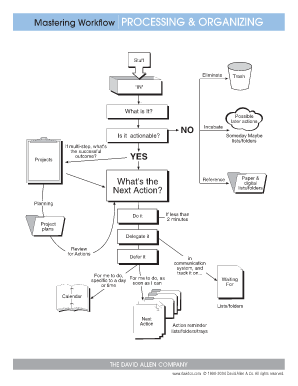
What are Workflow Chart Templates?
Workflow Chart Templates are visual representations of a process or workflow. They help users to understand complex processes by breaking them down into simple steps. These templates can be used in various industries and departments to improve productivity and communication.
What are the types of Workflow Chart Templates?
There are several types of Workflow Chart Templates, including:
Flowchart Templates
Gantt Chart Templates
Kanban Board Templates
PERT Chart Templates
Swimlane Diagram Templates
How to complete Workflow Chart Templates
Completing Workflow Chart Templates is easy with the right tools and steps. Here are some tips to help you get started:
01
Choose the right template that suits your project or workflow.
02
Customize the template by adding or removing steps as needed.
03
Fill in the details for each step in the process.
04
Review and make any necessary revisions to ensure accuracy.
05
Share the completed template with team members or stakeholders for feedback.
pdfFiller empowers users to create, edit, and share documents online. Offering unlimited fillable templates and powerful editing tools, pdfFiller is the only PDF editor users need to get their documents done.
Video Tutorial How to Fill Out Workflow Chart Templates
Thousands of positive reviews can’t be wrong
Read more or give pdfFiller a try to experience the benefits for yourself
Questions & answers
How do I create a workflow chart in Word?
From the Insert tab within the Ribbon, select a flowchart shape from the dropdown gallery. You can then click and drag it to the size you want on the page to place it. Continue to add shapes and lines to complete your flowchart.
What is difference between workflow and flowchart?
"A workflow" is a definition of a process for how an item of work should be done. A flowchart is a diagram for describing a process. So a workflow can be described by a flowchart. Perhaps it is the case that workflows are commonly described by flowcharts, that some people may use the two terms interchangably.
Is there a flow chart template in Word?
Go to Insert > Illustrations > Shapes. A drop-down menu will appear when you click on “Shapes.” Find the shapes labeled “Flowchart.” Here is where you will find all of the necessary shapes for building a flowchart, like process and decision boxes. Hovering over the shape will show you each of the shape's functions.
What is a workflow chart?
A workflow diagram—also known as a workflow chart—provides a graphic overview of a business process or system. Usually, you'll use these diagrams to visualize complex projects after you've completed the initial research and project planning stages.
How do I create a workflow chart?
How to create a workflow diagram Select your process. First, you'll need to work out what process you intend to track and, most importantly, why. Define the start and endpoints. Gather together your information. Eliminate inefficiencies. Design the workflow. Analyze your results.
How do you create a working flow chart?
How to Make a Flowchart in 7 Simple Steps Step #1: Know the purpose of your flowchart. Step #2: Start with a template. Step #3: Add shapes and symbols. Step #4: Connect your shapes with lines and arrows. Step #5: Split paths or add decisions. Step #6: Customize your flowchart's appearance.