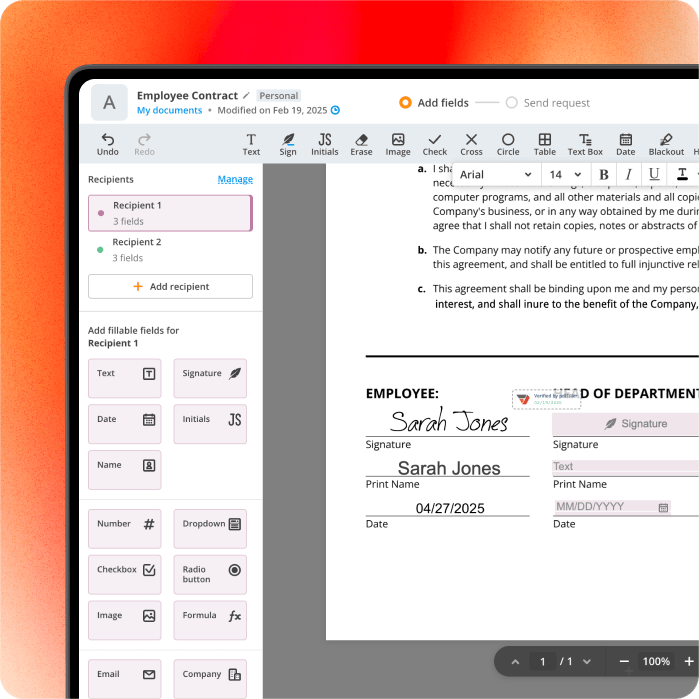
Add a Signature Block in PDF For Free

Drop document here to upload
Select from device
Up to 100 MB for PDF and up to 25 MB for DOC, DOCX, RTF, PPT, PPTX, JPEG, PNG, JFIF, XLS, XLSX or TXT

Last updated on Sep 14, 2026

Add a Signature Block in PDF

Add a signature block to your PDF using pdfFiller's easy tools.

What is the Signature Tool?

The signature tool allows you to add a signature block to your PDFs effortlessly. It serves two primary functions: self-signing documents and sending them for signature. Understanding the distinction between these two options is essential for effective document management. This tool is designed with a user-friendly interface, making it ideal for small businesses that may not have extensive technical expertise. With pdfFiller's signature tool, you can easily create legally compliant signatures without the confusion often associated with self-signing versus sending for signature.

How Does This Solve Document Workflow Issues?

Document workflows often face challenges such as delays in obtaining signatures and the need for printing and scanning. The signature tool addresses these issues by providing a digital signature solution that enhances efficiency for small and medium-sized businesses (SMBs). By using digital signatures, you eliminate the need for physical paperwork, which saves time and resources. This tool allows you to add a signature block quickly, ensuring that your documents move through the workflow smoothly and without unnecessary interruptions.

Three Ways to Create Your Signature

There are three primary methods to create your signature using pdfFiller: drawing, typing, and uploading an image. Each method is legally equivalent, allowing you to choose based on your personal preference. When you draw your signature, you can use a mouse or stylus for a more personalized touch. Typing your signature offers various font styles and colors, while uploading an image allows you to use a scanned version of your handwritten signature. Each method caters to different user preferences, ensuring that you can add a signature block in a way that feels right for you.

How to Draw Your Signature

  • Access the signature tool in pdfFiller.
  • Select the option to draw your signature.
  • Use a mouse, touchpad, or stylus to create your signature.
  • Experiment with different styles until you are satisfied with the result.
  • Customize your signature by adjusting the color and thickness.
  • Preview your signature to ensure it meets your expectations.
  • Save your drawn signature for future use.
  • Place your signature block in the desired location on your PDF.

How to Type Your Signature

  • Open the signature tool in pdfFiller.
  • Select the option to type your signature.
  • Choose a font style that reflects your personal brand.
  • Pick a color that complements your document.
  • Position your typed signature where it is needed in the PDF.
  • Review the placement to ensure it looks professional.
  • Save your typed signature for future documents.
  • Insert your signature block into the PDF.

How to Upload Your Signature Image

  • Navigate to the signature tool in pdfFiller.
  • Select the option to upload your signature image.
  • Ensure your image is in a supported format, such as PNG or JPEG.
  • Click on the upload button and select your signature file.
  • Adjust the size of the uploaded image for clarity.
  • Position the image in the correct location on your PDF.
  • Preview the document to check the signature's appearance.
  • Save your document with the uploaded signature.

Adding Initials to Your Document

Adding initials to your document can be done using the signature tool. You can choose to add initials by drawing, typing, or uploading an image, just like with your full signature. Placement options for initials are flexible, allowing you to position them wherever necessary within the document. It's important to note that initials carry legal validity, similar to a full signature, ensuring that your documents are properly signed and recognized.

Customizing Your Signature Appearance

You can customize your signature's appearance in several ways. Options include adjusting the color and thickness to match your branding or personal style. Additionally, you can resize and reposition your signature block to fit perfectly within your document. These customization options allow you to create a signature that not only looks professional but also aligns with your preferences.

Saving and Reusing Your Signatures

To save your signatures for future use, follow these steps: After creating your signature, save it to your pdfFiller account. You can also set a default signature, which will automatically populate in future documents. Reusing signatures saves time and ensures consistency across your documents, making it a valuable feature for busy professionals.

Legal Validity of Your Signatures

pdfFiller's signatures comply with legal standards such as ESIGN, UETA, eIDAS, and GDPR. This compliance ensures that your digital signatures are legally recognized and enforceable. Additionally, the tool maintains audit trails that provide proof of signature authenticity, further enhancing the legal standing of your signed documents.

Next Steps After Signing

After signing your documents, you can easily share them with others. pdfFiller allows you to integrate with other features, such as document storage and sharing options. Explore more tools within pdfFiller to enhance your document management experience and improve your overall workflow.

Try most popular PDF tools

Discover a full set of tools to handle any document task.

Edit PDFs

Make quick PDF edits online.

Sign

Add legally binding signatures.

Merge

Combine multiple PDFs.

Request signatures

Send a document for signing.

Convert

Transform PDFs into other formats.

Rearrange

Change the order of pages.

Share

Send PDFs for review or editing.

Compress

Reduce PDF file sizes.

How to sign a document online?

Upload

Signing and editing documents has never been easier

  • Edit and sign in one place Quickly eSign documents after reviewing or editing — no need to juggle tools and move files back and forth. Get your PDFs done fast with all the tools you need at your fingertips.
  • Easy sharing & collaboration After signing a document, share it instantly with clients and stakeholders for review, editing, or comments. To request signatures from other parties, add fillable fields and send the document for signing.
  • Mobile-ready solution Easily edit, sign, and send your documents from anywhere, even on the go. pdfFiller is entirely cloud-based, so you can manage documents effectively from your computer, smartphone, or tablet.
  • Legally binding & secure Sign contracts and agreements following global eSignature laws, including ESIGN, UETA, eIDAS, and GDPR. With HIPAA, PCI DSS, SOC 2 Type II, and other compliance standards, pdfFiller works for any industry.

Who needs this?

Explore how professionals use pdfFiller to sign documents.

Healthcare

Healthcare professionals use pdfFiller to simplify document signing, from patient consent forms to medical record requests. They can easily request, approve, and share signed documents with patients, staff, or suppliers, saving time and improving communication.

  • Patient consent forms
  • Prescription forms
  • Lab test requisition forms
  • Referral and consultation forms
Healthcare
  • G2 — Users Most Likely To Recommend
  • G2 — Grid Leader in Small-Business
  • G2 — High Performer
  • G2 — Regional Leader
  • G2 — Easiest To Do Business With
  • G2 — Best Meets Requirements
  • G2 — Best Support

pdfFiller scores top ratings on review platforms

pdfFiller is rated 4.6 out of 5 stars across 1,000+ G2 reviews.

navigation is simple. Nice to be able to go back, edit & re-print just one page.
Carl K
I was afraid I had made a mistake but… I was afraid I had made a mistake but found the website harmless and quite hellpful
scottlizabeth88
Perfect!! This is perfect for me! It saves time and prevents writer's cramps when having to complete several documents. I LOVE IT!!!
Jacquie R
A League Of Its Own The product works so smoothly and effectively that it is in a league of its own compared to its competitors.
Stivel Wafo Nguema
It's an excellent website It's an excellent website
YC
I bought this for the annual… I bought this for the annual subscription and thought I'm never going to use it and I actually use it all the time.
Abigail Feldman

eSign documents with a trusted, all‑in‑one solution

Try easy-to-use tools for all your document management needs.

pdfFiller workspace for creating, filling and managing PDF forms

Why sign documents with pdfFiller?

Ease of use

Watch pdfFiller eSignatures in action

Check out a quick video tutorial that shows how to create and place your signature or send a document for signing.

FAQs

If you can't find what you're looking for, please contact us anytime!

To quickly add a signature block in PDF documents using pdfFiller, simply open your PDF in the platform, navigate to the 'Signature' tool, and select 'Add Signature Block'. This feature allows you to drag and drop a signature field into your document. Once placed, you can customize it by adjusting the size and position. This method ensures that your signature block is easily accessible and visually appealing. For best results, consider using a clear and professional signature style that aligns with your brand identity.

When you add a signature block in PDF using pdfFiller, you benefit from robust security features such as encryption and secure cloud storage. pdfFiller employs advanced security protocols to protect your documents, ensuring that your signatures and sensitive information remain confidential. Additionally, the platform offers audit trails that log every action taken on your document, providing transparency and accountability. To enhance security further, always verify the identity of signers before sharing sensitive PDFs.

Yes, you can customize the appearance of a signature block in PDF documents with pdfFiller. After adding a signature block, you can modify its size, shape, and position to fit your document's layout. Furthermore, pdfFiller allows you to choose from various signature styles or upload your own signature image for a personalized touch. This customization ensures that your signature block not only meets legal requirements but also aligns with your branding. Remember to preview your document to ensure the signature block looks professional before finalizing.

Absolutely, you can add multiple signature blocks in a single PDF document using pdfFiller. This feature is particularly useful for documents requiring signatures from multiple parties, such as contracts or agreements. Simply repeat the process of adding a signature block for each signer, ensuring that each block is clearly labeled for easy identification. This capability streamlines the signing process and enhances collaboration among remote teams. To avoid confusion, consider adding instructions for signers on where to sign.

To ensure your signature block in PDF is legally binding, follow these steps: First, use pdfFiller’s eSignature feature, which complies with e-signature laws such as ESIGN and UETA. Next, ensure that all parties involved have consented to use electronic signatures. After adding the signature block, include a date field and any necessary witness signatures if required by your jurisdiction. Finally, save and share the signed document securely through pdfFiller’s cloud platform, which maintains an audit trail for legal verification. This process guarantees that your signatures hold up in legal contexts.

Adding a signature block in PDF significantly improves document workflow for remote teams by streamlining the signing process. With pdfFiller, team members can easily access, sign, and send documents without the need for physical meetings or printing. This not only saves time but also reduces paper waste, contributing to a more sustainable work environment. Additionally, the ability to track document status in real-time allows team members to stay informed about pending signatures, enhancing collaboration and efficiency. For optimal workflow, set clear deadlines for document signing to keep projects on track.

The best practices for adding a signature block in PDF for legal documents include ensuring clarity and compliance with legal standards. Start by placing the signature block in a prominent location, typically at the end of the document. Use clear labels for each signature block, indicating who should sign. Additionally, include fields for dates and any necessary witness signatures. Always utilize pdfFiller’s secure eSignature feature to ensure the signatures are legally binding. Finally, review the document thoroughly before sending it out to avoid any errors that could invalidate the signatures.

What businesses achieve with pdfFiller

Discover how you can benefit too.

pdfFiller allows us to tap into additional markets and sell business we might not otherwise have sold because of the speed and ease with which we can produce the forms.

Scaturro Insurance Agency LLC

One tool. Every document task.

One workflow shouldn’t take five tools

Start free trial