Add Text in PowerPoint
Learn how to add text in PowerPoint presentations easily.
What is the Edit Mode in PowerPoint?
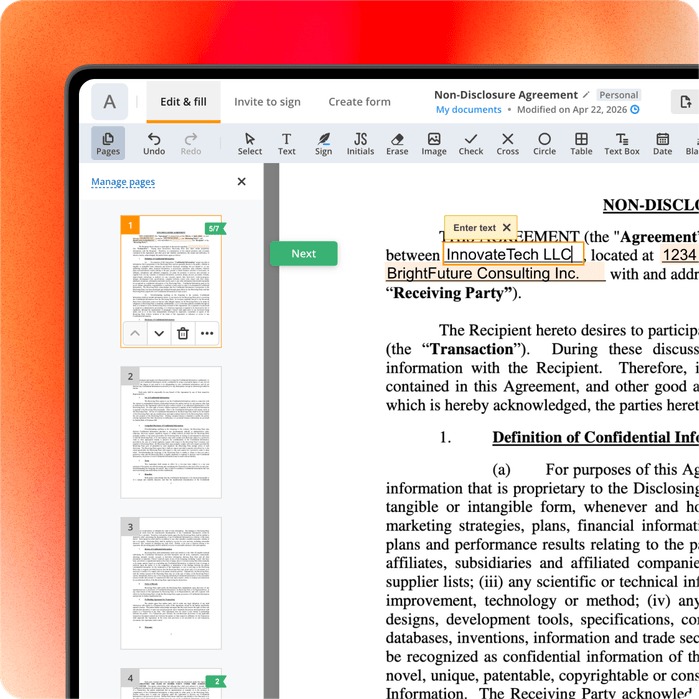
Edit Mode in PowerPoint is essential for adding text effectively. You can access Edit Mode via the toolbar, which allows for direct text modifications. This mode supports various text formatting options, making it ideal for business presentations. By utilizing Edit Mode, you can enhance your slides without encountering technical hurdles.
Why Add Text to Your PowerPoint Slides?
Adding text to your PowerPoint slides is crucial for effective communication. It enhances visual communication by conveying key messages effectively. Text supports audience engagement, making it essential for marketing materials. Without clear text, your presentations may fail to deliver the intended impact.
How to Access Edit Mode in PowerPoint
- Locate the Edit button in the toolbar to enter Edit Mode.
- Ensure the document is in the correct state for editing.
- Check that your version of PowerPoint is compatible with this feature.
- Access Edit Mode from any device to start adding text.
Steps to Add Text in PowerPoint
- Click on the desired slide where you want to add text.
- Select the text box tool from the toolbar to create a text box.
- Type your text directly into the box to insert it into the slide.
- Format the text as needed to match your presentation style.
Text Formatting Options in PowerPoint
PowerPoint offers various text formatting options to enhance your slides. You can choose the font family and size to match your design preferences. Additionally, you can apply bold, italic, or underline styles to emphasize important points. Changing text color and alignment is also possible, allowing for better visibility. Utilizing bullet points for lists can help organize information effectively.
Common Issues When Adding Text
When adding text in PowerPoint, you may encounter several common issues. One common problem is when text does not appear on the slide, which can be frustrating. Formatting issues with fonts can also arise, affecting the overall presentation quality. Compatibility with different PowerPoint versions may lead to unexpected behavior. Additionally, the text box may not resize correctly, causing layout problems.
Best Practices for Adding Text in Presentations
To ensure effective text addition in your presentations, follow these best practices. Keep text concise and clear to maintain audience attention. Using bullet points can enhance readability and organization. Ensure there is sufficient contrast between text and background for visibility. Limiting text per slide prevents overwhelming your audience with information.
How to Save Your PowerPoint with Added Text
After adding text, saving your PowerPoint presentation is crucial. Use the Save button in the toolbar to store your changes. Choose the correct file format to ensure compatibility with other devices. Always check for compatibility issues before sharing your presentation. Regularly backing up your presentation can prevent data loss.
Next Steps After Adding Text
Once you have added text to your presentation, consider the next steps. Review your presentation for flow and coherence to ensure it meets your objectives. Practice presenting with the added text to gain confidence. Seeking feedback from peers can provide valuable insights for improvement. Finally, prepare for final adjustments based on your review and practice sessions.
How Does pdfFiller Compare?
Google Slides offers collaborative features but lacks advanced text formatting options compared to PowerPoint.
Prezi provides dynamic presentations but may be less intuitive for text-heavy slides than PowerPoint.
Canva is great for design but is not specifically tailored for text editing in presentations like PowerPoint.