Add Watermark to PDF in Google Chrome
Add a watermark to your PDF documents in seconds using pdfFiller's browser-based tool.
What is the Watermark Tool?
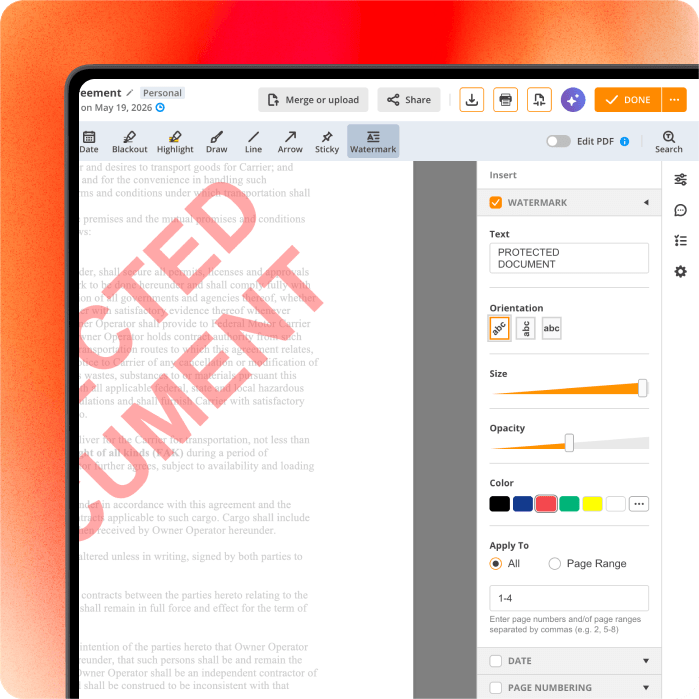
The watermark tool allows you to add a watermark to PDF documents, enhancing their branding and confidentiality. You can choose between text and image watermarks, which serve different purposes. Text watermarks can display your company name or a confidentiality notice, while image watermarks can feature your logo or emblem. Access the watermark tool via the Tools menu in pdfFiller, where you will find a user-friendly interface designed for quick navigation. The semi-transparent overlay feature ensures that your watermark does not obstruct the main content of the document, making it ideal for various applications.
Why Use Watermarks in Your PDFs?
Using watermarks in your PDFs provides several benefits. First, it protects document integrity by indicating ownership and preventing unauthorized use. Second, it enhances brand visibility, allowing your logo or text to be seen even when the document is shared. Watermarks can also indicate document status, such as "Draft" or "Confidential," which is common in legal contexts. Overall, adding watermarks is a straightforward way to reinforce your brand and maintain control over your documents.
How to Add a Text Watermark
- Open your PDF document in pdfFiller.
- Select the watermark tool from the Tools menu.
- Enter your custom text in the provided field.
- Adjust the size and color of the text to your preference.
- Choose the pages where you want the watermark to appear.
- Preview the watermark to ensure it looks as desired.
- Click "Apply" to add the watermark to your PDF document.
- Save your document to retain the changes.
How to Add an Image Watermark
- Open your PDF document in pdfFiller.
- Navigate to the watermark tool from the Tools menu.
- Upload your logo or emblem by clicking the upload button.
- Adjust the transparency of the image to ensure visibility.
- Decide if you want the watermark on all pages or specific ones.
- Preview the watermark to check its placement and appearance.
- Click "Apply" to finalize the watermark on your PDF.
- Save your document to keep the watermark intact.
Customizing Your Watermark
You can customize your watermark's appearance to fit your needs. Change the size and rotation of the watermark to ensure it fits well within your document. Adjust the opacity to make the watermark more or less visible, depending on your preference. Always preview changes before finalizing to ensure the watermark complements your document. pdfFiller offers user-friendly customization options that make this process straightforward.
Applying Watermarks to Specific Pages
With pdfFiller, you can control where your watermark appears in your PDF. You can apply the watermark to the current page, all pages, or select a custom page range. This flexibility allows you to tailor the watermarking process to your specific needs. The tool's easy navigation ensures that you can quickly make these selections without confusion.
Editing or Removing a Watermark
If you need to modify or delete a watermark, simply reopen the watermark tool from the Tools menu. You can then modify existing watermarks or delete them entirely. The user-friendly interface makes it easy to manage your watermark settings, ensuring that your documents always reflect the desired branding or confidentiality markers.
Adding a Date Stamp to Your PDF
To apply a date stamp to your PDF, start by inserting today's date in the designated field. You can configure the date format to match your preferences. Choose whether to apply the date stamp to all pages or just specific ones. pdfFiller provides user-friendly options for this feature, making it a simple addition to your document.
Page Numbering in Your PDF
Adding page numbers to your PDF is straightforward with pdfFiller. You can select sequential numbering options and configure the placement and font style to match your document's design. Apply the page numbers to all pages to maintain consistency throughout the document. The user-friendly interface ensures that this process is quick and efficient.
How Does pdfFiller Compare?
Adobe Acrobat offers advanced features but is more complex and costly than pdfFiller. Users may find it overwhelming for simple tasks. Smallpdf provides basic watermarking but lacks the extensive template library of pdfFiller, which may limit branding options. ilovepdf has a simple interface but offers limited customization compared to pdfFiller, making it less flexible for professional needs.