Adjust Brand Logo and Checkbox in PDF
Adjust your brand logo in PDF documents quickly and easily using pdfFiller's tools.
What Branding Tools Do in pdfFiller
pdfFiller offers a two-layer branding system that allows you to customize your documents effectively. The first layer is document-level branding, where you can add your logo and watermark to specific PDFs. This feature is essential for maintaining brand identity across all your documents. The second layer focuses on workspace-level email branding, enabling you to customize how your emails appear when sent from the platform. The interface is designed to be user-friendly, allowing you to make these adjustments without needing any complex software or technical knowledge. By utilizing these branding tools, you can enhance your document branding and ensure consistency in your communications.
Adding a Logo to a PDF
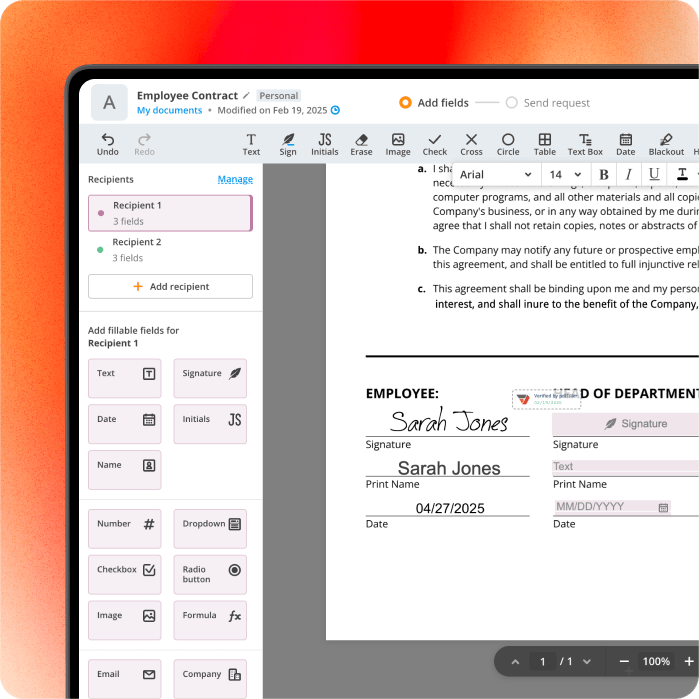
To add a logo to your PDF, start by accessing the Image Tool located in the toolbar. This tool allows you to upload your logo easily. Once uploaded, you can position and resize the logo to fit your document's layout. It's important to note that pdfFiller supports various image formats for logos, including JPEG, PNG, and GIF. This flexibility ensures that you can use your preferred logo format without any issues. By following these steps, you can effectively add your logo to any PDF document.
Applying a Watermark with the Watermark Tool
Applying a watermark to your documents is straightforward with pdfFiller's Watermark Tool. You can choose between text and image watermarks, depending on your branding needs. After selecting your watermark type, you can configure its size, transparency, and rotation to achieve the desired effect. Additionally, you have the option to apply the watermark to specific pages or the entire document, providing flexibility in how your branding appears. This feature is crucial for enhancing document security and ensuring your brand is visible on all materials.
Removing a Logo or Watermark from a Document
To remove a logo or watermark from your document, begin by selecting the logo element you wish to delete. This process is simple and involves clicking on the logo or watermark and pressing the delete key. If you need to remove an applied watermark, you can do so through the watermark settings. After making your changes, be sure to confirm them to ensure that the logo or watermark is successfully removed from the document. This straightforward process allows you to maintain control over your document's branding.
Creating a Custom Email Signature
Setting up a personalized email signature is an essential step for branding your communications. Navigate to the Account Settings section to access branding options. Here, you can configure various signature fields, including your name, title, and contact information. After entering your details, preview the signature to ensure it appears as desired. Once satisfied, save your changes to apply the custom email signature to your outgoing emails. This feature helps maintain a professional image in all your communications.
Creating a Custom Email Footer
To configure a custom email footer, start by accessing the footer settings within your account. You can choose from various options for footer content, including company information, disclaimers, or promotional messages. After customizing your footer, apply it to all outgoing emails to ensure consistency in your branding. This step is vital for reinforcing your brand identity and providing recipients with essential information. A well-designed email footer can enhance your professional image and improve communication effectiveness.
Branding Scenarios by Role and Document Type
Different roles and document types can benefit from tailored branding scenarios. For small business owners, adding a logo to invoices can enhance professionalism and brand recognition. Freelancers can use custom branding on contracts to establish credibility with clients. Additionally, applying watermarks to sensitive documents, such as proposals, can help protect intellectual property. By understanding these branding scenarios, you can effectively apply pdfFiller's tools to suit your specific needs and document types, ensuring your branding is always on point.
Browser and Device Compatibility
pdfFiller's branding tools are compatible with a wide range of browsers, including Chrome, Firefox, and Safari. This compatibility ensures that you can access your documents from any device without the need for installation. Mobile device support allows you to manage your branding on the go, making it convenient for busy professionals. With no installation required, you can start customizing your documents immediately, regardless of the device you are using.
Limitations and Known Constraints
While pdfFiller offers robust branding features, there are some limitations to be aware of. Supported image formats for logos include JPEG, PNG, and GIF, which may restrict your options if you have logos in other formats. Additionally, certain branding features may be limited based on your plan tier, so it's essential to review your account settings. Understanding these constraints will help you effectively utilize the branding tools available to you.
Security and Data Handling
Security is a top priority when handling documents in pdfFiller. The platform employs TLS encryption during document uploads to protect your data. Additionally, pdfFiller has clear file retention and deletion policies to ensure that your documents are managed securely. Compliance with data handling regulations further enhances the security of your documents, giving you peace of mind when using the platform for your branding needs.
Comparison with Named Alternatives
When evaluating pdfFiller against competitors, several key differentiators stand out. Unlike many alternatives, pdfFiller offers a user-friendly interface that simplifies document management. Additionally, the platform provides over 1 million ready-to-use templates, making it easy to create professional documents without starting from scratch. While some competitors may offer similar features, pdfFiller's focus on small and medium businesses ensures that users receive tailored solutions without unnecessary complexity.
Summary and Next Steps
In summary, pdfFiller's branding tools allow you to customize your documents effectively, including adding logos and watermarks. By understanding the different branding layers and their functionalities, you can enhance your document branding and maintain a professional image. Explore related features like document editing and start branding your documents today to elevate your business communications.