Adjust Header and Text Box in PDF
Adjust headers and text boxes in your PDF quickly using pdfFiller's intuitive online editor. No technical setup required.
What is Edit Mode in pdfFiller?
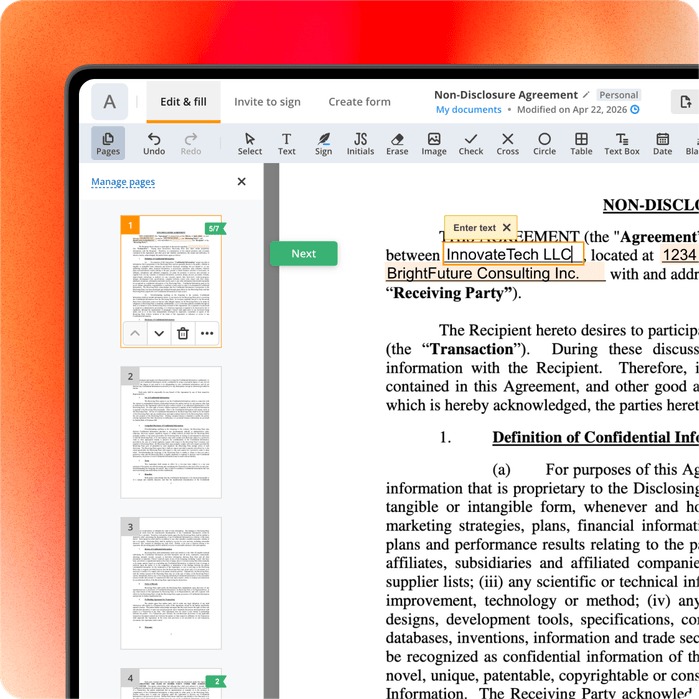
Edit Mode in pdfFiller allows you to adjust header and text box in PDF documents effortlessly. You can access this feature via the Edit button, which is prominently displayed on the interface. Once in Edit Mode, you can directly modify content without needing any IT setup, making PDF editing straightforward. This feature is designed to eliminate the complexities often associated with PDF editing, ensuring that small and medium-sized businesses can customize their documents quickly and efficiently. Users can enjoy a seamless experience with PDF editing, focusing on their content rather than wrestling with complicated software.
How Does Edit Mode Solve Document Editing Issues?
Edit Mode effectively addresses common challenges faced during document customization. You can adjust header and text box in PDF files by correcting existing text or adding new text as needed. This process does not require any conversion, allowing for immediate edits. For instance, if you need to update a header in a PDF document, you can do so directly in Edit Mode without any time-consuming processes. This capability is particularly beneficial for small businesses that need to make quick adjustments to their documents without delays.
Accessing Edit Mode in pdfFiller
To adjust header and text box in PDF documents, you first need to access Edit Mode in pdfFiller. Locate the Edit button on the main interface, which is easy to find. Ensure that your document is in a compatible state, as pdfFiller supports various file types for editing. This straightforward navigation allows you to start editing without confusion, making it accessible for all users, regardless of their technical expertise.
Editing Existing Text in Your PDF
To modify existing text in a PDF, click on the text you wish to edit. This action allows you to adjust header and text box in PDF documents seamlessly. You can navigate between elements easily, ensuring that you can make all necessary changes without hassle. After making your edits, remember to save your changes to ensure that your modifications are retained. This process is designed to be user-friendly, avoiding complex editing tools that can confuse users.
Adding New Text Boxes to Your PDF
To insert new text boxes in your PDF document, select the location where you want the text box to appear. You can adjust header and text box in PDF files by setting initial formatting options such as font size and style. After placing the text box, you can resize it as needed to fit your content. This flexibility allows you to customize your documents fully, ensuring that they meet your specific requirements without limited formatting options.
Removing Text from Your PDF
To delete text from a PDF document, simply select the text you wish to remove and confirm the deletion. This straightforward process ensures that you can manage your document effectively without the risk of permanent loss of data. Additionally, pdfFiller provides an undo option, allowing you to revert changes if necessary, which adds an extra layer of security to your editing process.
Using the Whiteout Tool for Corrections
The Whiteout tool in pdfFiller is designed for making text corrections in your PDF documents. Unlike the blackout feature, which obscures text, the Whiteout tool allows you to erase text while maintaining the document's integrity. You can apply this tool easily, making it ideal for scenarios where you need to correct mistakes without altering the overall layout of your document.
Formatting Text in Your PDF
pdfFiller offers various text formatting options to enhance your PDF documents. You can choose from different font options, adjust the size of your text, and select text color choices to match your branding or preferences. This flexibility in text formatting ensures that your documents are visually appealing and professional, catering to the needs of small business documents.
Find and Replace Text in Your PDF
To locate and replace text strings in a PDF, access the find and replace tool within pdfFiller. Input the text you wish to find and specify the replacement text. After confirming the changes, the tool will update your document accordingly. This feature eliminates the need for manual searching, making document management more efficient.
Editing Native vs. Scanned PDFs
Understanding the differences between editing native and scanned PDFs is crucial for effective document management. Native PDFs allow for direct editing capabilities, while scanned PDFs may require OCR (Optical Character Recognition) to convert images into editable text. This distinction is important, as it influences how you approach adjustments in your documents. Knowing these differences ensures you can choose the right method for your editing tasks.
How Does pdfFiller Compare?
Adobe Acrobat offers comprehensive editing features but requires a subscription. Users may find it complex for simple tasks.
Foxit provides similar functionality but lacks the intuitive interface of pdfFiller. It may be overwhelming for new users.
Nitro is known for its robust features but can be costly for small businesses. Users may prefer pdfFiller for its affordability and ease of use.