Adjust Watermark in PDF
Adjust watermarks in your PDF documents easily using pdfFiller's intuitive tools. Protect your content and maintain professionalism without any technical setup.
What is a Watermark in PDF?
A watermark in a PDF is a recognizable image or text that is embedded within the document. It serves various purposes, including branding and protection. There are two main types of watermarks: text and image. Text watermarks often display the name of the document or the owner, while image watermarks can include logos or graphics. Semi-transparent overlays are commonly used to ensure that the watermark does not obstruct the content of the document. Understanding how to adjust watermarks is essential for effective document branding and watermarking.
Why Adjust Watermarks?
Adjusting watermarks is crucial for several reasons. First, it helps protect intellectual property by marking documents as proprietary. Second, it enhances document branding, making your materials look more professional. Lastly, in some cases, legal compliance may require specific watermarking practices. By understanding the importance of watermarking, small and medium businesses can ensure their documents maintain a professional appearance while safeguarding their content.
How to Add a Text Watermark
- Open your PDF document in pdfFiller.
- Select the "Watermark" tool from the editing options.
- Choose to add a text watermark.
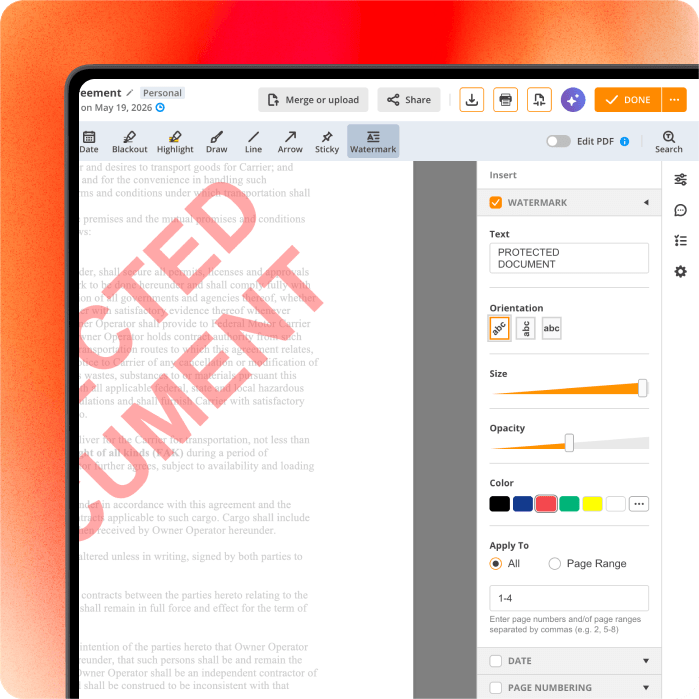
- Enter your custom text in the provided field.
- Adjust the transparency settings to ensure the watermark is visible but not overpowering.
- Select the pages where you want the watermark to appear, such as all pages or specific ones.
- Preview the document to see how the watermark looks.
- Save your changes to finalize the adjustment of the watermark.
How to Add an Image Watermark
- Open your PDF document in pdfFiller.
- Access the "Watermark" tool from the editing menu.
- Select the option to upload an image watermark.
- Choose your logo or desired image from your device.
- Adjust the size and opacity of the image to fit your needs.
- Decide on the placement options for the watermark within the document.
- Preview the document to ensure the watermark appears as intended.
- Save the document to apply the image watermark.
Customizing Your Watermark
Customizing your watermark allows you to tailor its appearance to fit your branding. You can adjust the size of the watermark to ensure it is proportionate to the document. Additionally, color adjustments can enhance visibility or match your brand colors. Rotation options are also available, allowing you to position the watermark at an angle that suits your design preferences. These customization options help you effectively adjust watermarks to align with your branding strategy.
Applying Watermarks to Specific Pages
When adjusting watermarks, you can control which pages receive the watermark. Options include applying it to the current page, all pages, or specific custom ranges. This flexibility allows you to tailor the watermarking process to your document's needs, ensuring that only the relevant sections are marked. Clear instructions on page selection help streamline the process of applying watermarks effectively.
Editing and Removing Watermarks
- Open your PDF document in pdfFiller.
- Access the "Watermark" tool again.
- Select the existing watermark you wish to edit or remove.
- To modify, adjust the text or image as needed.
- If you want to delete the watermark, choose the remove option.
- Preview the document to confirm the changes.
- Save the document to finalize the edits or removal of the watermark.
Date Stamp Tool Overview
The date stamp tool allows you to apply a date stamp to your documents. You can configure the format of the date to match your preferences, such as including the day, month, and year. Placement options enable you to position the date stamp where it is most visible without obstructing other content. This feature is particularly useful for maintaining a record of document versions and timelines.
Page Numbering in PDF
Adding page numbers to your PDF is a straightforward process. You can choose to apply sequential numbering, ensuring that each page is numbered correctly. Format options allow you to customize how the page numbers appear, such as font size and style. This feature enhances document branding by providing a professional touch to your materials.
How Does pdfFiller Compare?
pdfFiller stands out among other PDF tools for its user-friendly interface and comprehensive watermarking features. ilovepdf offers basic watermarking features but lacks advanced customization options. Users may find it less intuitive than pdfFiller. Smallpdf provides a user-friendly interface but has limited watermarking capabilities compared to pdfFiller, which may not meet all professional needs. Adobe Acrobat includes comprehensive features but comes with a higher price tag and complexity, making pdfFiller a more affordable choice for small businesses.
Next Steps After Watermarking
After adjusting watermarks, consider the next steps in your document workflow. This includes signing, sharing, and tracking documents effectively. Integrating e-signatures with your watermarked documents ensures that they are legally binding and secure. By connecting watermarking to broader document workflows, you can enhance the overall efficiency of your document management process.