Change PDF to Word on Linux
Change your PDF files to Word documents on Linux easily with pdfFiller's conversion tool.
What is the PDF to Word Conversion Tool?
The PDF to Word conversion tool allows you to change PDF files to Word documents efficiently. This tool is accessible via multiple paths in pdfFiller, ensuring you can find it easily. You do not need to install any software to use this feature, making it a convenient option for small and medium-sized businesses.
Why Change PDF to Word on Linux?
Converting PDFs to Word format is ideal for editing and formatting documents. It allows you to extract data easily, which is particularly useful for creating reports or presentations. The ability to support various document types enhances your file management capabilities, making it a valuable tool for professionals.
How to Access the Conversion Tool
You can access the conversion tool by using the Done dropdown menu, where you can select the conversion option. It is also available in the All Tools dashboard for quick access. Additionally, you can use the More menu for document-level conversion, allowing you to change PDF to Word directly from your document list.
Steps to Convert PDF to Word on Linux
- Upload your PDF file to pdfFiller's platform.
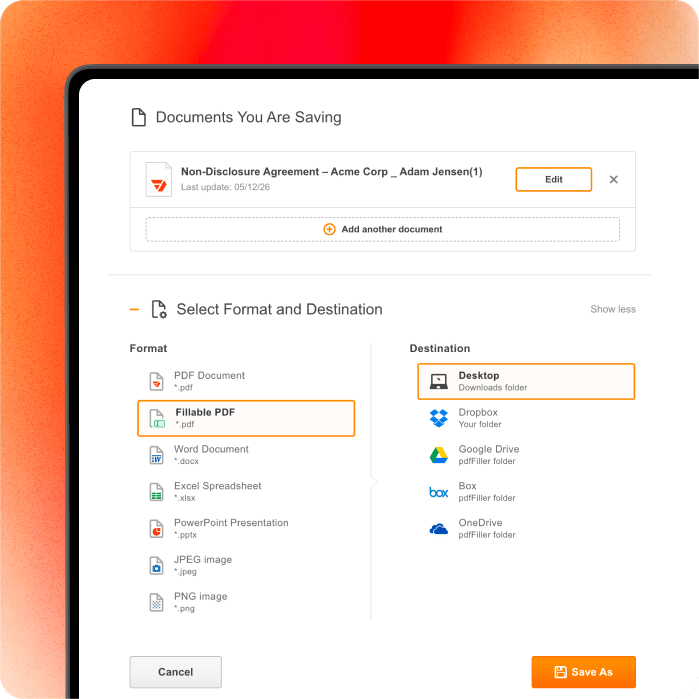
- Select the output format as Word from the conversion options.
- Initiate the conversion process to change PDF to Word.
- Download the converted Word document once the process is complete.
- Open the Word document to review and edit as needed.
- Save the document in your desired location on your device.
- Share or print the document directly from Word if required.
- Repeat the process for any additional PDF files you need to convert.
Supported Output Formats
When you change PDF to Word, you can choose from several output formats, including Word (.docx), Excel (.xlsx), and PowerPoint (.pptx). This flexibility allows you to convert your documents into formats that best suit your needs.
Accepted Input File Types
pdfFiller accepts various file types for conversion to PDF, including native PDFs, scanned PDFs, and various image formats. This wide range of accepted input types ensures that you can convert almost any document into a PDF format.
Conversion Quality Expectations
When you change PDF to Word, you can expect high layout fidelity for native PDFs. However, scanned documents may require OCR capabilities to ensure text editability. Be aware that complex formatting may not always be preserved during the conversion process.
Comparing Conversion Methods
The conversion method differs from other export methods like Save As and Download. While Save As allows you to save a document in a different format, the conversion method provides a more comprehensive change, especially for complex documents. Server-side conversion ensures that the process is efficient and does not require local software installation.
Scenarios for PDF to Word Conversion
There are several practical scenarios where changing PDF to Word is beneficial:
- Editing invoices for accounting purposes, allowing for quick updates and adjustments.
- Modifying contracts for legal use, ensuring that all necessary changes can be made efficiently.
- Preparing presentations from PDFs, enabling you to extract relevant information and format it appropriately.
Browser and Device Compatibility
pdfFiller supports various browsers for Linux, ensuring compatibility across platforms. You can also access the conversion tool on mobile devices without any installation required, making it easy to work from anywhere.
Security and Data Handling
pdfFiller takes document security seriously during the conversion process. Your data is handled with care, and the platform complies with data protection standards to ensure your documents remain secure throughout the conversion.
Next Steps After Conversion
After you change PDF to Word, you can edit the converted document as needed. You may also choose to share or sign the document directly from pdfFiller. Storing your documents securely is essential to maintain organization and accessibility.
How Does pdfFiller Compare?
Adobe Acrobat is known for comprehensive features but often requires a subscription, making it less accessible for small businesses. ilovepdf offers free tools but lacks the depth of features and templates available in pdfFiller. Smallpdf provides basic conversion options but may not support complex document types as effectively as pdfFiller.