Check Text Format
Edit text in your PDFs quickly and efficiently using pdfFiller's intuitive tools.
What is Edit Mode?
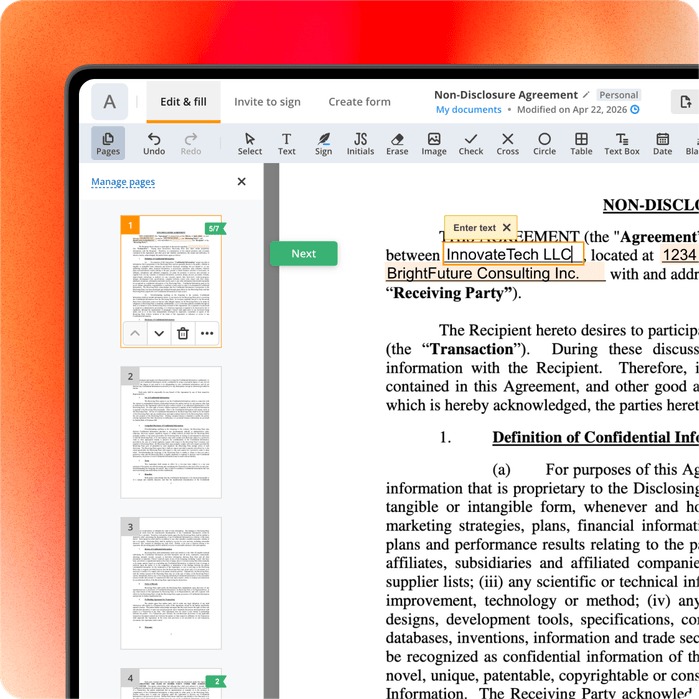
Edit Mode is a powerful feature that allows you to directly modify the content of your PDF documents. You can access this mode by clicking the Edit button located in the toolbar. Once in Edit Mode, you can make changes to the text without the need for complicated software. This feature enables you to differentiate between direct modifications and annotation overlays, providing a clear editing experience. Importantly, Edit Mode works seamlessly on any device, ensuring you can edit your documents wherever you are.
How Does This Feature Solve Your Workflow Problems?
Edit Mode addresses several common editing challenges faced by small businesses. You can correct errors in your documents without the hassle of converting files to different formats. This saves you valuable time during document revisions, allowing for quicker turnaround on important tasks. Additionally, Edit Mode is particularly suitable for small businesses that may not have extensive IT resources, as it requires no setup or installation. This ease of use ensures that you can focus on your work rather than on complex software issues.
Accessing Edit Mode
- Locate the Edit button in the toolbar of your pdfFiller interface.
- Ensure your document is in a compatible state for editing.
- Click the Edit button to enter Edit Mode.
- Confirm that your device supports the editing features.
- No installation is needed to access Edit Mode; it is ready to use.
Editing Existing Text in PDFs
To modify text directly in your PDFs, simply click on the text blocks you wish to edit. You can easily navigate between different text elements within your document. This feature works effectively on native PDFs, allowing you to make changes without any hassle. The user-friendly interface ensures that you can edit text intuitively, making your document management process smoother and more efficient.
Adding New Text Blocks
- Click on the area where you want to add new text.
- Select the option to insert free-floating text from the toolbar.
- Choose your initial formatting options for the new text block.
- Consider use cases for new text blocks, such as adding comments or notes.
- Ensure compatibility with existing content to maintain document integrity.
Removing Text from Your PDFs
To delete unwanted text from your PDFs, first select the text you wish to remove. After selecting, confirm the removal to ensure you don't accidentally delete important content. This process maintains the integrity of your document, allowing you to manage text effectively. The deletion feature is suitable for all document types, ensuring versatility in your editing tasks.
Using the Whiteout Tool
The Whiteout tool serves as a correction feature that allows you to cover up text without permanently deleting it. Unlike the Blackout tool, which obscures content entirely, Whiteout provides a way to correct mistakes while maintaining document integrity. To apply Whiteout, select the text you want to cover and follow the steps provided in the toolbar. Consider the implications for document integrity when using this tool, as it alters the visible content.
Text Formatting Options Available
Edit Mode offers a variety of text formatting features to enhance your documents. You can choose from multiple font options and sizes to suit your needs. Additionally, features such as bold, italic, and underline are readily available, allowing you to emphasize important information. You can also adjust text color and alignment settings to ensure your document looks professional. These formatting options are compatible with existing text, making it easy to create cohesive documents.
Finding and Replacing Text
The Find & Replace feature simplifies the process of locating specific text strings within your documents. To use this feature, follow the steps to locate the text you want to replace. Once found, you can efficiently replace it with new content, ensuring accuracy throughout your document. The user-friendly interface makes this process straightforward, allowing you to maintain the quality of your work.
Navigating Native vs. Scanned PDFs
Understanding the differences in editing capabilities between native and scanned PDFs is crucial for effective document management. Native PDFs allow for straightforward editing, while scanned PDFs present challenges due to their image-based format. For scanned documents, the use of Optical Character Recognition (OCR) is necessary to convert images into editable text. Users should be aware of these differences to choose the appropriate editing methods for their documents.
Limitations of Edit Mode
While Edit Mode offers many features, it does have limitations. For instance, you cannot edit scanned PDFs without using OCR technology. Additionally, there is no guarantee that font matching will occur when modifying text, which may affect the overall appearance of your document. Restrictions also apply to password-protected documents, limiting your ability to make changes. It's essential to set realistic expectations regarding what Edit Mode can achieve.
Next Steps for Your Document Workflow
To enhance your document management process, consider integrating editing actions with other features offered by pdfFiller. By utilizing a unified document solution, you can streamline your workflow and improve efficiency. Engaging with the available tools not only simplifies your editing tasks but also highlights the ease of use that pdfFiller provides. This approach ensures that you can manage your documents effectively and confidently.