Clean Word in PDF
Clean up text in your PDF documents quickly and easily.
What is Edit Mode in pdfFiller?
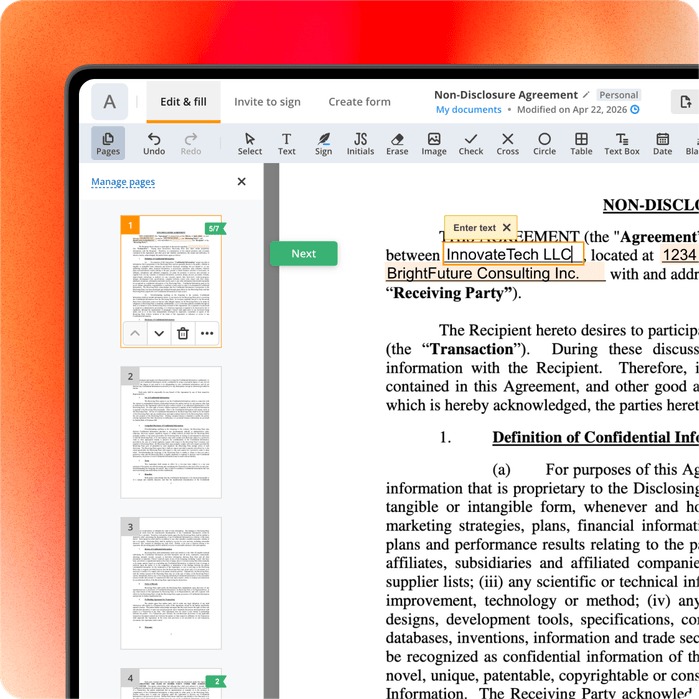
Edit Mode in pdfFiller allows you to directly modify the content of your PDF documents. You can access this feature via the Edit button in the toolbar, making it easy to start editing. This mode supports both native PDFs and scanned PDFs, ensuring you can work with various document types. Importantly, no IT setup is required, which sets pdfFiller apart from competitors that may demand complex software installations. With Edit Mode, you can make changes swiftly without the hassle of navigating complicated systems.
How to Correct Text in a PDF?
- Click directly on the text blocks you wish to edit to initiate changes.
- Navigate between text elements easily using your mouse or keyboard.
- Make corrections on both native and scanned PDFs without additional steps.
- This method is particularly ideal for small business documents that require quick updates.
- Review your changes to ensure accuracy before saving the document.
Adding New Text Blocks in PDF
- Insert free-floating text blocks anywhere in your PDF document.
- Set the initial formatting for new text to match your document style.
- Use this feature to add notes or comments that enhance the document's clarity.
- Choose from various font styles to ensure your text fits well within the existing layout.
Removing Text from a PDF Document
To remove text from a PDF document, simply select the text you wish to delete and press the delete key. This method allows for easy correction of mistakes, making it efficient for document management. It works on both native and scanned PDFs, ensuring you can maintain the integrity of your documents without needing additional software. This straightforward approach helps keep your PDFs clean and professional.
Using Whiteout Tool for Corrections
The Whiteout tool in pdfFiller allows you to cover underlying content with a white fill, effectively hiding it from view. This tool is different from permanent redaction, as it provides a temporary solution for corrections. It's particularly useful when you need to make quick edits without altering the original document structure. The simple interface makes it easy to apply this tool for immediate results.
Formatting Options for Text in PDF
- Choose from a variety of font families to match your document's style.
- Adjust the font size to ensure readability across different devices.
- Utilize color options to highlight important text or sections.
- Apply bold, italic, and underline features to emphasize key points.
- Control text alignment to enhance the overall presentation of your document.
Find and Replace Text in PDF
To locate specific text strings in your PDF, use the find feature to quickly identify the text you want to change. Once located, substitute it with new text in seconds, streamlining your document revisions. This feature saves time, especially when working on lengthy documents. It works effectively on both native and scanned PDFs, ensuring that you can maintain accuracy throughout your editing process.
Editing Native vs. Scanned PDFs
Editing capabilities differ between native and scanned PDFs. You can directly edit text in native PDFs, allowing for straightforward modifications. However, scanned PDFs require Optical Character Recognition (OCR) to enable text editing, which may add an extra step. Annotation tools are available for scanned documents, ensuring you can still provide feedback and make notes. Understanding these differences is crucial for maintaining document accuracy.
Step-by-Step Instructions for Editing
- Open your PDF document in pdfFiller and click the Edit button to enter Edit Mode.
- Select the text you wish to modify and make your changes directly.
- To add new text, click on the area where you want to insert it and type your content.
- Use the Whiteout tool for any content you want to temporarily hide.
- Format your text using the available options for font and alignment.
- Review all changes to ensure they meet your requirements before saving.
- Save your document to keep all edits intact.
Browser Compatibility for pdfFiller
pdfFiller works on all major browsers, ensuring you can access your documents from any device without installation requirements. This feature is particularly beneficial for remote work scenarios, allowing you to edit documents from anywhere. The compatibility across platforms enhances the flexibility of your document management process.
Limitations of Edit Mode
Edit Mode has certain limitations that users should be aware of. For instance, you cannot edit scanned PDFs without using OCR technology. Additionally, there is no guaranteed font matching when making edits, which may affect the document's appearance. Password-protected documents cannot be edited, which is important to consider when managing sensitive information. Understanding these limitations helps set realistic expectations for your editing tasks.
Security and Data Handling in pdfFiller
pdfFiller prioritizes the secure processing of documents, ensuring compliance with data protection regulations. User privacy is a top concern, particularly for small business users who handle sensitive information. The platform employs various security measures to protect your documents during editing and storage, making it a reliable choice for document management.
How Does pdfFiller Compare?
When compared to Adobe Acrobat, pdfFiller offers a more user-friendly interface that simplifies the editing process. Unlike Foxit and Nitro, pdfFiller provides a more affordable solution for small businesses, making it accessible without compromising on features. In contrast to Sejda, pdfFiller emphasizes ease of use, allowing users to navigate the editing tools effortlessly.
Next Steps for Editing PDFs
To get started with pdfFiller, consider trying out the platform to experience its editing capabilities firsthand. The process of getting started is straightforward, with various support resources available to assist you. Connecting your editing tasks to broader document management workflows can enhance your productivity and efficiency.