Compress 15 MB Word to 10 MB
Compress your Word document to reduce file size quickly and efficiently.
What is the Compress Tool?
The Compress tool is designed to help you Compress Word Document files effectively. This tool optimizes embedded images and flattens layers, ensuring that your document maintains its text and form data integrity. You can find the Compress tool easily in the editor header and the All Tools dashboard, making it accessible for immediate use. Unlike some competitors that make vague promises about size reduction, pdfFiller delivers reliable results without compromising quality.
Why Compress Your Word Document?
Reducing the file size of your documents is essential for various reasons. By choosing to Compress Word Document, you can significantly reduce upload and download times, which is crucial for efficient file sharing. Additionally, it saves storage space on your devices, allowing you to manage your files better. Compressing documents also facilitates easier email sharing, making it a practical choice for professionals who need to send files quickly.
How to Access the Compress Tool
- Locate the editor header button for active sessions to access the Compress tool.
- Alternatively, navigate to the All Tools dashboard to find the Compress option.
- No need to open a document beforehand; you can access the tool directly.
Steps to Compress Your Document
- Open your Word document in pdfFiller.
- Click on the Compress tool in the editor header or All Tools dashboard.
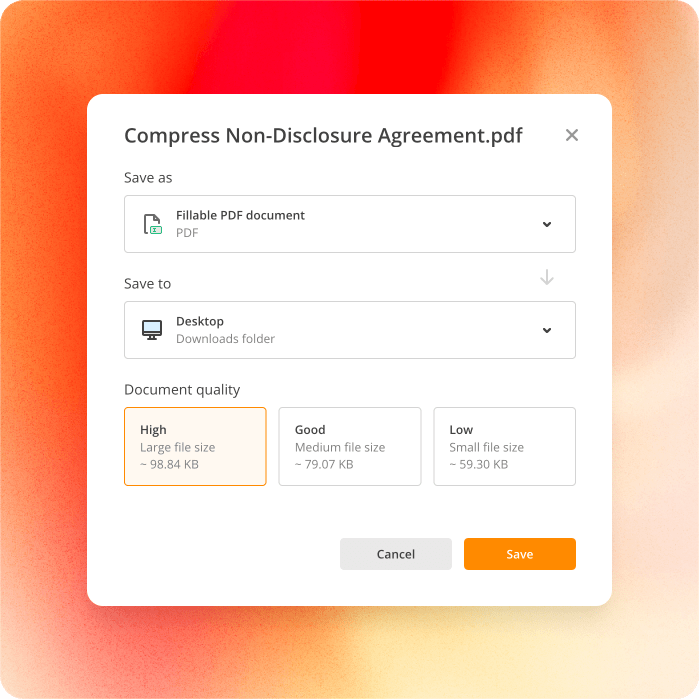
- Select your desired compression quality level from the available options.
- Click the 'Compress' button to initiate the process.
- Wait for the tool to complete the compression; a confirmation message will appear.
- Review the compressed document to ensure quality is maintained.
- Download the compressed file to your device.
Choosing a Compression Quality Level
When using the Compress tool, you can choose from High, Medium, and Low quality settings. Each setting impacts the visual fidelity and file size differently. For instance, High quality maintains the best appearance but results in a larger file size, while Low quality significantly reduces the size but may affect image clarity. It is recommended to select the quality level based on the type of document you are compressing to achieve the best balance between size and quality.
What Changes After Compression?
After you Compress Word Document, certain content types remain intact, including text and form fields. However, images may experience some loss in quality depending on the selected compression level. It is crucial to preserve form fields to maintain the document's functionality, especially for forms that require user input.
Expected File Size Reduction
The amount of size reduction you can expect varies based on several factors, including the content of your document. Different types of documents yield different compression results, so it is essential to have realistic expectations. While some documents may compress significantly, others may see minimal size reduction, depending on their complexity and content.
What to Do After Compression
Once you have compressed your document, you can download the compressed file directly to your device. If the file is still too large, consider further compression or editing the document to remove unnecessary elements. Additionally, you may want to explore other document management options available in pdfFiller to optimize your workflow.
Compress vs. Other Size-Reduction Methods
When comparing the Compress tool to other methods like deleting pages or using the Split and Save As features, it's essential to understand when to use each method effectively. The Compress tool is ideal for reducing file size without losing content, while deleting pages may be necessary for simplifying documents. Each method serves a different purpose, and knowing when to apply them can enhance your document management strategy.
Connecting Compression to Sharing Workflows
Compression plays a vital role in document sharing workflows. By integrating the Compress tool with email sharing features, you can ensure that your files are easy to send and receive. This is particularly beneficial for collaborative workflows, where multiple team members need access to documents without the hassle of large file sizes. Keeping file sizes manageable is crucial for efficient sharing.
Real-World Scenarios for Compression
Compression is particularly beneficial in various real-world scenarios. For instance, small businesses often need to send invoices or contracts quickly, and compressing these documents makes the process more efficient. Remote work scenarios also benefit from compression, as professionals need to share files without delay. Additionally, quick sharing is essential for professionals who require immediate access to documents during meetings or presentations.
Supported Formats and Export Options
The Compress tool supports various input formats for compression, including DOC and DOCX files. After compression, you can export your documents in multiple formats, ensuring compatibility with various document types. This flexibility allows you to manage your files effectively, regardless of the format you need.
Browser and Device Compatibility
pdfFiller's Compress tool is compatible with all major browsers, ensuring that you can access it from any device without the need for installation. This means you can compress your documents on the go, whether you're using a desktop, tablet, or smartphone, making it a convenient option for busy professionals.
Limitations and Known Constraints
While the Compress tool offers many benefits, there are some limitations to consider. For example, certain plan-tier restrictions may affect the level of compression available. Additionally, some content types may yield minimal size reduction, so it’s essential to understand these constraints when using the tool.
Security and Compliance Considerations
Security is a top priority during the compression process. pdfFiller employs encryption to protect your documents, ensuring compliance with data protection regulations. The platform has robust security measures in place to safeguard your information throughout the compression process.
How Does pdfFiller Compare?
When comparing pdfFiller's compression tool to competitors like Smallpdf, ilovepdf, and Adobe Acrobat, several unique advantages emerge. pdfFiller offers a user-friendly interface and reliable compression results without compromising quality. While other tools may provide similar features, pdfFiller stands out for its ease of use and integration with various document management capabilities.
Next Steps for Document Management
After compressing your documents, consider how this fits into your broader document management strategy. Explore additional tools available in pdfFiller that can enhance your workflow, ensuring you maintain document quality while optimizing size. This holistic approach to document management can significantly improve your efficiency.