Compress PDF File to Fit into Email Attachment
Compress your PDF file quickly to meet email attachment limits using pdfFiller’s easy-to-use tool.
What is the PDF Compression Tool?
The PDF compression tool is designed to reduce the file size of your PDF documents, making them ideal for email attachments. With pdfFiller, you can easily access this tool without any technical setup required. This tool is particularly beneficial for small and medium-sized businesses that frequently share documents electronically. By using the PDF compressor, you can ensure your files are small enough to meet email attachment limits, allowing for smooth document sharing.
Why Compress PDFs for Email?
Compressing PDFs for email is essential due to common file size limits imposed by email providers. Most email services restrict attachments to a certain size, typically around 25 MB. If your PDF exceeds this limit, it may not be delivered, resulting in email bounce-backs. For small businesses, this can hinder communication and delay important transactions. By choosing to compress PDF files, you can avoid these issues and ensure timely delivery of your documents.
How to Access the Compress Tool
- Open your web browser and navigate to pdfFiller.
- Log in to your account or create a new one if necessary.
- Locate the editor header at the top of the page.
- Click on the "All Tools" dashboard option.
- Find the PDF compression tool listed among the available features.
- No document is required to access the tool; you can start right away.
- Enjoy the user-friendly interface designed for easy navigation.
Step-by-Step Guide to Compressing a PDF
- Open the PDF file you wish to compress in pdfFiller.
- Select the "Compress PDF" option from the tools menu.
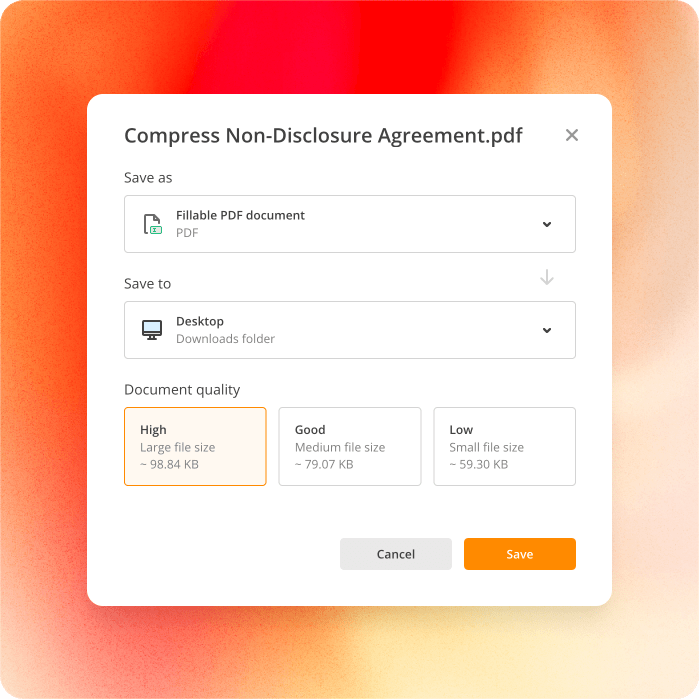
- Choose your desired quality settings for the compression.
- Click the "Compress" button to initiate the process.
- Wait for the tool to reduce the file size; this usually takes a few moments.
- Review the compressed PDF to ensure it meets your needs.
- Download the compressed file to your device.
- Share the file via email or other platforms as needed.
Choosing the Right Compression Quality Level
When you compress a PDF, you have options for quality settings: high, medium, and low. Selecting high quality retains most of the original content and images but results in a larger file size. Medium quality strikes a balance between size and clarity, while low quality significantly reduces file size but may affect image clarity. It's important to choose a level that meets your document sharing needs, especially if you plan to include digital signatures or detailed graphics.
What Changes After Compression?
After compressing a PDF, certain content types may be affected. Text typically remains intact, while images may lose some quality depending on the chosen compression settings. Users should expect a smaller file size but should also test the document to ensure that all necessary content is preserved. This is particularly important if the PDF includes detailed graphics or important formatting.
Expected File Size Reduction
The amount of file size reduction you can expect varies based on the content type of your PDF. For instance, a document heavy with images may see a more significant reduction compared to a text-only PDF. Typical reductions can range from 20% to 80%, but results can differ significantly. It’s advisable to test the compression results to ensure the file meets your requirements without compromising essential content.
After Compression: Download and Next Steps
Once your PDF is compressed, you will have several options for downloading the file. You can save it directly to your device or share it via email. If the file is still too large, consider further optimization or adjusting the quality settings. Always ensure that the final document meets your needs before sending it out, especially if it requires digital signatures or other critical elements.
How Does pdfFiller Compare?
Smallpdf offers a similar compression tool but lacks the extensive template library of pdfFiller. Users may find fewer options for document management with Smallpdf. ilovepdf provides basic compression features but does not integrate with other document workflows as seamlessly as pdfFiller, which may lead to fragmented processes. Adobe Acrobat is a powerful tool with comprehensive features, but often comes with a higher price tag and complexity that may not suit small businesses. Users might prefer pdfFiller for its simplicity and affordability.
Next Steps in Document Management
After compressing your PDF, consider how this fits into your broader document management workflow. pdfFiller offers additional features that integrate well with PDF editing and document sharing. Embracing digital solutions can enhance efficiency for small businesses. Explore more tools available in pdfFiller to streamline your document processes and improve overall productivity.