Compress Passport Word to 50 KB
Compress your passport Word document to 50 KB easily with pdfFiller.
What Does the Compress Tool Do?
The Compress tool in pdfFiller is designed to reduce the file size of your documents effectively. It optimizes embedded images and flattens layers, ensuring that the essential content remains intact. This tool maintains text and form field integrity, making it suitable for various document types, including passport Word files. You can access the Compress tool easily via the editor header or the All Tools dashboard, providing a straightforward solution without the complexity of other software. Unlike vague promises about compression, pdfFiller delivers reliable results that meet your file size needs.
Why Compress Your Passport Word Document?
Managing file size is crucial, especially for passport documents that often have strict submission requirements. Large file sizes can lead to issues such as failed uploads or difficulties in sharing documents. Compressing your passport Word document helps ensure compliance with online submission guidelines, making it easier to share and store your files. By reducing the file size, you also enhance the efficiency of your document management processes, allowing for quicker access and distribution.
How to Access the Compress Tool
- Log in to your pdfFiller account to access the dashboard.
- Locate the All Tools section on the dashboard.
- Find the Compress tool listed among other available tools.
- Alternatively, access the Compress button directly from the editor header.
- No open document is required to access the Compress tool.
Steps to Compress Your Document
- Open your passport Word document in pdfFiller.
- Click on the Compress tool from the toolbar or dashboard.
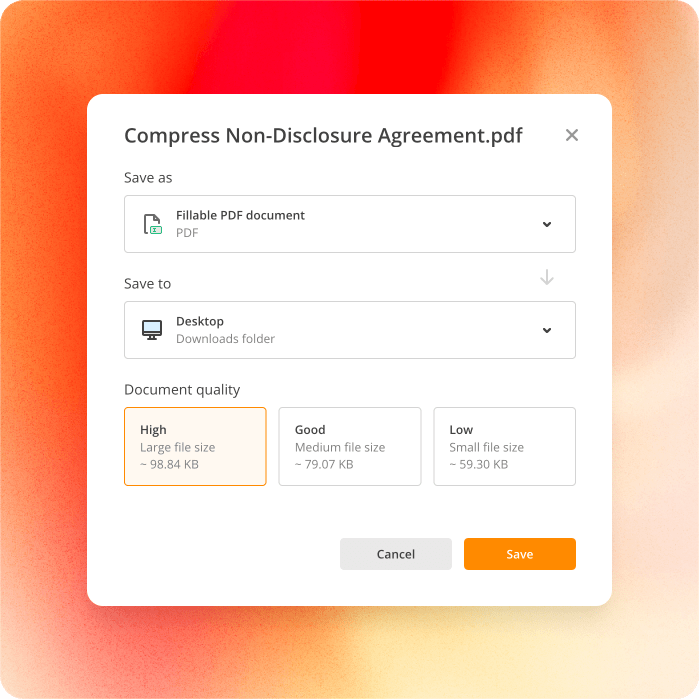
- Select the desired compression quality level (High, Medium, Low).
- Review the preview of the compressed document.
- Click on the Compress button to initiate the compression process.
- Wait for the tool to process your document and reduce its size.
- Download the compressed file once the process is complete.
- Check the file size to ensure it meets your requirements.
Selecting Compression Quality Levels
When using the Compress tool, you can choose from three quality settings: High, Medium, and Low. The High setting provides the least amount of compression, preserving image quality, while the Low setting significantly reduces file size but may impact image clarity. The Medium setting offers a balanced approach. Depending on your document type, you may want to select a quality level that best suits your needs, ensuring that essential details remain visible while achieving the desired file size reduction.
What Changes After Compression?
After compressing your passport Word document, certain content types may be affected, particularly images and embedded objects. However, the text and form fields remain unchanged, ensuring that the document's integrity is preserved. Maintaining the document's core content is vital, especially for official documents like passports, where accuracy is paramount. Understanding what remains intact post-compression helps you make informed decisions about your document management.
Expected File Size Reduction
The amount of file size reduction you can expect varies based on the content of your document. For example, a document with many images may see a more significant reduction than one primarily composed of text. Typical reductions can range from 20% to 80%, depending on the chosen compression quality. However, it's essential to recognize the limitations of compression effectiveness, as not all documents will achieve the same results.
Next Steps After Compression
Once you have compressed your passport Word document, you can download the compressed file directly from pdfFiller. If the file is still too large, consider revisiting the compression settings to select a lower quality level. Additionally, you can integrate the compressed file into your sharing workflows, ensuring that it meets any submission requirements you may have. This step is crucial for maintaining efficiency in your document management processes.
Comparing Compression Methods
When evaluating compression methods, it's important to understand the differences between the Compress tool and other options available. For instance, the Compress tool is distinct from the Delete Pages feature, which removes content rather than reducing file size. Using the Compress tool is beneficial when you need to maintain the document's content while achieving a smaller file size. Each method serves specific purposes, and knowing when to use each can enhance your document management strategy.
Real-World Scenarios for Compression
File size limits are critical in various industries, such as travel, where passport documents must meet specific requirements for online submissions. For instance, travel agents often need to compress passport files for visa applications, ensuring that they adhere to file size restrictions set by government agencies. Similarly, legal professionals may encounter scenarios where large documents must be compressed for electronic filing. Understanding these real-world applications of compression can help you navigate document management challenges effectively.
Supported Formats and Export Options
pdfFiller supports various formats for compression, including Word documents and PDFs. After compression, you can export your files in multiple formats, ensuring compatibility with your needs. However, it's important to note that some file types may have limitations regarding compression effectiveness. Being aware of these supported formats helps you plan your document management strategy effectively.
Browser and Device Compatibility
pdfFiller is compatible with major browsers, ensuring that you can access the Compress tool from any device without the need for installation. Mobile device functionality allows you to manage your documents on the go, making it convenient for professionals who require flexibility in their workflows. Ensuring compatibility across platforms enhances the usability of the Compress tool.
Limitations of the Compress Tool
While the Compress tool is effective, it does have limitations. For example, plan-tier restrictions may affect the extent of compression available to you. Additionally, certain content types may yield minimal results when compressed, such as documents with already optimized images. Understanding these limitations helps set realistic expectations for your document management efforts.
Security and Compliance of Compressed Files
When using the Compress tool, pdfFiller employs encryption practices to protect your documents during the compression process. Compliance with relevant standards ensures that your data is handled securely. User data protection measures are in place to safeguard your information, providing peace of mind as you manage your documents digitally.
How Does pdfFiller Compare?
Smallpdf offers basic compression but lacks pdfFiller's comprehensive editing features. Users may find it limited for complex documents.
ilovepdf provides similar compression but does not integrate as seamlessly with document management workflows. Users might experience more steps.
Adobe Acrobat is a powerful tool with extensive features, but it comes at a higher price point, making it less accessible for small businesses.