Compress PDF to 80 KB
Compress PDF files to 80 KB easily using pdfFiller's browser-based tool. Optimize your documents for quick sharing and management.
What is the Compress Tool?
The Compress tool in pdfFiller allows you to reduce the file size of your PDF documents. You can access it from the editor header or the All Tools dashboard. This tool optimizes embedded images and flattens annotation and form field layers while ensuring that no text or form data is lost during the process. It is designed to help you manage your documents more efficiently without the need for complex technical knowledge.
Why Compress Your PDF?
Large PDF files can hinder your ability to share documents effectively. When you need to send files via email or upload them to online platforms, exceeding size limits can lead to delays and complications. By reducing PDF file size, you can ensure smoother document sharing, which is especially beneficial for small businesses that rely on quick communication with clients and partners.
How to Access the Compress Tool
To access the Compress tool, you can find it in the editor header when you have an active editing session. Alternatively, you can navigate to the All Tools dashboard, where it is available without needing to open a document first. This makes it convenient to start compressing your files right away.
Uploading Your PDF for Compression
Before you can compress a PDF, you need to upload it to pdfFiller. The platform supports various file formats, including PDF, and allows for conversion before compression. Be mindful of any maximum file size limits that may apply during the upload process to ensure a smooth experience.
Step-by-Step Guide to Compressing a PDF
- Open your PDF document in pdfFiller's browser-based editor.
- Locate the Compress button in the top toolbar.
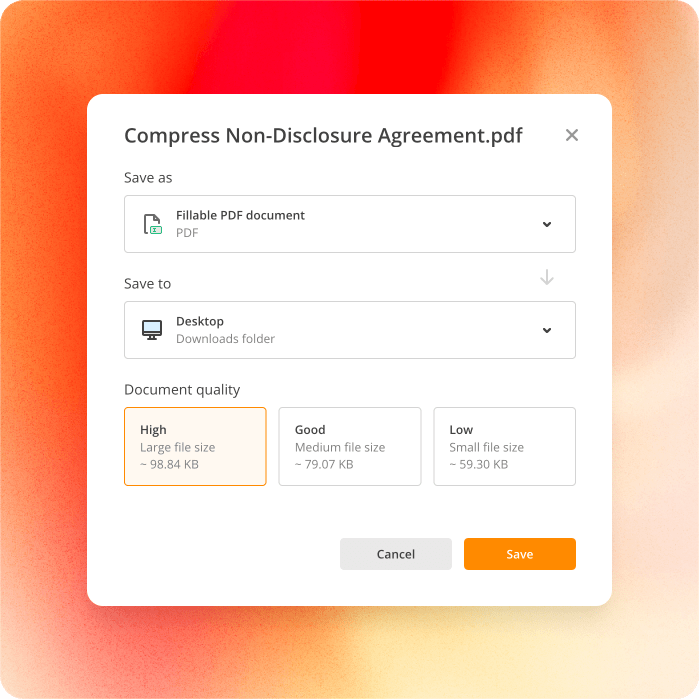
- Select the desired quality level for compression: High, Medium, or Low.
- Click the Compress button to initiate the process.
- Wait for the compression to complete, which may take a few moments.
- Review the compressed file to ensure it meets your needs.
- Download the compressed PDF to your device.
- If the file is still too large, consider adjusting the quality level and compressing again.
Choosing Compression Quality Levels
When using the Compress tool, you can choose from three quality settings: High, Medium, and Low. The High setting results in minimal visual change with modest size reduction, while the Medium setting offers a balanced tradeoff between size and quality. The Low setting maximizes size reduction but may significantly impact image quality. The availability of these quality levels may depend on your plan tier.
What Changes After Compression?
During the compression process, embedded images may be affected, leading to potential visual changes. However, the text, structure, and form fields of your PDF remain intact. This ensures that the essential content of your document is preserved while reducing the overall file size.
Expected File Size Reduction
The amount of file size reduction you can expect varies based on the content of your document. Image-heavy and scanned PDFs typically compress significantly, while text-only PDFs may see minimal reduction. Additionally, files that have already been optimized may yield near-zero reduction when compressed again.
Downloading Your Compressed PDF
Once the compression is complete, you can download the compressed PDF file directly to your device. If the file is still too large for your needs, you may want to adjust the quality settings and compress it again. This process integrates smoothly with pdfFiller's sharing workflows, allowing you to send your documents quickly.
Comparing Compression Tools
pdfFiller's Compress tool stands out against competitors like Smallpdf, ilovepdf, and Adobe Acrobat. Smallpdf offers similar features but lacks the extensive template library that pdfFiller provides, limiting integration options. ilovepdf delivers basic compression tools but does not support advanced document management features, making it less suitable for businesses needing comprehensive solutions. Adobe Acrobat is a powerful tool with many features but comes at a higher cost, which may be too complex for small businesses seeking simple solutions.
Industry-Specific Scenarios for Compression
Compression can be particularly beneficial in various professional contexts. For accountants, compressing PDFs of financial statements can facilitate easier sharing with clients. Freelancers often need to send proposals and contracts quickly, making file size reduction essential. In real estate, agents frequently share property listings and documents, where reducing PDF size can enhance communication efficiency. These scenarios illustrate how the Compress tool can solve workflow problems related to file size limits.