Compress PDF from 3 MB to 500 KB
Compress your PDF files quickly and efficiently using pdfFiller's tool.
What Does the Compress Tool Do?
The Compress tool is designed to optimize your PDF files, making them smaller without sacrificing quality. It effectively reduces file size by optimizing embedded images and annotations, which is crucial for maintaining a manageable document size. You can access this tool directly from the editor and the All Tools dashboard, ensuring that it is readily available whenever you need it. Importantly, the tool preserves the integrity of text and form data, so you don’t have to worry about losing important information during the compression process. Additionally, it works on any device without requiring any IT setup, making it a convenient option for professionals on the go.
Why Compress Your PDF Files?
Reducing the size of your PDF files is essential for several reasons. First, it facilitates easier sharing via email, as many email services have file size limits that can prevent large documents from being sent. Second, smaller files reduce storage space requirements, allowing you to save more documents without running into storage issues. Third, compressing your PDFs improves upload and download speeds, which can significantly enhance your productivity. Lastly, it prevents file rejection due to size, ensuring that your documents reach their intended recipients without any hassle.
How to Access the Compress Tool
You can easily find the Compress tool in pdfFiller by looking at the editor header, where it is prominently displayed. Additionally, it is accessible from the All Tools dashboard, allowing you to locate it quickly. You do not need to have a document open to access the Compress tool, which adds to its convenience. This feature is compatible with all browsers, ensuring that you can use it regardless of your preferred web platform.
Steps to Compress a PDF File
- Open your document in pdfFiller to begin the compression process.
- Click the Compress button located in the toolbar to initiate compression.
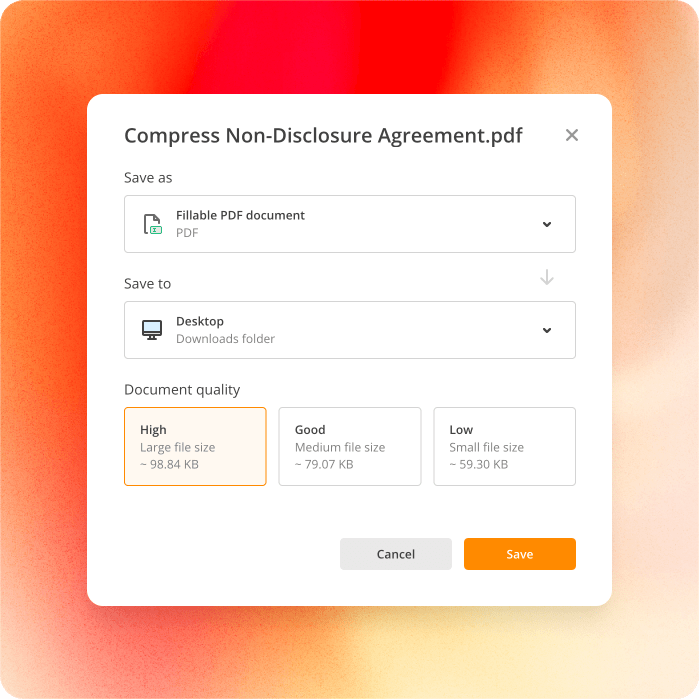
- Select your desired quality level to balance size and visual fidelity.
- Download the compressed file once the process is complete.
Choosing a Compression Quality Level
When using the Compress tool, you have the option to choose from different quality levels, each impacting the final file size and visual quality. Selecting a high-quality setting results in minimal visual change, making it ideal for documents where clarity is paramount. The medium setting offers a balanced approach, providing a good compromise between size and quality. If maximum size reduction is your goal, the low-quality setting will significantly decrease the file size, but it may affect the visual fidelity of images. Keep in mind that the quality levels available to you may depend on your subscription plan.
What Changes After Compression?
After you compress a PDF file, certain changes will occur. Images within the document may lose some quality, which is a common trade-off when reducing file size. However, the text and form data remain intact, ensuring that the essential information is preserved. Annotations in the document will be flattened, which means they will no longer be editable after compression. Despite these changes, the overall file structure is preserved, allowing the document to function as intended.
Expected File Size Reduction
The amount of size reduction you can expect from compressing a PDF file varies based on the content type of the document. For image-heavy PDFs, you can anticipate significant compression, as images typically take up more space. Conversely, text-only PDFs may yield minimal reduction, as they are already optimized for size. If your file has already been optimized, you might see little to no change in size after compression. Understanding these factors can help you set realistic expectations for your compression results.
Next Steps After Compression
Once you have compressed your PDF file, the next steps are straightforward. First, download the compressed file easily from the interface. After downloading, check if further reduction is necessary based on your needs. If you require even smaller files, consider using the Delete Pages or Split tools for additional size management. Finally, integrate the compressed file into your sharing workflows to ensure efficient document management.
Compress vs. Other Size-Reduction Methods
The Compress tool focuses specifically on reducing file size without altering the content. In contrast, the Delete Pages feature allows you to remove unnecessary content from your documents, while the Split tool divides large files into smaller, more manageable parts. Each of these tools serves a unique purpose, making it essential to choose the right one based on your specific needs.
Industry Scenarios for PDF Compression
PDF compression is particularly beneficial in various industry scenarios. For instance, marketing teams often need to share large presentations with clients and stakeholders, where compressed files can facilitate quicker sharing. Real estate agents frequently send property documents, and compressing these files ensures they can be emailed without issues. Freelancers submitting project files can benefit from reduced file sizes, making it easier to meet submission requirements. Legal professionals managing case files also find compression useful for maintaining efficient workflows while ensuring that documents remain accessible.
Supported Formats for Compression
The Compress tool supports various PDF formats, allowing you to work with different types of documents. Additionally, it is compatible with image files for conversion, enabling you to create PDFs from images. After compression, you can export your files to multiple formats, providing flexibility in how you manage your documents. Always check compatibility before uploading files to ensure a smooth compression process.
Browser Compatibility for Compression
The Compress tool works on all major web browsers, ensuring that you can access it regardless of your preferred platform. It is also accessible on mobile devices, allowing you to compress PDFs on the go. No installation is required for use, which simplifies the process further. With cloud-based access, you can manage your documents from anywhere, enhancing your productivity.
Limitations of the Compress Tool
While the Compress tool is effective, it does have limitations. Not all files will see significant reductions in size, especially if they are already optimized. Additionally, plan-tier restrictions may apply, affecting the features available to you. Some content types yield minimal results from compression, so it's essential to understand these constraints before relying solely on this method. Importantly, compression does not alter text data, ensuring that your written content remains unchanged.
Security and Compliance of Compression
Security is a priority when using the Compress tool. Encryption is applied during the compression process to protect your data. The tool complies with industry standards, ensuring that your documents are handled securely. Data privacy is maintained throughout the process, allowing you to compress files with confidence. Secure access is provided via the cloud-based platform, further enhancing your document security.
Comparison with Other Compression Tools
pdfFiller's compression tool stands out due to its user-friendly interface, making it accessible for all users. Trusted by over 68 million users, it offers a reliable solution for PDF management. With over 1 million templates available for use, pdfFiller provides resources that competitors may lack. While tools like Smallpdf and ilovepdf offer basic compression features, they do not integrate as seamlessly with document management as pdfFiller does. Adobe Acrobat, while powerful, can be more complex and costly compared to pdfFiller's straightforward approach.
Free vs. Paid Access for PDF Compression
Understanding the differences between free and paid access for PDF compression is crucial. The free plan offers limited compression capabilities, which may not meet all your needs. In contrast, paid plans unlock full features, allowing for more extensive compression options. Be sure to check the limits on file size and the number of compressions available under each plan. Starting a trial can help you explore the benefits of paid features before committing.
Next Steps and Broader Workflow Connection
Integrating compression into your document workflow can significantly enhance your efficiency. Explore other tools available in pdfFiller for comprehensive document management, such as editing and signing features. Utilizing templates can also speed up document creation, allowing you to focus on your core tasks. By enhancing productivity with streamlined processes, you can ensure that your document management is as effective as possible.