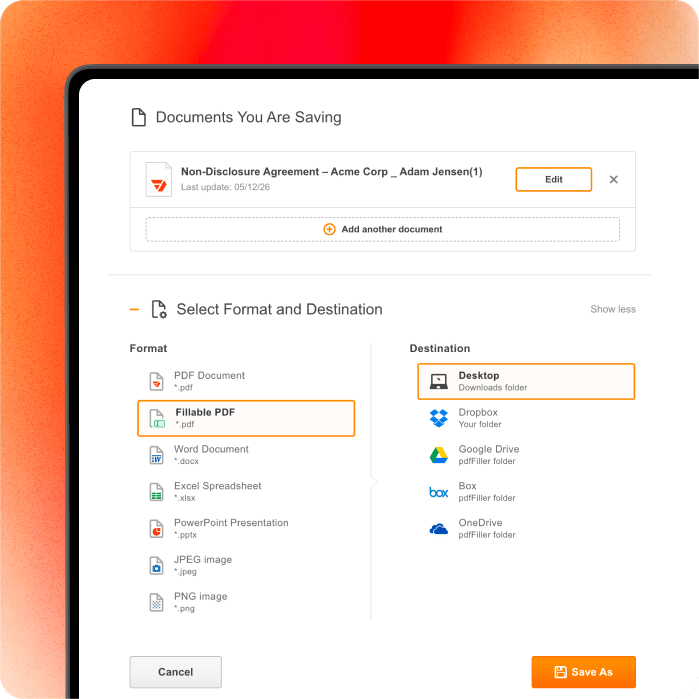
Convert PDF to Word and Download
Convert your PDF files to Word documents quickly and easily using pdfFiller, no installation required.
What is the PDF to Word Conversion Tool?
The PDF to Word conversion tool allows you to convert PDF documents into editable Word files. This tool is ideal for editing, as it requires no software installation and supports multiple formats. The user-friendly interface makes it accessible for small and medium-sized businesses and professionals who need efficient document conversion. With this tool, you can easily manipulate your documents without dealing with complicated processes.
Why Convert PDF to Word?
Converting PDFs to Word offers several advantages. First, it makes editing much easier, allowing you to make changes directly in the document. Additionally, extracting data from PDFs becomes straightforward, and reformatting documents for collaboration is simplified. This conversion is particularly beneficial for professionals who need to share and edit documents frequently.
How to Access the PDF to Word Tool
- Navigate to the pdfFiller website using your web browser.
- Locate the "Done" dropdown menu on the homepage.
- Select the "All Tools" card to view available options.
- Find the document row menu and select the PDF to Word conversion tool.
- No IT setup is needed to access this tool.
Uploading Documents for Conversion
To upload files for conversion, you can use the drag-and-drop functionality available on the pdfFiller platform. Supported file types include PDF files, Word documents, and image files. Once you upload your document, automatic conversion begins, ensuring a user-friendly experience without the hassle of unsupported formats.
Step-by-Step Guide to Convert PDF to Word
- Select the PDF document you wish to convert.
- Choose the output format as Word (.docx) from the available options.
- Click on the convert button to initiate the process.
- Once the conversion is complete, download the converted file to your device.
- There are no hidden fees associated with this conversion process.
Supported Output Formats
- Word (.docx)
- Excel (.xlsx)
- PowerPoint (.pptx)
- Image formats (.jpg, .png)
Input File Types Accepted
- PDF files
- Word documents
- Excel sheets
- Image files
Quality of Converted Files
When you convert PDF files to Word, you can expect a high level of layout fidelity and text editability. However, be aware that OCR limitations may affect the quality of scanned documents. Quality assurance measures are in place to ensure that the converted files meet your expectations.
Limitations of the Conversion Tool
While the PDF to Word conversion tool is effective, it does have some limitations. For instance, there may be page count limits for conversion, and OCR may not be available for all documents. Additionally, plan-tier restrictions may apply, especially for complex layouts that do not convert well.
Security and Data Handling
Your documents are handled securely during the conversion process. The conversion occurs server-side, ensuring data encryption and privacy measures are in place. You maintain control over your documents, which adds an extra layer of security when using the tool.
How Does pdfFiller Compare?
Adobe Acrobat offers comprehensive PDF editing but requires a subscription, which can be a higher cost compared to pdfFiller. Smallpdf provides basic conversion tools but lacks advanced features, making it less functional for complex documents. Nitro has strong PDF editing capabilities but may require installation, making it less user-friendly than pdfFiller's web-based solution.