Convert PDF to Word in Google Drive
Convert PDF files to Word format directly in Google Drive for easy editing and collaboration.
What is the PDF to Word Conversion Tool?
The PDF to Word conversion tool allows you to convert PDFs into editable Word documents. This tool is accessible via Google Drive, making it convenient for small and medium businesses. You can use it without any software installation, ensuring a hassle-free experience.
Why Convert PDFs to Word?
Converting PDFs to Word format offers several advantages. You can edit text more easily in Word, which provides better formatting control. This format is also ideal for collaboration, allowing multiple users to make changes and comments efficiently.
How to Access the Conversion Tool
You can access the conversion tool through three main paths. First, use the Done dropdown menu to select the conversion option. Second, find it in the All Tools card on the dashboard. Lastly, you can access it from the More menu in the document row.
Uploading Documents for Conversion
To upload documents for conversion, ensure you are using supported file types. The tool automatically converts non-PDF files upon upload, making it easy to manage your documents directly from Google Drive.
Step-by-Step Guide to Convert PDF to Word
- Open your document in Google Drive.
- Select the conversion option from the Done dropdown or All Tools card.
- Choose the PDF file you want to convert.
- Click on the Convert PDF to Word option.
- Wait for the conversion process to complete.
- Download the converted Word file to your device.
- Open the Word file to edit as needed.
- Share or collaborate on the document as required.
Supported Output Formats
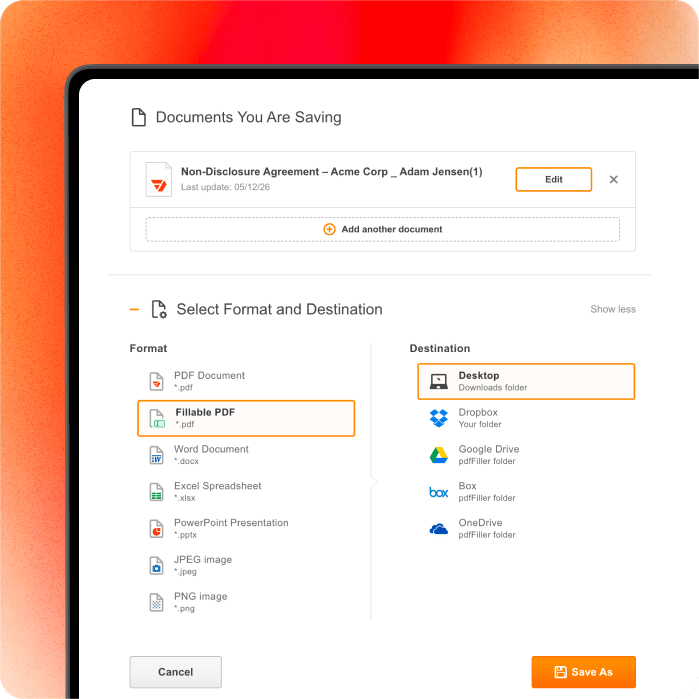
The conversion tool supports several output formats, including Word (.docx). Other formats available for conversion include Excel (.xlsx) and PowerPoint (.pptx). Availability of these formats may depend on your plan tier.
What to Expect from Converted Files
When converting files, you can expect varying levels of layout fidelity. Native PDFs generally convert with higher fidelity, while scanned PDFs may have limitations in text editability unless OCR is applied. Always check the quality of the converted document after the process.
Comparing Conversion Methods
Converting a PDF to Word differs from other methods like Save As PDF. While Save As PDF maintains the original format, converting allows for easier editing. Downloading and compressing files serve different purposes, so choose the method that best fits your needs.
Scenarios for Using PDF to Word Conversion
There are specific scenarios where converting PDFs to Word can be particularly beneficial. For instance, accountants can convert invoices to Word for easier editing and record-keeping. Real estate agents might convert contracts to Word for collaborative reviews. Consultants can also convert reports to Word for better formatting and sharing options.
Browser and Device Compatibility
The PDF to Word conversion tool is compatible with various browsers, including Chrome and Firefox. It works on both Mac and Windows devices, and you can access it from mobile devices without needing to install any software.
Security and Data Handling
pdfFiller ensures secure handling of your documents during server-side conversion. Data protection measures are in place to safeguard your files, and user privacy is a top priority throughout the conversion process.
Next Steps After Conversion
After converting your documents, you can edit the converted file in Word. You also have the option to sign documents digitally and share them directly within Google Drive, enhancing your workflow efficiency.