Convert PNG to PDF and Secure PDF File for Computer
Convert your PNG images to PDF format effortlessly using pdfFiller's secure online tool.
What is the PNG to PDF Conversion Tool?
The PNG to PDF conversion tool is designed to help you convert PNG images to PDF format quickly and efficiently. This tool is accessible via the Done dropdown menu, making it easy to find and use. One of the key benefits of this tool is that it allows for instant downloads after conversion, ensuring you can get your files without delay. Additionally, no software installation is required, which means you can use it directly from your browser without any technical setup. This simplicity makes it an ideal choice for anyone looking to convert PNG to PDF without the hassle of complex software.
Why Convert PNG to PDF?
Converting PNG files to PDF offers several advantages. First, PDFs preserve formatting across different devices, ensuring that your images look the same no matter where they are viewed. This is particularly important for sharing and printing, as PDFs maintain the integrity of your documents. Furthermore, the PDF format is secure and compact, making it easier to store and share files without compromising quality. Finally, PDFs are compatible with various software, allowing for easy editing in Word or extracting tables as needed. These benefits make it clear why you should convert PNG to PDF.
How to Access the Conversion Tool
- Access the tool via the Done dropdown menu on the pdfFiller dashboard.
- Find the conversion option in the All Tools card for quick access.
- Use the More menu for document-level conversion options.
- Enjoy quick access from your dashboard for efficient workflows.
Steps to Convert PNG to PDF
- Upload your PNG file to the pdfFiller platform.
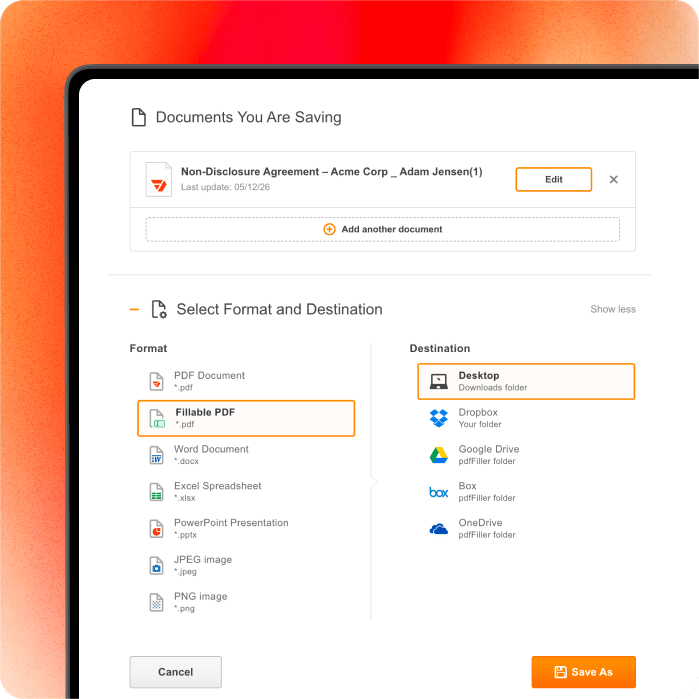
- Select PDF as the desired output format for conversion.
- Click the convert button to initiate the conversion process.
- Download the converted PDF file directly to your device.
- No technical setup is required, making this process straightforward.
Supported Output Formats
The primary output format for this conversion tool is PDF (.pdf). In addition to PDFs, other formats available for conversion include Word, Excel, and PowerPoint. Be aware that file size restrictions may apply based on your plan. The tool also supports multi-page PDFs, allowing you to convert multiple images into a single document efficiently.
Input File Types Accepted
This conversion tool supports various input file types, including PNG and JPG images. Additionally, PDFs can also be converted back to PNG format if needed. Ensure that your files meet the size limits specified by pdfFiller to avoid any issues during conversion. It's also important to check for compatibility issues to ensure a smooth conversion process.
What to Expect from Converted Files
When you convert PNG files to PDF, you can expect high fidelity for native PNG files. However, scanned images may have limitations in terms of quality. While layout fidelity is generally maintained, complex images may not convert accurately. Additionally, the converted PDFs will contain editable text, allowing for further modifications if necessary.
Limitations of the Conversion Tool
While the PNG to PDF conversion tool is highly effective, there are some limitations to be aware of. Page count limits may apply, especially for larger documents. Optical Character Recognition (OCR) is available for scanned files, but its effectiveness can vary. Complex layouts may not convert accurately, which could affect the final output. Additionally, plan-tier restrictions may limit access to certain features.
Security and Data Handling
Your data is handled with care during the conversion process. Documents are processed securely on servers, ensuring that your files are safe. Importantly, there is no data retention after conversion, meaning your files are not stored on the server. Secure connections are maintained during file transfer, and pdfFiller complies with data protection regulations to protect your information.
How Does pdfFiller Compare?
pdfFiller offers instant downloads, making it a convenient choice for quick conversions. Compared to Adobe Acrobat, pdfFiller is more user-friendly, although Adobe offers extensive features. When compared to Smallpdf, pdfFiller is more affordable, but it may lack some advanced editing features. Nitro provides powerful tools but requires installation, while pdfFiller's web-based approach allows for easy access without additional setup.
Next Steps After Conversion
After converting your files, you can take several actions. Share your PDF via email or cloud storage for easy distribution. If needed, you can edit the PDF further to make adjustments. Additionally, consider signing the document digitally for added security. Finally, store your PDF securely in your pdfFiller account for future access.