Convert Word to PDF and Print
Convert Word documents to PDF quickly and print them without hassle.
What is the Word to PDF Conversion Tool?
The Word to PDF conversion tool allows you to convert Word documents to PDF format for easy sharing. This tool is designed for small businesses needing quick solutions without the hassle of complicated processes. With pdfFiller, there is no software installation required, making it accessible to anyone looking to convert documents efficiently. By using this conversion tool, you can ensure that your documents are easily shareable and maintain their formatting across different devices.
Why Convert Word to PDF?
Converting Word files to PDF offers several advantages. First, it maintains formatting across devices, ensuring that your document looks the same no matter where it is viewed. PDF is universally accessible, making it a preferred format for document sharing. Additionally, converting documents to PDF provides a secure and professional presentation, which is essential for business communications. These benefits make the process of converting Word to PDF a valuable tool for anyone looking to share documents effectively.
How to Access the Convert Tool
- Access the conversion tool via the Done dropdown menu on the pdfFiller dashboard.
- Use the All Tools card for quick access to the conversion feature.
- Find the More menu on document rows to locate the conversion option.
Steps to Convert Word to PDF
- Open the Word document you wish to convert in pdfFiller.
- Select the convert option from the menu to initiate the process.
- Download the converted PDF file once the conversion is complete.
- Check the PDF to ensure that all formatting has been preserved.
- If needed, edit the PDF further using pdfFiller's editing tools.
- Share the PDF directly from the platform or save it for offline use.
Supported Output Formats
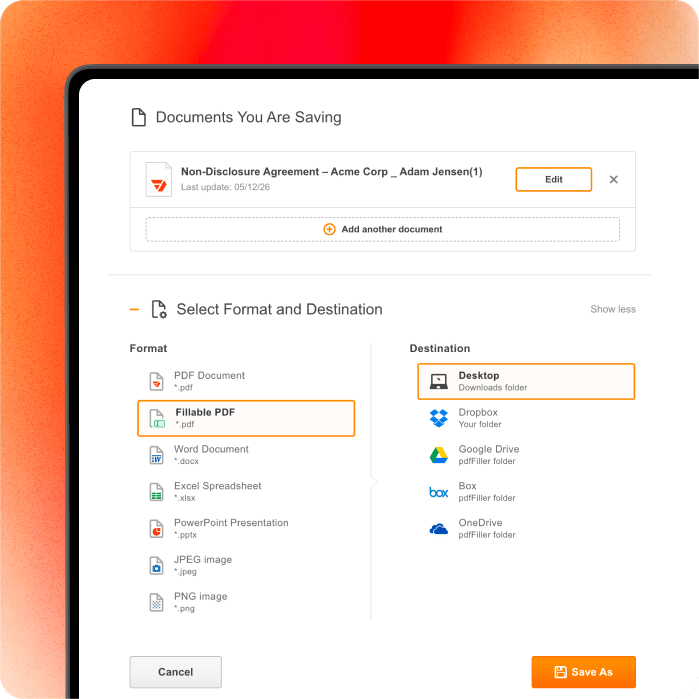
The primary output format after conversion is PDF. However, pdfFiller also supports other formats, including Word, Excel, and various image formats. This compatibility allows users to convert documents into the format that best suits their needs, ensuring flexibility in document management.
Input File Types for Conversion
pdfFiller accepts various input file types for conversion to PDF. You can upload .doc and .docx files easily. Additionally, it supports other formats like .xls and .ppt, allowing for a wide range of document types to be converted. This flexibility makes it convenient for users to convert files from various sources without any hassle.
What to Expect from Converted Files
When converting documents using pdfFiller, you can expect high fidelity for native PDFs. The tool also offers Optical Character Recognition (OCR) for scanned documents, enhancing the usability of converted files. However, be aware that there may be limitations on complex layouts, which could affect the final appearance of the document. Understanding these aspects will help you set realistic expectations for your converted files.
Comparison with Other Export Methods
When comparing the conversion tool to other methods like Save As PDF, there are distinct advantages. The conversion tool often preserves formatting better than the Save As option, which might not handle complex documents as effectively. Using the conversion tool is preferable when you need a reliable output, especially for professional documents. Each method has its place, but for quality and consistency, the conversion tool stands out.
Real-World Scenarios for Conversion
There are numerous practical use cases for converting Word to PDF. For instance, a small business might send invoices in PDF format to ensure they maintain their formatting and professionalism. Freelancers often share contracts as PDFs to provide a secure and uneditable format. Additionally, teams collaborating on reports can benefit from converting Word documents to PDF, ensuring that everyone views the same version without discrepancies.
Browser and Device Compatibility
The conversion tool works on all major browsers, ensuring that you can access it from any device. It is also accessible on mobile devices, allowing for conversions on the go. No installation is required for any operating system, making it a versatile solution for all users.
Security and Data Handling
pdfFiller ensures document security during conversion by processing documents securely on their servers. Importantly, there is no data retention after conversion, meaning your documents are not stored longer than necessary. The platform complies with data protection standards, providing peace of mind when handling sensitive information.
Next Steps After Conversion
After converting your documents, you can edit PDFs further in pdfFiller if needed. You can also share documents directly from the platform, making collaboration easy. Additionally, you have the option to print or save PDFs for offline use, integrating them seamlessly into your workflow.
How Does pdfFiller Compare?
Adobe Acrobat offers extensive features but at a higher price point. Users may find pdfFiller more affordable for basic needs. ilovepdf provides similar functionalities but lacks the extensive template library that pdfFiller offers, which includes over 1 million ready-to-use templates. Smallpdf is good for quick conversions but may have limitations on file sizes, while pdfFiller supports larger files without restrictions.