Copy Word in PDF For Free

Drop document here to upload
Select from device
Up to 100 MB for PDF and up to 25 MB for DOC, DOCX, RTF, PPT, PPTX, JPEG, PNG, JFIF, XLS, XLSX or TXT

Last updated on Sep 21, 2026

Copy Word in PDF

Copy text in your PDF documents easily using pdfFiller's editing tools.

What is Edit Mode in pdfFiller?

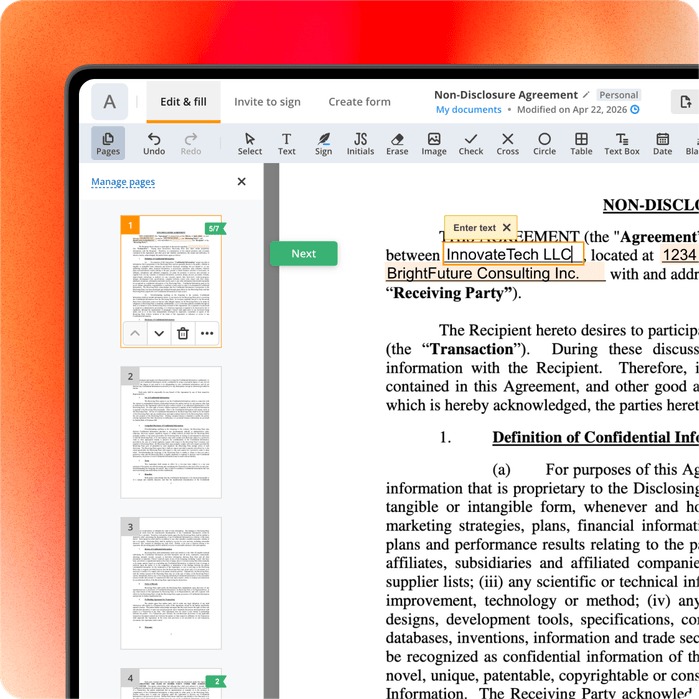
Edit Mode in pdfFiller allows you to access various PDF editing tools directly. You can easily modify document content by clicking the Edit button in the toolbar. This mode supports native PDFs for the best results, ensuring that you can edit text without the need for complex enterprise software. Additionally, no IT setup is required, making it accessible for small businesses and professionals alike.

Why Use Edit Mode for PDF Text?

Using Edit Mode for PDF text offers several benefits. You can correct errors without needing to convert the file, which saves time on document workflows. Maintaining formatting integrity is crucial, especially for small businesses that rely on professional-looking documents. By editing directly in the PDF, you avoid time-consuming processes often associated with traditional editing methods.

How to Access Edit Mode

  • Click the Edit button in the toolbar to enter Edit Mode.
  • Ensure your document is uploaded first; only supported file formats can be edited.
  • No installation is required; simply access pdfFiller through your browser.

Editing Existing Text in PDFs

To modify text within a PDF document, click on the text blocks you wish to edit. You can easily navigate between text elements to make necessary changes. Once you have made your edits, saving changes is straightforward, and the tool works on any device, allowing for flexibility in your editing process.

Adding New Text Blocks

  • Click on the area where you want to insert new text.
  • Select the option to insert free-floating text; initial formatting options will be available.
  • Position the text anywhere in the document as needed, which is particularly useful for annotations.

Removing Text from PDFs

To delete text from a PDF document, select the text you wish to remove. You will need to confirm the deletion process to ensure accuracy. Be aware that deleting text can impact the document layout, but an undo option is available if you change your mind, preventing permanent loss of content.

Using the Whiteout Tool

The Whiteout tool allows you to make corrections by covering text without permanently removing it, unlike the Blackout tool. To apply Whiteout effectively, select the text and choose the Whiteout option. This tool is useful for corrections where you may want to retain the original content for reference.

Text Formatting Options

In Edit Mode, you have access to various text formatting features. You can choose from different font families and sizes, apply bold, italic, or underline styles, and control text color and alignment. Proper formatting affects readability, ensuring your documents look professional and are easy to read.

Find and Replace Text in PDFs

To use the Find & Replace feature, start by locating specific text strings within your document. Follow the steps to replace text efficiently, which can be particularly useful for bulk edits. Be mindful of the impact on document integrity when making multiple changes at once.

Editing Native vs. Scanned PDFs

Editing capabilities differ between native and scanned PDFs. Direct editing is available for native PDFs, allowing for straightforward modifications. However, scanned PDFs require OCR (Optical Character Recognition) first, which can limit text editing options. Best practices for handling scanned files include converting them to native formats before editing.

Next Steps After Editing

After editing a PDF, it's important to save your changes to ensure they are not lost. You can choose from various options for sharing edited PDFs, including exporting them in different formats. Always review your edits to confirm accuracy before finalizing the document.

How Does pdfFiller Compare?

Adobe Acrobat offers extensive features but requires a subscription; pdfFiller provides essential editing without hidden fees.

Foxit is known for speed but can be complex; pdfFiller is user-friendly and straightforward.

Nitro is great for collaboration but costly; pdfFiller delivers similar capabilities at a lower price.

Try most popular PDF tools

Discover a full set of tools to handle any document task.

Edit PDFs

Make quick PDF edits online.

Sign

Add legally binding signatures.

Merge

Combine multiple PDFs.

Request signatures

Send a document for signing.

Convert

Transform PDFs into other formats.

Rearrange

Change the order of pages.

Share

Send PDFs for review or editing.

Compress

Reduce PDF file sizes.

How to edit PDFs with pdfFiller

1. Upload or create

The online PDF editor that has it all

  • Edit PDFs without workarounds Quickly add, erase, replace, or reformat text in PDFs without converting files back and forth or using clunky desktop software. Our editor works on any device, allowing you to fill out forms and make edits wherever you are.
  • Add legally binding signatures Sign PDFs directly in the editor—no extra eSignature tools needed. Add your signature or initials after editing a contract or agreement and send it out to sign.
  • Make a lasting impression with your PDFs Add images, logos, tables, and watermarks to maintain a professional look of your documents on any device. Draw lines and arrows, insert checkmarks and shapes, or draw freehand to make quick markings or organize information.
  • Annotate and collaborate Highlight important data, redact sensitive details, add sticky notes, and exchange comments for speedy document reviews. Share files instantly to request edits, feedback, or approval—no need for email attachments.
  • Create fillable PDF forms Turn static PDFs into interactive fillable forms anyone can complete online. Drag and drop text boxes, signature fields, dropdowns, and checkboxes, then share your form via a link or publish it on your website.
  • Split, merge, and rearrange Edit and reorganize your PDFs in one place. Split a large PDF into bite-sized docs or merge separate files into one comprehensive document. Need a smaller file size? Compress your document with just one click!

Who needs this?

Explore how professionals across industries use pdfFiller to edit PDFs.

Education

Educators and administrators use pdfFiller to edit lesson plans, sign permission slips, and collaborate on curriculum updates. Create fillable forms for enrollment or evaluations, and organize PDFs with ease, all on one platform.

  • Lesson plans
  • Permission slips
  • Enrollment forms
  • Course registration forms
Education
  • G2 — Users Most Likely To Recommend
  • G2 — Grid Leader in Small-Business
  • G2 — High Performer
  • G2 — Regional Leader
  • G2 — Easiest To Do Business With
  • G2 — Best Meets Requirements
  • G2 — Best Support

pdfFiller scores top ratings on review platforms

pdfFiller is rated 4.6 out of 5 stars across 1,000+ G2 reviews.

It provides editing function which is what I am looking for.
Maria Teresa Yvette C
My QuickBooks won't let me print W2's unless I sign up for their payroll service. We have 2 employees! Not worth the expense! With PDFfiller, I was able to print W2's for much more reasonable price!
CAROL
Love this service. Fast and hassle-free submissions.
Dena B
So easy to use! And lots of forms that most wouldn't think are available.
JJ B
Easy to use. Much better than other programs I have tried.
Anonymous Customer
excellent software excellent software, easy to use, customer friendly page,, great work guys
RODOLFO BENITEZ

Edit PDFs with an all-in-one solution

Try easy-to-use tools for all your document management needs.

pdfFiller workspace for creating, filling and managing PDF forms

PDF editing is just the beginning

More than a PDF editor

Watch our PDF editor in action

Check out a quick video tutorial that shows how to edit any file into an editable PDF in three easy steps.

FAQs

If you can't find what you're looking for, please contact us anytime!

To copy text from a Word document into a PDF, simply upload your PDF to pdfFiller and use the 'Edit' feature. This allows you to paste the copied text directly into the PDF. After pasting, you can adjust the formatting as needed. For best results, ensure that the text you copy is compatible with the PDF's layout. This method provides a seamless way to integrate content while maintaining document integrity.

The best practice for copying text from a PDF back into Word is to use pdfFiller's 'Export' feature, which allows you to convert the PDF into a Word document format. This ensures that the formatting is preserved and the text is editable. After conversion, you can easily copy the text and paste it into your desired location in Word. This method minimizes formatting issues and enhances cross-platform compatibility.

Yes, it is safe to copy sensitive information from a PDF using pdfFiller, as the platform employs robust security protocols to protect your data. When you copy text, it is done within a secure environment, ensuring that your information remains confidential. Always ensure you are using secure internet connections and consider encrypting sensitive documents before uploading them to further enhance security.

Yes, you can copy images along with text from a PDF using pdfFiller's editing tools. Simply select the image and text you want to copy, and use the 'Copy' function. Afterward, you can paste it into another document or application. For best results, ensure that the images are of high quality and that the PDF is not password-protected, as this may restrict copying.

To copy and edit text in a scanned PDF, first, upload the document to pdfFiller and utilize the OCR (Optical Character Recognition) feature. This will convert the scanned text into editable text. Once the OCR process is complete, you can select the text and copy it as needed. This allows you to work with scanned documents effectively, ensuring that the text is accurately recognized and editable.

To ensure formatting is preserved when copying text from a PDF, use pdfFiller's 'Export' feature to convert the PDF into a Word document. This method maintains the original layout and formatting, making it easier to copy and paste without losing essential elements. Additionally, check the formatting in the Word document after pasting to make any necessary adjustments.

If you cannot copy text from a secured PDF, consider using pdfFiller's 'Unlock' feature, which can help you remove restrictions on the document. Once the PDF is unlocked, you can easily copy the text. However, ensure that you have the right to modify the document before proceeding. This approach allows you to access and utilize the content while adhering to legal and ethical standards.

Transforming businesses with pdfFiller

Check out these success stories.

I was happy to do this for patients, but I simply didn't have 30–60 minutes to fill out each form. It was a true waste of resources to do it that way, and as a surgeon, my time is better spent in patient care, which was often delayed.

Marshall Orthopaedics

One tool. Every document task.

One workflow shouldn’t take five tools

Start free trial