Countersign PDF
Sign your PDF documents quickly and easily with pdfFiller's intuitive tools.
What is the Countersign PDF Feature?
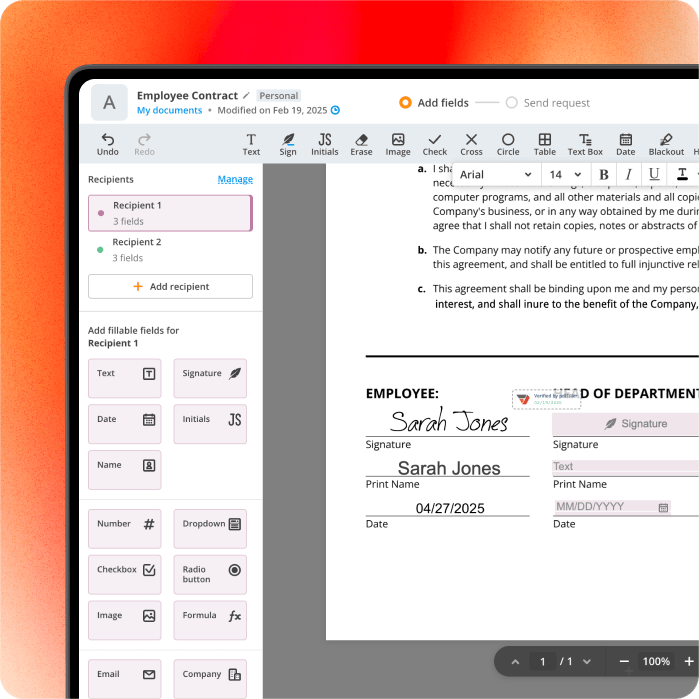
The Countersign PDF feature allows you to add your signature to PDF documents efficiently. Unlike self-signing, which is limited to your own signature, countersigning enables you to send documents for signature approval. This distinction is crucial for small businesses that need to finalize contracts and agreements without delays. The signing process is straightforward: upload your document, add your signature, and send it off for approval. This feature not only simplifies the signing process but also ensures that all parties can sign documents without confusion, making it a valuable tool for professionals.
How Does Countersigning Solve Document Workflow Issues?
Countersigning PDF documents addresses common challenges in document workflows. Many businesses face delays due to the traditional signing process, which often involves printing, signing, and scanning documents. With pdfFiller, you can improve speed and efficiency significantly. For instance, a study showed that businesses using digital signatures reduced turnaround times by up to 80%. User testimonials highlight how pdfFiller has transformed their document management, allowing them to focus on core business activities rather than getting bogged down in paperwork.
Three Ways to Create Your Signature
When you countersign PDF documents, you can create your signature in three different ways: draw, type, or upload an image. Each method has its own legal equivalence, ensuring that your signature holds up in court. Drawing your signature may appeal to those who prefer a personal touch, while typing offers a quick solution. Uploading an image of your signature is ideal for those who already have a scanned version. Understanding user preferences can help you choose the best method for your needs.
Step-by-Step: Drawing Your Signature
- Access the signature tool in pdfFiller.
- Select the option to draw your signature.
- Use a mouse, touchpad, or stylus to create your signature.
- Customize your signature by adjusting the color and thickness.
- Practice drawing your signature until you are satisfied with the result.
- Save your drawn signature for future use.
- Insert your signature into the PDF document where required.
- Review the document to ensure your signature is placed correctly.
Step-by-Step: Typing Your Signature
- Open the signature tool in pdfFiller.
- Select the option to type your signature.
- Choose from various font styles and colors to match your preference.
- Type your name in the designated area.
- Adjust the placement of your typed signature on the document.
- Preview your typed signature to ensure it looks professional.
- Save your typed signature for future use.
- Insert your signature into the PDF document as needed.
Step-by-Step: Uploading Your Signature Image
- Navigate to the signature tool in pdfFiller.
- Select the option to upload your signature image.
- Ensure your image is in a supported format, such as PNG or JPEG.
- Click on the upload button and select your signature image file.
- Adjust the size and placement of your uploaded signature on the document.
- Check the clarity of your signature image to ensure it is legible.
- Save your uploaded signature for future use.
- Insert your signature into the PDF document where required.
Adding Initials to Your PDF
To add initials using pdfFiller, you can use several methods. You can draw your initials, type them, or upload an image. Each method has legal implications, so choose the one that best fits your needs. Customization options allow you to adjust the size and color of your initials, ensuring they match your signature style. Adding initials can be crucial for contracts and agreements, providing an additional layer of verification.
Saving and Reusing Your Signatures
To save signatures in pdfFiller, follow these steps: access the signature tool, create or upload your signature, and select the option to save it. You can also set a default signature for quicker access in future documents. Reusing signatures saves time and ensures consistency across your documents. This feature is particularly beneficial for small businesses that frequently sign contracts and agreements.
Legal Validity of Your Signature
The signatures created using pdfFiller are legally valid and comply with regulations such as ESIGN, UETA, and eIDAS. These laws ensure that electronic signatures hold the same weight as traditional handwritten signatures. Maintaining an audit trail is essential for legal compliance, as it provides proof of the signing process. Understanding the legal implications of digital signatures is crucial for businesses that rely on electronic documentation.
Next Steps After Signing Your PDF
After you countersign PDF documents, you have several options for sharing them. You can email the signed document directly from pdfFiller or download it for offline use. Integrating with other pdfFiller features, such as document storage and editing, enhances your workflow. A streamlined process not only saves time but also reduces the risk of errors, allowing you to focus on your business activities.
How Does pdfFiller Compare?
Compared to DocuSign, pdfFiller offers a more user-friendly interface for small businesses. While DocuSign may provide more advanced features, it comes at a higher cost.
In comparison to Adobe Acrobat Sign, pdfFiller includes a vast library of ready-to-use templates, making it easier for users to find what they need. Adobe may be more recognized but lacks pdfFiller's affordability.
When looking at signNow, pdfFiller's signature tool is integrated with comprehensive document editing features, allowing for a more versatile experience. signNow focuses primarily on e-signatures, lacking extensive editing capabilities.