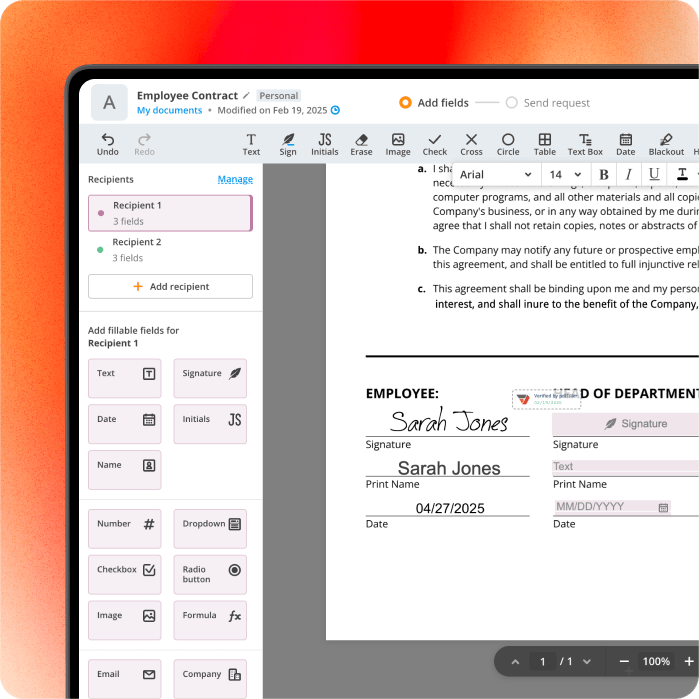
Create Brand Logo and Checkbox in PDF For Free

Drop document here to upload
Select from device
Up to 100 MB for PDF and up to 25 MB for DOC, DOCX, RTF, PPT, PPTX, JPEG, PNG, JFIF, XLS, XLSX or TXT

Last updated on Oct 14, 2026

Create Brand Logo and Checkbox in PDF

Create a brand logo in your PDF documents using pdfFiller's easy tools. Enhance your branding without complicated software.

What Branding Tools Do in pdfFiller

pdfFiller offers powerful branding tools that help you create a cohesive brand identity across your documents. The platform features a two-layer branding system: document-level branding and workspace-level branding. With the Image Tool, you can easily place your logo on any document, while the Watermark Tool allows you to apply a watermark for added branding. Additionally, you can configure custom email branding options, ensuring that your emails reflect your brand identity. The user-friendly interface makes it simple to navigate these tools, allowing you to create a brand logo and enhance your documents without needing technical expertise.

Adding a Logo to a PDF

To create a brand logo in your PDF documents, follow these steps using the Image Tool:

  • Open your PDF document in pdfFiller.
  • Access the toolbar and click on the Image icon.
  • Upload your logo image file, ensuring it is in a supported format like JPG or PNG.
  • Position and resize the logo as needed on the page.
  • Save your document to retain the logo placement.

By following these steps, you can effectively add your logo to enhance your branding. This process is crucial for small businesses looking to create professional invoices or marketing materials.

Applying a Watermark with the Watermark Tool

The Watermark Tool in pdfFiller allows you to apply branding to your documents effectively. You can choose between text and image watermarks, each with its unique benefits. Configure options such as size, transparency, and rotation to ensure your watermark complements your document's design. For instance, a subtle watermark can reinforce your brand identity without overwhelming the content. This feature is particularly useful for documents that require a professional touch, such as contracts or proposals.

Creating a Custom Email Signature

Establishing a custom email signature is essential for consistent branding. To set up your email signature in pdfFiller, navigate to Account Settings and select Custom Branding. Here, you can configure your email signature, including your logo and contact information. A well-designed email signature enhances your professional image and ensures that every email you send reflects your brand identity. For example, a real estate agent might include their logo and a tagline to promote their services.

Branding Scenarios by Role and Document Type

Consider these practical scenarios where branding actions resolve specific document presentation challenges:

  • A freelancer creating invoices can add a logo to enhance professionalism and brand recognition.
  • A real estate agent applying a watermark to property listings can deter unauthorized use while promoting their brand.
  • A small business owner configuring a custom email signature can ensure that all communications maintain a consistent brand image.

These scenarios illustrate how effective branding tools can address common challenges faced by various professionals.

Limitations and Known Constraints

While pdfFiller's branding tools are powerful, there are some limitations to consider. Supported image formats for logos include JPG and PNG, with size limits for uploads to ensure optimal performance. Additionally, certain custom branding features, like email footers and account-level logos, may be restricted based on your plan tier. It's important to note that some settings apply account-wide, while others are specific to individual documents.

Browser and Device Compatibility

pdfFiller's branding tools are designed for accessibility across various platforms. The platform supports major web browsers, ensuring that you can access your documents from any device without installation. This compatibility makes it easy to work on your branding tasks whether you're using a desktop, tablet, or smartphone, providing flexibility for busy professionals.

Security and Data Handling

Security is a top priority when handling documents in pdfFiller. Uploaded documents are protected with TLS encryption during transit, ensuring that your data remains secure. pdfFiller also has clear data retention policies, including automatic deletion timelines for files after a specified period. Compliance with relevant regulations further enhances the security of your document handling processes, giving you peace of mind while managing sensitive information.

How Does pdfFiller Compare?

When comparing pdfFiller's branding tools to alternatives, several key differentiators emerge:

Adobe Acrobat offers extensive PDF editing features but lacks the intuitive branding tools pdfFiller provides. Users may find Acrobat's interface more complex.

DocuSign focuses on e-signatures and document signing, while pdfFiller excels in comprehensive branding options. DocuSign may not meet all branding needs.

HelloSign simplifies e-signatures but does not offer the same level of document customization and branding features as pdfFiller. Users may miss out on branding capabilities.

Summary and Next Steps

In summary, pdfFiller's branding tools allow you to create a brand logo and apply it across various documents effectively. With options for email signatures and watermarks, you can ensure a consistent brand presence in all your communications. Explore related features such as document editing and protection to enhance your document management experience. Start using pdfFiller today to elevate your branding efforts and streamline your workflow.

Try most popular PDF tools

Discover a full set of tools to handle any document task.

Edit PDFs

Make quick PDF edits online.

Sign

Add legally binding signatures.

Merge

Combine multiple PDFs.

Request signatures

Send a document for signing.

Convert

Transform PDFs into other formats.

Rearrange

Change the order of pages.

Share

Send PDFs for review or editing.

Compress

Reduce PDF file sizes.

How to sign a document online?

Upload

Signing and editing documents has never been easier

  • Edit and sign in one place Quickly eSign documents after reviewing or editing — no need to juggle tools and move files back and forth. Get your PDFs done fast with all the tools you need at your fingertips.
  • Easy sharing & collaboration After signing a document, share it instantly with clients and stakeholders for review, editing, or comments. To request signatures from other parties, add fillable fields and send the document for signing.
  • Mobile-ready solution Easily edit, sign, and send your documents from anywhere, even on the go. pdfFiller is entirely cloud-based, so you can manage documents effectively from your computer, smartphone, or tablet.
  • Legally binding & secure Sign contracts and agreements following global eSignature laws, including ESIGN, UETA, eIDAS, and GDPR. With HIPAA, PCI DSS, SOC 2 Type II, and other compliance standards, pdfFiller works for any industry.

Who needs this?

Explore how professionals use pdfFiller to sign documents.

Healthcare

Healthcare professionals use pdfFiller to simplify document signing, from patient consent forms to medical record requests. They can easily request, approve, and share signed documents with patients, staff, or suppliers, saving time and improving communication.

  • Patient consent forms
  • Prescription forms
  • Lab test requisition forms
  • Referral and consultation forms
Healthcare
  • G2 — Users Most Likely To Recommend
  • G2 — Grid Leader in Small-Business
  • G2 — High Performer
  • G2 — Regional Leader
  • G2 — Easiest To Do Business With
  • G2 — Best Meets Requirements
  • G2 — Best Support

pdfFiller scores top ratings on review platforms

pdfFiller is rated 4.6 out of 5 stars across 1,000+ G2 reviews.

A chat session help find a form I was looking for and it is easy to use.
Dennis B
So easy and quick! Love how quick this program loads, allows me to erase, rotate a document that scanned upside down. Nice clean quality print.
Lisa K
By far the best PDF editor. By far the best PDF editor.It not only worked flawlessly but the experience was awesome.I ask to unsubscribe while in the 30 days free trial and 7 minutes later I was unsubscribed without further questions.
Maxime Lewandowski
Better and more powerful document management and editing on the web Editing my PDFs without difficulty This PDFfiller tool for online use is very useful since most PDF editors are paid and not all people can pay for such software. It also allows you to upload the documents you have in your Google Drive account, Dropbox and other tools I do not find you disadvantaged, because you are covering the need of users who can not afford desktop software, to edit a PDF document
Nohelvis M.
The best app ever The best app ever, it is so easy to use and hassle-free with very fast customer service. 100% recommend
Pawel
I am really satisfied over the support I have experienced - outstanding!
Gunnar Hauk G.

eSign documents with a trusted, all‑in‑one solution

Try easy-to-use tools for all your document management needs.

pdfFiller workspace for creating, filling and managing PDF forms

Why sign documents with pdfFiller?

Ease of use

Watch pdfFiller eSignatures in action

Check out a quick video tutorial that shows how to create and place your signature or send a document for signing.

FAQs

If you can't find what you're looking for, please contact us anytime!

To create a brand logo in a PDF, use pdfFiller’s intuitive editing tools to upload your logo image directly into the document. Start by opening your PDF in pdfFiller, then select the 'Image' tool from the toolbar. Upload your logo file, adjust its size, and position it where you want it on the page. This method ensures your logo is seamlessly integrated into your PDF, maintaining high quality and clarity. For best results, use a high-resolution image to avoid pixelation, ensuring your brand's professional appearance is preserved.

To add a checkbox in a PDF, open your document in pdfFiller and navigate to the 'Form Fields' section. Select the 'Checkbox' option and click on the area in your PDF where you want it to appear. You can customize the checkbox properties, such as size and alignment, to fit your document's layout. This feature is particularly useful for forms or agreements requiring user input. Remember to save your changes to ensure the checkbox is preserved for future use.

Yes, you can create both a brand logo and a checkbox in the same PDF document using pdfFiller. Start by uploading your PDF and adding your logo as described previously. Then, use the 'Form Fields' tool to insert a checkbox in the desired location. This allows you to create a cohesive document that represents your brand while facilitating user interaction through checkboxes. Ensure that the logo and checkbox are well-aligned for a professional look.

When creating a PDF with your brand logo, pdfFiller supports various file formats including JPG, PNG, and GIF. PNG is often recommended for logos due to its support for transparent backgrounds, which allows for seamless integration into your PDF. To upload your logo, simply select the 'Image' tool and choose your file. This flexibility ensures that you can use the format that best represents your brand while maintaining high quality in your PDF.

To ensure your PDF with a brand logo and checkbox is secure, utilize pdfFiller's built-in security features. After creating your document, you can password-protect it or apply encryption to restrict access. Additionally, consider using the eSignature feature to authenticate the document, which adds an extra layer of security. This is particularly important for legal teams and SMEs that handle sensitive information, ensuring that your documents remain confidential and secure.

Yes, pdfFiller allows you to edit your PDF even after adding a brand logo and checkbox. You can modify text, add additional fields, or change the layout as needed. Simply open your document in pdfFiller, and use the editing tools to make the necessary adjustments. This flexibility is essential for remote professionals who may need to update documents frequently, ensuring that your PDFs remain accurate and up-to-date.

Absolutely! pdfFiller enables real-time collaboration on PDFs that include your brand logo and checkbox. You can share the document with team members or clients, allowing them to review and make comments directly within the PDF. This feature streamlines the feedback process and ensures that everyone is on the same page. To collaborate, simply use the sharing options in pdfFiller and invite others to view or edit the document.

What businesses achieve with pdfFiller

Discover how you can benefit too.

pdfFiller allows us to tap into additional markets and sell business we might not otherwise have sold because of the speed and ease with which we can produce the forms.

Scaturro Insurance Agency LLC

One tool. Every document task.

One workflow shouldn’t take five tools

Start free trial