Create Brand Logo and Checkmark in PDF
Create a brand logo and checkmark in your PDF documents easily using pdfFiller's intuitive tools, designed for small businesses and professionals.
What Branding Tools Do in pdfFiller
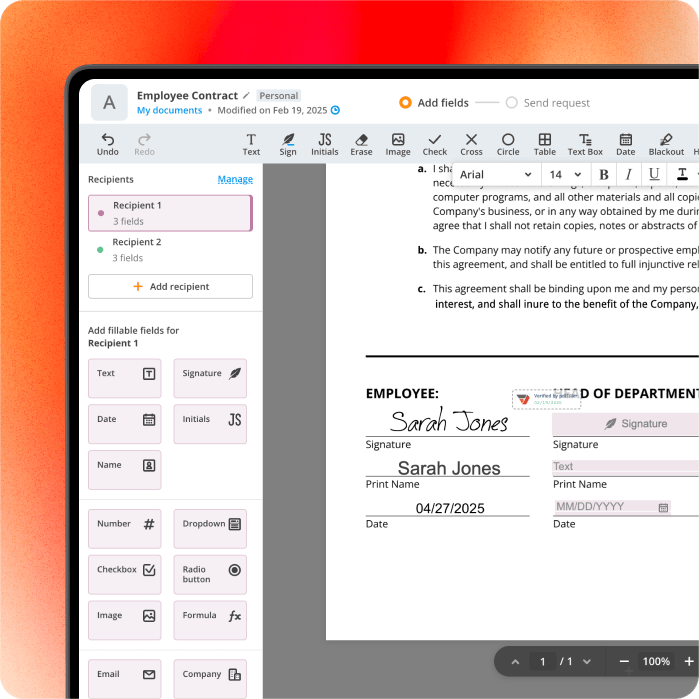
pdfFiller offers various branding tools that help you create brand logos in PDF documents, ensuring effective document branding. The Image Tool allows users to upload and place logos directly onto their PDFs, while the Watermark Tool enables the application of branding elements across multiple documents. Users can choose between document-level branding, which applies to individual files, and workspace-level branding, which can be applied to all documents within a specific workspace. This flexibility makes it easy for small and medium businesses to maintain a consistent brand image without the need for complex software.
Adding a Logo to a PDF
- Open your PDF document in pdfFiller.
- Select the Image Tool from the toolbar.
- Upload your logo image in a supported format (e.g., PNG, JPG).
- Drag and drop the logo to the desired location on the PDF.
- Resize the logo as needed using the corner handles.
- Click "Save" to apply the changes to your document.
- Download or share the PDF with the newly added logo.
- Use this method for invoices, contracts, and other professional documents.
Applying a Watermark with the Watermark Tool
The Watermark Tool in pdfFiller allows you to apply branding elements to your documents effectively. You can choose between text and image watermarks, customizing them to fit your brand's identity. Text watermarks can include your brand name or slogan, while image watermarks can feature your logo. This tool is particularly useful for maintaining brand visibility in shared documents, ensuring that your branding remains consistent across all platforms. Consider using watermarks for sensitive documents that require a professional touch.
Creating a Custom Email Signature
- Access the email signature settings in pdfFiller.
- Upload your logo to include in the signature.
- Add your name, title, and contact information to the signature.
- Ensure the signature reflects your brand's style and tone.
- Test the signature by sending an email to yourself.
Removing a Logo or Watermark from a Document
To remove a logo or watermark from your PDF, open the document in pdfFiller and select the branding element you wish to delete. Click on the delete option, and confirm the action. If you encounter any common issues, such as the element not disappearing, ensure that you are in edit mode. This straightforward process allows you to maintain control over your document branding and make adjustments as necessary.
Editing and Replacing an Existing Logo
To update a logo in your PDF, first, select the existing logo using the Image Tool. Then, upload the new logo image and replace the old one. Ensure that the new logo maintains the same quality and dimensions as the previous one to avoid distortion. This process is essential for keeping your branding up-to-date and relevant in all your documents.
Branding Scenarios by Role and Document Type
- For small business invoices, adding a logo enhances professionalism and brand recognition.
- Freelancers can use branding tools to create personalized proposals that stand out.
- Real estate agents benefit from branded documents that convey trust and reliability to clients.
- Marketing professionals can apply consistent branding across promotional materials and reports.
Browser and Device Compatibility
pdfFiller's branding tools are accessible from any modern web browser, including Chrome, Firefox, and Safari. The platform is fully compatible with mobile devices, allowing you to create brand logos in PDF documents on the go. No installation is required, making it easy to manage your documents from anywhere without needing IT support.
Limitations and Known Constraints
While using pdfFiller, be aware of certain limitations. Supported formats for logos include PNG and JPG, and there may be size limits for uploaded images. Additionally, some features may be restricted based on your subscription plan, so it's essential to check your plan details to ensure you have access to all branding tools.
Security and Data Handling
pdfFiller prioritizes document security by employing encryption to protect your files. The platform complies with industry standards for data handling and retention policies, ensuring that your documents remain secure. This commitment to security allows you to confidently create brand logos in PDF documents without worrying about unauthorized access.
Summary and Next Steps
In summary, pdfFiller provides a range of tools for creating brand logos and checkmarks in your PDF documents. With features like the Image Tool and Watermark Tool, you can easily maintain brand consistency across all your documents. Explore related features and start enhancing your document branding today.
How Does pdfFiller Compare?
Adobe Acrobat offers extensive PDF editing features, but requires a subscription for full functionality. Tradeoff: Higher cost for small businesses.
DocuSign focuses on e-signatures, lacking comprehensive branding tools. Tradeoff: Limited branding options for document presentation.
HelloSign provides basic signing features, but less emphasis on document branding. Tradeoff: May not meet all branding needs for professionals.