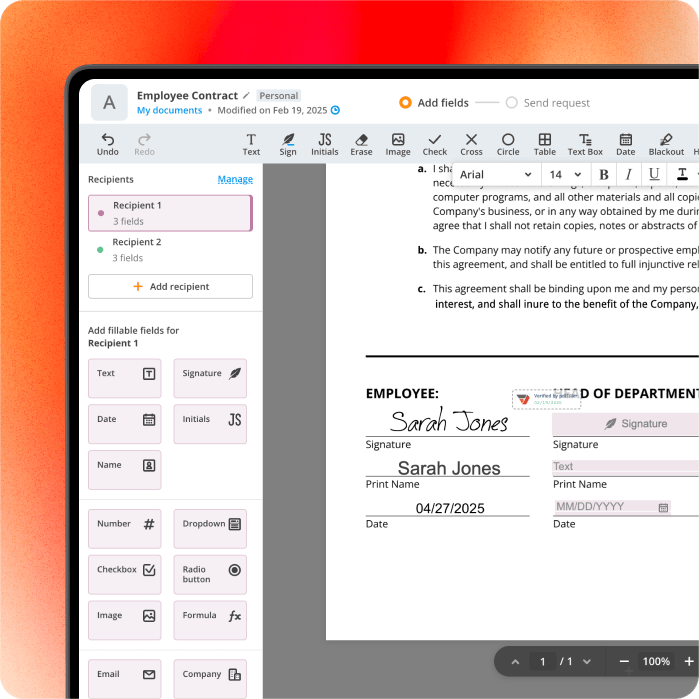
Create Brand Logo and Formula in PDF
Create brand logos for your PDFs and other documents effortlessly using pdfFiller's intuitive tools.
What Branding Tools Do in pdfFiller
pdfFiller offers a comprehensive branding system that operates on two levels: document-level and workspace-level branding. Document-level branding allows you to customize individual documents, while workspace-level branding applies your logo and branding elements across all documents created within your workspace. The Image Tool enables you to easily upload and place logos on your documents, while the Watermark Tool allows you to add a watermark for branding and security purposes. Users can position their logos and watermarks without any technical setup, making it straightforward to enhance document branding. This simplicity addresses common pain points associated with document branding, ensuring that you can focus on your content rather than complex setups.
Adding a Logo to a PDF
- Open your PDF document in pdfFiller.
- Select the Image Tool from the toolbar to upload your logo.
- Position the logo by dragging it to your desired location on the document.
- Resize the logo by clicking and dragging the corners of the image.
- Ensure compatibility by checking that your PDF format supports image embedding.
- Save your changes to preserve the logo placement.
- Review the document to confirm that the logo appears as intended.
- Download or share the PDF with the newly added logo for invoices or contracts.
Applying a Watermark with the Watermark Tool
The Watermark Tool in pdfFiller allows you to apply both text and image watermarks to your documents. Text watermarks can be customized with various fonts and colors, while image watermarks enable you to use your logo or other graphics. You can adjust the size and transparency of the watermark to ensure it does not interfere with the document's content. This feature is particularly useful for branding and document security, as it helps to identify the ownership of the document. Supported document types for watermarking include PDFs, ensuring versatility in your branding efforts.
Removing a Logo or Watermark from a Document
- Select the logo or watermark you wish to remove from the document.
- Press the delete key or click the remove option in the toolbar.
- Confirm that the logo or watermark has been successfully deleted.
- Ensure the document maintains its integrity after the removal.
- Consider user roles that may need this feature, such as editors or administrators.
Creating a Custom Email Signature
To set up a custom email signature in pdfFiller, navigate to the email signature settings within your account. Here, you can input your contact information, logo, and any other branding elements you wish to include. A well-branded email signature enhances your professional communication and leaves a lasting impression. Customization options allow you to adjust the layout and design to match your brand's identity, making it ideal for small business communications. Once configured, your email signature will be automatically appended to your outgoing emails.
Creating a Custom Email Footer
Creating a custom email footer involves accessing the footer settings in pdfFiller. You can add your logo, company information, and social media links to enhance your branding. A branded footer not only provides essential information but also reinforces your brand identity in every email sent. Customization options allow you to choose colors and fonts that align with your brand. This feature is particularly beneficial for small businesses looking to maintain a professional appearance in their communications.
Branding Scenarios by Role and Document Type
Consider the following scenarios where branding tools can be effectively utilized:
- A marketing manager creating promotional PDFs for a campaign can use the Image Tool to add the company logo, ensuring brand consistency across all materials.
- An accountant preparing invoices can apply a watermark with the company logo for added security, preventing unauthorized use of documents.
- A human resources professional sending out contracts can use the branding tools to ensure that all documents reflect the company’s identity, enhancing professionalism.
- A small business owner can create branded email signatures and footers to maintain a cohesive brand image in all communications.
Browser and Device Compatibility
pdfFiller's branding tools are compatible with all major browsers, including Chrome, Firefox, and Safari, ensuring that you can access your documents from any device. Mobile device compatibility allows you to manage branding on the go, without the need for any installation. This accessibility across platforms means you can work from anywhere, making it easier to maintain your branding efforts.
Limitations and Known Constraints
While pdfFiller offers robust branding tools, there are some limitations to be aware of. Supported image formats for logos include JPEG and PNG, but other formats may not be accepted. Additionally, there are size limits for uploads, which can affect the quality of your branding elements. Certain branding features may also be restricted based on your plan tier, and settings can be applied account-wide or per document, depending on your needs.
Security and Data Handling
pdfFiller prioritizes document security with TLS encryption during uploads, ensuring that your data remains protected. The platform also has clear file retention and deletion timelines, complying with industry standards for document security. User data protection measures are in place to safeguard your information, giving you peace of mind while using the branding tools.
How Does pdfFiller Compare?
When comparing pdfFiller's branding tools to alternatives, several unique features stand out. Unlike some competitors, pdfFiller offers a user-friendly interface that requires no technical setup. Additionally, the extensive library of templates provides a significant advantage for users looking to create branded documents quickly. While other tools may offer similar features, pdfFiller's combination of ease of use and comprehensive capabilities makes it a preferred choice for small and medium businesses.
Summary and Next Steps
In summary, pdfFiller's branding tools allow for both document-level and workspace-level branding, making it easy to create a cohesive brand image across all your documents. Explore related features such as editing and protecting your documents to enhance your workflow further. Start branding your documents today and take advantage of the intuitive tools available to you.