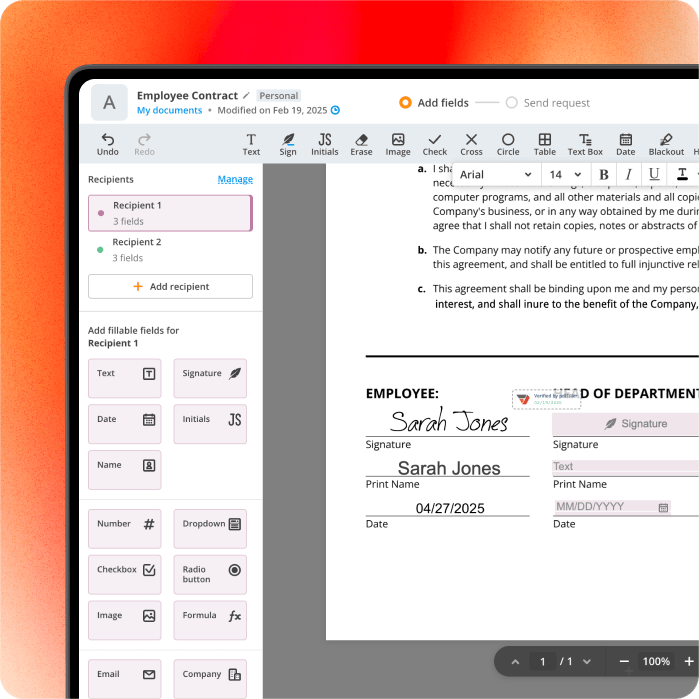
Create Brand Logo and Initial Field in PDF For Free

Drop document here to upload
Select from device
Up to 100 MB for PDF and up to 25 MB for DOC, DOCX, RTF, PPT, PPTX, JPEG, PNG, JFIF, XLS, XLSX or TXT

Last updated on Oct 14, 2026

Create Brand Logo and Initial Field in PDF

Add your brand logo to PDFs effortlessly using pdfFiller's intuitive tools, designed for small businesses.

What Branding Tools Do in pdfFiller

pdfFiller offers a two-layer branding system that allows you to create a brand logo and apply it to your documents. The document-level branding lets you customize individual PDFs, while workspace-level branding applies your logo across all documents in your workspace. This flexibility is particularly beneficial for small businesses that need to maintain a consistent brand image without requiring any IT setup.

The Image Tool enables you to upload and place your logo directly onto your PDFs. You can easily resize and position the logo to fit your document's layout. The Watermark Tool provides an additional layer of branding, allowing you to apply a watermark to your documents for added security and branding visibility. Both tools are designed for ease of use, ensuring that small businesses can implement branding without technical jargon or complex setups.

Adding a Logo to a PDF

  • Log in to your pdfFiller account and open the PDF document you want to edit.
  • Access the Image Tool from the toolbar on the left side of the screen.
  • Select the logo file from your device; supported formats include PNG, JPEG, and GIF.
  • Drag and drop your logo onto the desired area of the PDF.
  • Resize the logo by clicking and dragging the corners to fit your document layout.
  • Position the logo by clicking and dragging it to the preferred location on the page.
  • Save your changes to ensure the logo is embedded in the PDF.
  • Review the document to confirm the logo appears as intended, especially for invoices and contracts.

Applying a Watermark with the Watermark Tool

  • Open the PDF document you wish to watermark in pdfFiller.
  • Select the Watermark Tool from the editing options.
  • Choose between a text watermark or an image watermark based on your branding needs.
  • Customize the watermark by adjusting the size and transparency to ensure it does not obscure the document's content.
  • Apply the watermark to specific pages or all pages in the document as needed.
  • Preview the document to see how the watermark appears on each page.
  • Save the document to finalize the watermark application.
  • Use watermarks for branding and document protection, making it clear that the document is proprietary.

Removing a Logo or Watermark from a Document

To remove a logo from your PDF, select the logo you wish to delete and press the delete key. This action will remove the logo from the document without affecting the rest of the content. Similarly, to remove a watermark, access the Watermark Tool again and select the option to delete the watermark. This is important for maintaining document integrity, especially during revisions and updates, ensuring that only the most relevant branding is displayed.

Creating a Custom Email Signature

To create a custom email signature, access the branding settings in your pdfFiller account. You can configure various fields in the signature, including your name, title, and contact information. A professional email appearance enhances your brand's credibility and is compatible with various email clients, ensuring that your branding is consistent across all communications.

Creating a Custom Email Footer

Setting up a custom email footer involves configuring the footer settings in your pdfFiller account. Consistent branding is crucial for recognition, and you can customize options such as color and font to match your brand identity. A well-designed footer can enhance brand recognition and provide essential information in your email communications.

Branding Scenarios by Role and Document Type

Different roles within small and medium businesses can benefit from pdfFiller's branding tools. For example, marketing professionals can use branding tools for promotional materials, while accountants can apply logos to invoices and financial reports. Commonly branded document types include contracts, proposals, and presentations. Effective branding addresses specific challenges, such as maintaining a professional appearance and ensuring compliance with branding guidelines, ultimately enhancing business credibility.

Browser and Device Compatibility

pdfFiller supports various browsers, including Chrome, Firefox, and Safari, ensuring that you can access your documents from any device. Mobile device access is also available, allowing you to work on the go without any installation requirements. This cross-device functionality is essential for small businesses that require flexibility in managing documents.

Limitations and Known Constraints

When using pdfFiller's branding features, it's important to be aware of certain limitations. Supported image formats for logos include PNG, JPEG, and GIF, with size limits for uploads. Additionally, some branding features may vary depending on your plan tier, with differences in account-wide versus per-document settings. Understanding these constraints helps you plan your branding strategy effectively.

Security and Data Handling

pdfFiller employs TLS encryption during uploads to ensure your documents are secure. The platform also has clear file retention and deletion policies, complying with data protection regulations. Secure document management is vital for small businesses, as it protects sensitive information and maintains client trust.

How Does pdfFiller Compare?

Competitor A offers unique branding features but has limitations in user interface simplicity. Competitor B provides a different pricing structure, which may not include all branding tools. Competitor C focuses on user experience, but may lack some advanced branding functionalities found in pdfFiller.

Summary and Next Steps

In summary, pdfFiller provides both document-level and workspace-level branding tools, allowing you to create a brand logo and apply it effectively. Explore related features such as document editing and protection to enhance your branding efforts. Start branding your documents today to ensure a consistent and professional appearance across all your business communications.

Try most popular PDF tools

Discover a full set of tools to handle any document task.

Edit PDFs

Make quick PDF edits online.

Sign

Add legally binding signatures.

Merge

Combine multiple PDFs.

Request signatures

Send a document for signing.

Convert

Transform PDFs into other formats.

Rearrange

Change the order of pages.

Share

Send PDFs for review or editing.

Compress

Reduce PDF file sizes.

How to sign a document online?

Upload

Signing and editing documents has never been easier

  • Edit and sign in one place Quickly eSign documents after reviewing or editing — no need to juggle tools and move files back and forth. Get your PDFs done fast with all the tools you need at your fingertips.
  • Easy sharing & collaboration After signing a document, share it instantly with clients and stakeholders for review, editing, or comments. To request signatures from other parties, add fillable fields and send the document for signing.
  • Mobile-ready solution Easily edit, sign, and send your documents from anywhere, even on the go. pdfFiller is entirely cloud-based, so you can manage documents effectively from your computer, smartphone, or tablet.
  • Legally binding & secure Sign contracts and agreements following global eSignature laws, including ESIGN, UETA, eIDAS, and GDPR. With HIPAA, PCI DSS, SOC 2 Type II, and other compliance standards, pdfFiller works for any industry.

Who needs this?

Explore how professionals use pdfFiller to sign documents.

Healthcare

Healthcare professionals use pdfFiller to simplify document signing, from patient consent forms to medical record requests. They can easily request, approve, and share signed documents with patients, staff, or suppliers, saving time and improving communication.

  • Patient consent forms
  • Prescription forms
  • Lab test requisition forms
  • Referral and consultation forms
Healthcare
  • G2 — Users Most Likely To Recommend
  • G2 — Grid Leader in Small-Business
  • G2 — High Performer
  • G2 — Regional Leader
  • G2 — Easiest To Do Business With
  • G2 — Best Meets Requirements
  • G2 — Best Support

pdfFiller scores top ratings on review platforms

pdfFiller is rated 4.6 out of 5 stars across 1,000+ G2 reviews.

4.9/5 Stars. Not a full 5 because I felt as though there was a bit of deception as far as the subscription process was concerned but my problem was resolved quickly and more importantly EASILY! As far as PDFfiller as a program, it is EXCELLENT and EASY!!!! No hassle!
Dana D
It is very user friendly and I have learned most of the features on my own.
Kinah
wonderful helps me complete logs for security reports
Anonymous Customer
Its excellent software Its excellent software
SADAT ZAHIR
Really gets the job done for my projects. I recommend.
Anonymous Customer
Made my life so easy. It is so good to edit and customize your PDFs.
Hari B

eSign documents with a trusted, all‑in‑one solution

Try easy-to-use tools for all your document management needs.

pdfFiller workspace for creating, filling and managing PDF forms

Why sign documents with pdfFiller?

Ease of use

Watch pdfFiller eSignatures in action

Check out a quick video tutorial that shows how to create and place your signature or send a document for signing.

FAQs

If you can't find what you're looking for, please contact us anytime!

To create a brand logo and initial field in a PDF, start by uploading your document to pdfFiller. Once uploaded, use the 'Add Image' feature to insert your brand logo. After placing the logo, navigate to the 'Text' tool to create an initial field. This allows users to sign or initial documents securely. For best results, ensure your logo is in a high-resolution format to maintain clarity. Additionally, you can adjust the size and position of the logo and initial field to fit your document layout seamlessly.

You can use various file formats for your brand logo when creating a PDF, including PNG, JPEG, and GIF. pdfFiller supports these formats, allowing you to upload your logo easily. For optimal quality, it's recommended to use a PNG file with a transparent background, as this will blend better with your PDF's design. Remember to check the dimensions of your logo to ensure it fits well within the initial field without compromising the document's aesthetics.

Yes, creating a brand logo and initial field in a PDF with pdfFiller is secure. The platform employs advanced security protocols, including SSL encryption, to protect your documents during upload and editing. Additionally, pdfFiller complies with data protection regulations, ensuring your brand assets remain confidential. For added security, consider using password protection for your PDFs, which restricts access to authorized users only.

Absolutely! You can customize the appearance of the initial field in your PDF using pdfFiller's editing tools. After adding the initial field, click on it to access customization options such as font style, size, and color. This flexibility allows you to match the initial field's design with your brand identity. For a professional look, consider using a font that aligns with your branding guidelines, ensuring consistency across all your documents.

Adding a brand logo and initial field to your PDFs enhances brand recognition and professionalism. It signifies authenticity and trust, especially for legal teams and SMEs managing sensitive documents. By incorporating these elements, you create a cohesive brand experience that reinforces your identity. Furthermore, using pdfFiller's document automation features allows for quick updates and consistent branding across multiple documents, saving time and reducing errors.

To ensure your brand logo is displayed correctly in the PDF, upload a high-resolution image and adjust its size appropriately within pdfFiller. Use the preview feature to check the logo's visibility and alignment. If the logo appears pixelated or distorted, consider using a vector format like SVG, which scales without losing quality. Additionally, always save a copy of your PDF after editing to preserve the changes made to the logo and initial field.

After adding a brand logo and initial field to your PDF, click on the 'Save' button to store your changes. pdfFiller allows you to save your document in various formats, including PDF and DOCX. To share your PDF, use the 'Share' feature, which enables you to send a link via email or directly share it through cloud services. This ensures that your document is easily accessible to remote professionals and legal teams, facilitating collaboration and document management.

What businesses achieve with pdfFiller

Discover how you can benefit too.

pdfFiller allows us to tap into additional markets and sell business we might not otherwise have sold because of the speed and ease with which we can produce the forms.

Scaturro Insurance Agency LLC

One tool. Every document task.

One workflow shouldn’t take five tools

Start free trial