Create Brand Logo and Page Number in PDF
Create brand logos in your PDF documents quickly and easily.
What Branding Tools Do in pdfFiller
pdfFiller offers a two-layer branding system that enhances your document's professionalism. The document-level branding allows you to add a logo and watermark to your PDFs, ensuring your brand is visible on every page. Additionally, the workspace-level email branding options enable you to customize your email communications, reinforcing your brand identity. You can access these branding tools easily, with no technical setup required, making it ideal for small and medium-sized businesses looking to enhance their document branding without the complexity of traditional software.
Adding a Logo to a PDF
- Open your PDF document in pdfFiller.
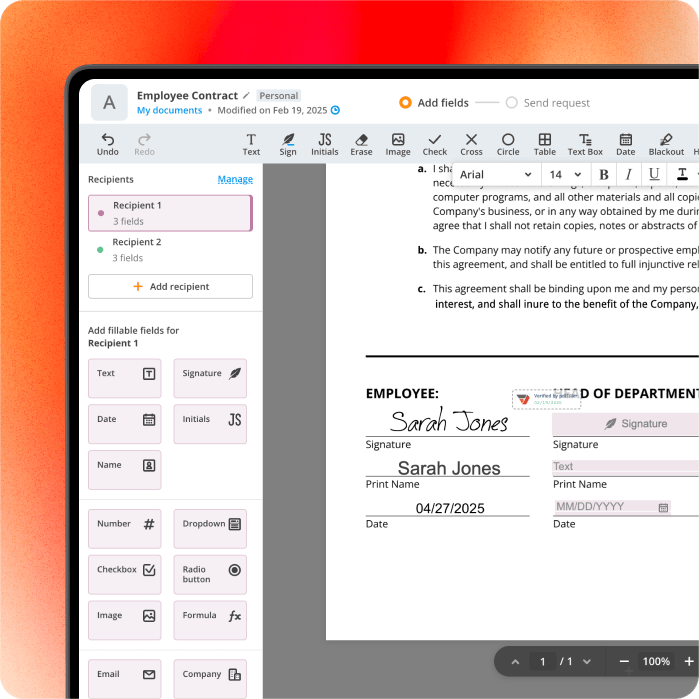
- Select the "Image Tool" from the toolbar to upload your logo.
- Drag and drop your logo to the desired location on the document.
- Resize the logo by clicking and dragging the corners to fit your layout.
- Position the logo by clicking and dragging it to the right spot.
- Ensure the logo is placed correctly by reviewing the document layout.
- Save your changes to retain the logo in the PDF.
- Export the document to finalize the logo placement.
Applying a Watermark with the Watermark Tool
The watermark tool in pdfFiller allows you to apply both text and image watermarks to your documents. Text watermarks can be customized for size and transparency, ensuring they do not distract from the main content. Image watermarks can also be adjusted for visibility. You can set the page scope for your watermarks, choosing whether to apply them to specific pages or the entire document. This flexibility helps maintain your brand's presence while ensuring your documents remain professional and easy to read.
Removing a Logo or Watermark from a Document
To remove a logo or watermark from your document, first select the element you wish to delete. Click on the logo or watermark to highlight it, then press the delete key. If you accidentally remove the wrong element, you can easily undo the change using the undo button. Maintaining the integrity of your document is essential, so ensure that any changes align with your branding strategy.
Creating a Custom Email Signature
To create a personalized email signature in pdfFiller, start by accessing the signature settings in your workspace. You can configure various design options, including font style, color, and layout. A well-designed email signature enhances your professional branding and ensures consistency across all communications. Follow the steps to save your signature and apply it to your outgoing emails, reinforcing your brand identity with every message.
Creating a Custom Email Footer
Setting up a custom email footer involves accessing the footer configuration settings in pdfFiller. You can customize the footer with branding elements such as your logo, contact information, and social media links. A consistent footer in your emails helps maintain branding consistency and provides essential information to recipients. Follow the steps to save your footer settings and apply them to your email communications.
Branding Scenarios by Role and Document Type
Consider these branding scenarios to understand how pdfFiller can enhance your documents:
- A marketing manager creating promotional PDFs can use a logo and watermark to ensure brand visibility.
- An HR professional sending out onboarding documents can apply a custom email footer to maintain brand consistency.
- A sales representative can add a logo to proposals, making them more professional and recognizable.
- A legal assistant can use watermarks on sensitive documents to indicate confidentiality, reinforcing the brand's commitment to privacy.
Browser and Device Compatibility
pdfFiller supports a wide range of browsers, including Chrome, Firefox, and Safari, ensuring that you can access branding tools from any device. Mobile compatibility allows you to manage your documents on the go, with no installation required. This accessibility makes it easy for small and medium-sized businesses to utilize branding features without technical barriers.
Limitations and Known Constraints
When using pdfFiller for branding, be aware of certain limitations. Supported image formats for logos include JPEG and PNG, while size limits for uploads may apply. Additionally, some features may be restricted based on your plan tier, so review your subscription details to understand what branding options are available to you.
Security and Data Handling
pdfFiller prioritizes document security with TLS encryption during file transfers, ensuring that your data remains protected. The platform follows strict file retention and deletion timelines, complying with relevant regulations to safeguard your information. Understanding these security measures helps you trust that your documents are handled with care.
Comparison with Named Alternatives
How does pdfFiller compare with other branding tools?
DocuSign offers extensive e-signature features but lacks comprehensive branding tools, making it less suitable for businesses focused on document branding.
Adobe Sign is known for its design capabilities but is often more complex for small businesses, which may find pdfFiller's user-friendly interface more appealing.
SignNow provides basic branding options but doesn't match pdfFiller's ease of use, making pdfFiller a better choice for those seeking simplicity in document branding.
Summary and Next Steps
In summary, pdfFiller offers a robust set of branding features, including document-level logos, watermarks, and email customization options. Explore related features to maximize your branding efforts and enhance your document management processes. Take the next steps to implement these tools and elevate your brand's presence in all your communications.