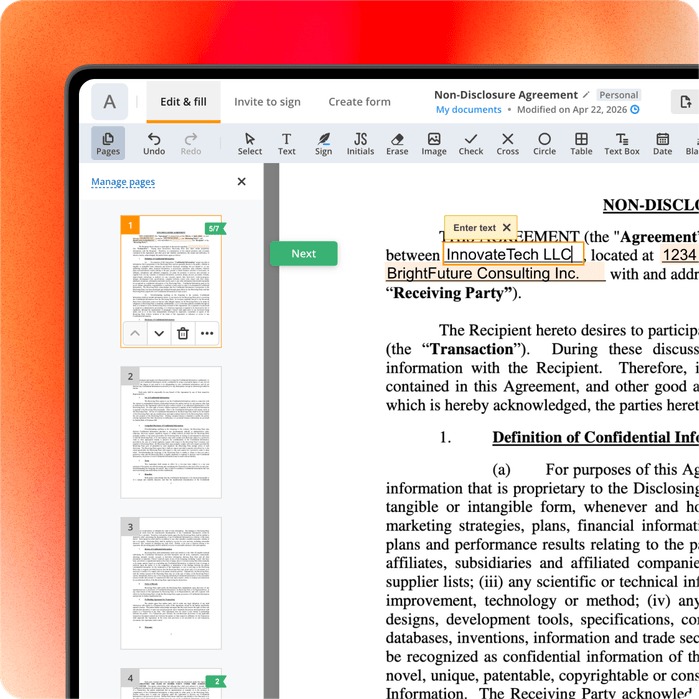
Create Header and Comment Box in PDF For Free

Last updated on Oct 14, 2026

Create Header and Comment Box in PDF

Create headers and comment boxes in your PDFs quickly using pdfFiller's intuitive editing tools.

What is Edit Mode in pdfFiller?

Edit Mode in pdfFiller allows you to directly modify PDF content with ease. You can access this feature by clicking the Edit button in the toolbar. This mode supports various text formatting options, making it ideal for small and medium businesses that need to edit documents without complex software. With an intuitive interface, you can quickly navigate through your PDF and make necessary changes, ensuring a smooth editing experience.

How to Create Headers in Your PDF

  • Click on the header area of your PDF document to begin editing.
  • Utilize the available formatting options to customize the header according to your needs.
  • This feature is particularly useful for invoices and reports where headers are essential.
  • No IT setup is required, making it accessible for anyone to use.

Adding Comment Boxes to Your PDF

  • Select the comment box tool from the toolbar to start adding comments.
  • Position the comment box anywhere on the document where feedback is needed.
  • This tool is ideal for providing feedback on contracts and other important documents.
  • Comment boxes work seamlessly across all devices, ensuring accessibility.

Editing Existing Text in PDFs

To modify existing text in your PDF, simply click directly on the text blocks you wish to edit. This feature supports changes in font size and color, allowing you to update terms in agreements easily. It is particularly useful for making quick corrections without incurring hidden fees for editing. You can maintain document integrity while ensuring that all necessary updates are made efficiently.

Removing Text from Your PDF

To delete unwanted text in your PDF, select the text you wish to remove and hit the delete key. This process ensures that your document remains intact after removal. It is particularly useful for correcting errors or removing outdated information. The functionality works on all devices, making it convenient for users on the go.

Using the Whiteout Tool for Corrections

The Whiteout tool in pdfFiller allows you to cover text with a white fill, making it ideal for making corrections. This tool is simple to use and different from the blackout tool, which permanently removes text. Users can easily apply the Whiteout tool to correct mistakes without confusion, ensuring clarity in document revisions.

Text Formatting Options Available

pdfFiller offers various text formatting options to enhance your documents. You can change the font family and size, apply bold, italic, and underline styles, and adjust text color and alignment. The user-friendly interface makes it easy to format text according to your preferences, ensuring that your documents look professional and polished.

Find and Replace Text in Your PDF

To locate and replace text strings in your PDF, access the Find & Replace feature. This tool allows you to easily locate specific text strings and substitute them with new text. It is particularly efficient for large documents where manual searching would be time-consuming. This feature streamlines the editing process, saving you valuable time.

Native vs. Scanned PDF Editing

Editing native PDFs allows for full text editing capabilities, while scanned PDFs require OCR (Optical Character Recognition) for editing. Different tools are necessary for each type, which is important for maintaining document accuracy. Understanding these differences can help you choose the right approach for your editing needs.

Browser Compatibility for PDF Editing

pdfFiller works on all major browsers, ensuring that you can access your documents without installation requirements. This cross-device support allows you to edit PDFs from any device, making it ideal for remote work scenarios. You can easily collaborate with others, regardless of the platform they are using.

Limitations of Edit Mode

While pdfFiller's Edit Mode offers many features, there are limitations to be aware of. You cannot edit scanned PDFs without OCR, and there are no guarantees for font matching when editing. Additionally, password-protected documents may have restrictions on editing. Understanding these limitations can help manage your expectations when using the tool.

Comparison with Other PDF Editors

How Does pdfFiller Compare?

pdfFiller offers more templates than Adobe Acrobat, making it easier to find the right document format for your needs. While Adobe Acrobat has more advanced features, it is also more complex to use. pdfFiller provides a more intuitive interface for small businesses compared to Foxit, which may offer additional features but at a higher cost. Unlike Nitro, pdfFiller has no hidden fees, making it a more transparent choice for users.

Next Steps for PDF Editing

After learning how to create headers and comment boxes in your PDFs, explore other editing features available in pdfFiller. Utilize templates for efficiency and share documents easily after editing. By enhancing collaboration with comment boxes, you can improve communication within your team and streamline your document workflows.

Try most popular PDF tools

Discover a full set of tools to handle any document task.

Edit PDFs

Make quick PDF edits online.

Sign

Add legally binding signatures.

Merge

Combine multiple PDFs.

Request signatures

Send a document for signing.

Convert

Transform PDFs into other formats.

Rearrange

Change the order of pages.

Share

Send PDFs for review or editing.

Compress

Reduce PDF file sizes.

How to edit PDFs with pdfFiller

1. Upload or create

The online PDF editor that has it all

  • Edit PDFs without workarounds Quickly add, erase, replace, or reformat text in PDFs without converting files back and forth or using clunky desktop software. Our editor works on any device, allowing you to fill out forms and make edits wherever you are.
  • Add legally binding signatures Sign PDFs directly in the editor—no extra eSignature tools needed. Add your signature or initials after editing a contract or agreement and send it out to sign.
  • Make a lasting impression with your PDFs Add images, logos, tables, and watermarks to maintain a professional look of your documents on any device. Draw lines and arrows, insert checkmarks and shapes, or draw freehand to make quick markings or organize information.
  • Annotate and collaborate Highlight important data, redact sensitive details, add sticky notes, and exchange comments for speedy document reviews. Share files instantly to request edits, feedback, or approval—no need for email attachments.
  • Create fillable PDF forms Turn static PDFs into interactive fillable forms anyone can complete online. Drag and drop text boxes, signature fields, dropdowns, and checkboxes, then share your form via a link or publish it on your website.
  • Split, merge, and rearrange Edit and reorganize your PDFs in one place. Split a large PDF into bite-sized docs or merge separate files into one comprehensive document. Need a smaller file size? Compress your document with just one click!

Who needs this?

Explore how professionals across industries use pdfFiller to edit PDFs.

Education

Educators and administrators use pdfFiller to edit lesson plans, sign permission slips, and collaborate on curriculum updates. Create fillable forms for enrollment or evaluations, and organize PDFs with ease, all on one platform.

  • Lesson plans
  • Permission slips
  • Enrollment forms
  • Course registration forms
Education
  • G2 — Users Most Likely To Recommend
  • G2 — Grid Leader in Small-Business
  • G2 — High Performer
  • G2 — Regional Leader
  • G2 — Easiest To Do Business With
  • G2 — Best Meets Requirements
  • G2 — Best Support

pdfFiller scores top ratings on review platforms

pdfFiller is rated 4.6 out of 5 stars across 1,000+ G2 reviews.

By far the best PDF filler. A must have for any business
William S
Easy to use and fill out forms Easy to use and fill out forms. Easy to upload forms from computer to be filled out.
E. Marks
This software is by far phenomenal to work with and with such an easy interface I had no problem navigating.
Turkesa B
Pretty good a little slow Pretty good a little slow. Great tool would recommend this to anyone. Pair it with Grammarly and your writing is unstoppable.
Michal haubert
edit your pdf very helpful, helped me to edit some letters
ELEFTHERIOS PAPANTHYMOU
I used the service for over six years. Always got what I needed there. All issues were handled with courtesy and efficiency. ********
Judith K.

Edit PDFs with an all-in-one solution

Try easy-to-use tools for all your document management needs.

pdfFiller workspace for creating, filling and managing PDF forms

PDF editing is just the beginning

More than a PDF editor

Watch our PDF editor in action

Check out a quick video tutorial that shows how to edit any file into an editable PDF in three easy steps.

FAQs

If you can't find what you're looking for, please contact us anytime!

To create a header in a PDF document using pdfFiller, simply open your PDF in the editor and select the 'Header' option from the toolbar. This feature allows you to add text, logos, or images to the top of your document. After selecting the header option, you can customize the font, size, and alignment to fit your needs. A practical tip is to use consistent branding elements in your header to maintain professionalism across all your documents.

Adding a comment box to a PDF is straightforward with pdfFiller. First, open your PDF file and navigate to the 'Comment' tool in the editing menu. Click on 'Add Comment Box' and place it where you want it on the document. You can resize and move the comment box as needed. For enhanced collaboration, consider using the comment box to prompt specific feedback or questions from your team, ensuring clarity in communication.

Yes, pdfFiller allows you to customize both the header and comment box in your PDF. After adding them, you can change the font style, size, and color to match your document's theme. Additionally, you can adjust the size and position of the comment box for better visibility. A useful tip is to maintain a consistent color scheme that aligns with your brand identity, which can enhance the overall professionalism of your documents.

Absolutely! pdfFiller is designed for cross-platform compatibility, allowing you to create a header and comment box on mobile devices. Simply download the pdfFiller app, open your PDF, and access the editing tools. The mobile interface is user-friendly, enabling you to add headers and comment boxes with ease. For best results, ensure your mobile device is updated to the latest version of the app to access all features.

When using pdfFiller to add headers and comment boxes, your document's security is a priority. pdfFiller employs robust security protocols, including encryption and secure cloud storage, to protect your files. After editing, you can also set permissions for who can view or edit your PDF. A practical tip is to regularly review your document settings and permissions, especially when sharing sensitive information, to maintain control over your content.

Using pdfFiller to create headers and comment boxes in PDFs offers numerous benefits, including ease of use, cloud-based accessibility, and collaborative features. The platform allows multiple users to comment and edit in real-time, enhancing teamwork. Additionally, pdfFiller supports document automation, which can save time in repetitive tasks. To maximize these benefits, consider integrating pdfFiller with your existing document management systems for a seamless workflow.

Yes, once you create a header and comment box in your PDF using pdfFiller, you can easily save your document for future use. Simply click on 'Save' after making your edits, and your document will be stored securely in the cloud. This allows you to access it from any device at any time. A helpful tip is to organize your saved documents into folders within pdfFiller for easier retrieval and management.

Transforming businesses with pdfFiller

Check out these success stories.

I was happy to do this for patients, but I simply didn't have 30–60 minutes to fill out each form. It was a true waste of resources to do it that way, and as a surgeon, my time is better spent in patient care, which was often delayed.

Marshall Orthopaedics

One tool. Every document task.

One workflow shouldn’t take five tools

Start free trial