Create Header and Stamp in PDF
Learn how to create headers and stamps in your PDF documents using pdfFiller's easy-to-use tools.
What is Edit Mode for PDF Headers?
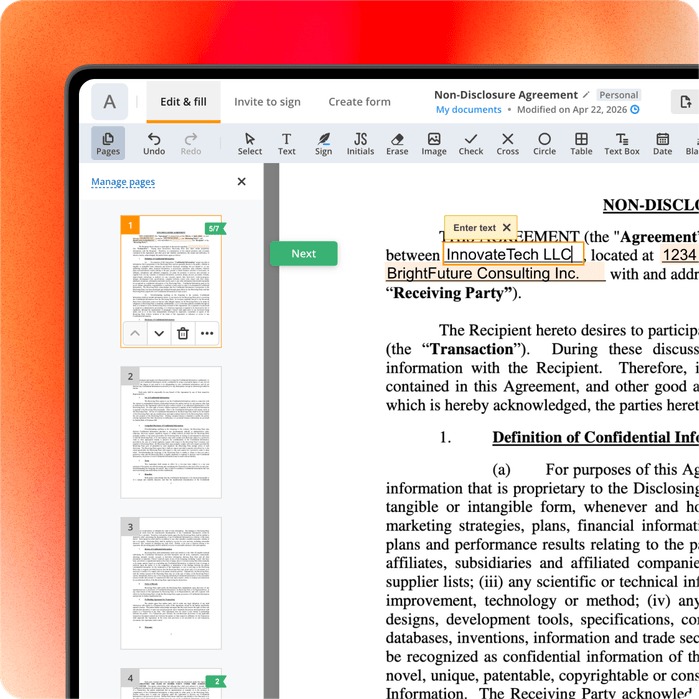
Edit Mode is a feature in pdfFiller that allows you to create headers and stamps in PDF documents efficiently. You can access Edit Mode by clicking the Edit button on your PDF file. Once in Edit Mode, you can modify existing headers directly, making it easy to customize your document. This mode is compatible with native PDFs, ensuring that your edits are preserved. The simple interface allows for quick edits, enabling you to enhance your document without any technical jargon.
How to Create a Header in PDF
- Click on the header area in Edit Mode to start the process of creating a header in your PDF.
- Choose the font and size for the header to match your document's style.
- Save changes to the document to ensure your header is applied.
- Preview the document before finalizing to check the appearance of the header.
Adding a Stamp to Your PDF
- Select the stamp tool in Edit Mode to begin adding a stamp to your PDF document.
- Choose from pre-made stamp templates that suit your needs.
- Position the stamp on the document where it is most effective.
- Adjust the size and opacity of the stamp as needed to fit your design.
Benefits of Using pdfFiller for PDF Editing
pdfFiller offers numerous advantages for editing PDF documents. It is trusted by over 68 million users, ensuring reliability and efficiency. With 1 million ready-to-use templates available, you can find the perfect design for any document. There is no IT setup required, making it accessible for small and medium-sized businesses. Additionally, pdfFiller includes legally binding e-signatures, allowing you to finalize documents securely.
Common Scenarios for Adding Headers and Stamps
There are several practical scenarios where adding headers and stamps is beneficial. For instance, invoices often require headers for branding purposes, ensuring that your business is easily identifiable. Legal documents may need official stamps to validate their authenticity. Contracts require clear identification, which can be achieved through well-designed headers. Reports also benefit from professional presentation, making headers and stamps essential for effective communication.
Limitations of PDF Editing in pdfFiller
While pdfFiller is a powerful tool, there are some limitations to be aware of. You cannot edit scanned PDFs without OCR technology, which may restrict your editing capabilities. Additionally, there is limited font matching for native PDFs, which can affect the appearance of your document. Password-protected documents cannot be edited, so ensure you have the necessary permissions. Lastly, blackout is not the same as whiteout, which may lead to confusion when attempting to hide sensitive information.
Security Measures in pdfFiller
pdfFiller takes user data protection seriously during the editing process. Data encryption is employed during document handling to safeguard your information. The platform complies with privacy regulations, ensuring that your data is handled responsibly. Documents are stored securely, giving you peace of mind. You also have control over document access, allowing you to manage who can view or edit your files.
How Does pdfFiller Compare with Other PDF Editing Tools?
When comparing pdfFiller to other PDF editing tools, several distinctions arise. Adobe Acrobat offers advanced features but comes at a higher cost, which may not be suitable for all users. Foxit provides a range of editing tools similar to pdfFiller but has a less intuitive interface for new users. Nitro is good for basic editing tasks with a user-friendly design, but it has limited features compared to pdfFiller's comprehensive tools. Lastly, Sejda offers fewer editing options, making pdfFiller a more versatile choice for various document needs.
Next Steps After Editing Your PDF
After you have added headers and stamps to your PDF, consider these next steps. First, save your document in multiple formats to ensure compatibility with different platforms. You can share the document via email or cloud services for easy access. Use e-signatures for final approval to enhance the document's validity. Finally, print or download the document for physical copies, ensuring you have all necessary formats at your disposal.