Create Watermark and Checkbox in PDF
Add a watermark to your PDF documents easily with pdfFiller's intuitive tool.
What is the Watermark Tool?
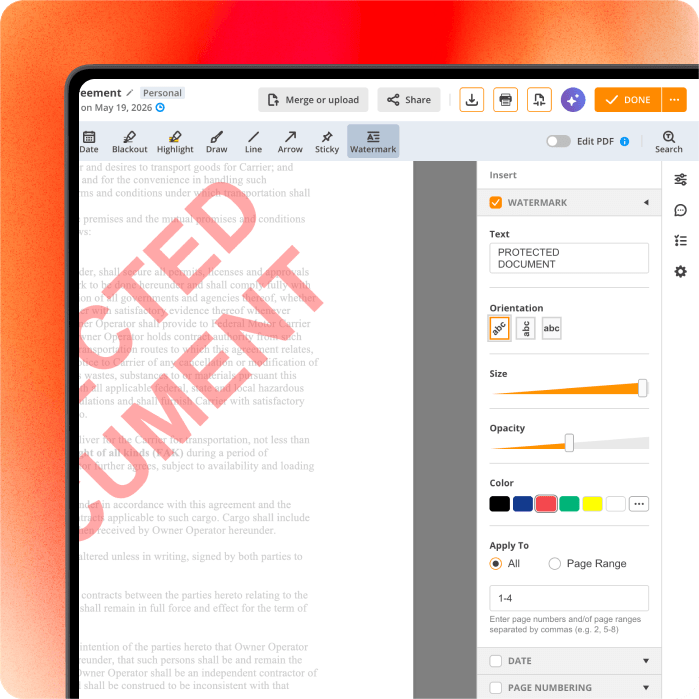
The watermark tool in pdfFiller allows you to create watermarks in PDF documents for branding or confidentiality purposes. This tool offers two types of watermarks: text and image. You can access the watermarking feature by navigating to Tools → Watermark. The tool provides various customization options, enabling you to tailor the watermark to your specific needs. You can easily adjust the size, position, and transparency of the watermark to fit your document's style.
How Does Watermarking Solve Workflow Issues?
Watermarking is an effective way to protect sensitive information within your documents. By adding a watermark, you enhance document branding, making it clear who the document belongs to. This feature is particularly useful for drafts and shared documents, as it helps prevent unauthorized use or distribution. Watermarking not only secures your content but also promotes your brand identity, making it a valuable tool for professionals managing multiple documents.
How to Add a Text Watermark
- Open your PDF document in pdfFiller.
- Navigate to the Tools menu and select Watermark.
- Choose the option to add a text watermark.
- Enter your custom text for the watermark.
- Adjust the size and transparency of the text as needed.
- Select specific pages to apply the watermark if required.
- Preview the watermark to ensure it appears as desired.
- Click Apply to finalize the addition of the text watermark.
How to Add an Image Watermark
- Open your PDF document in pdfFiller.
- Go to the Tools menu and select Watermark.
- Choose the option to add an image watermark.
- Upload your logo or image file from your device.
- Set the size and placement options for the image watermark.
- Ensure the watermark is visible and maintains branding consistency.
- Preview the watermark to check its appearance on the document.
- Click Apply to add the image watermark to your PDF.
Customizing Your Watermark
Customizing your watermark is essential for achieving the desired appearance. You can adjust the color and opacity of the watermark to make it more or less prominent. Additionally, you can rotate the watermark to fit the design of your document. The customization options allow you to apply the watermark to all pages or select specific pages, giving you flexibility in how your watermark appears throughout the document.
Editing and Removing Watermarks
- Access the Watermark tool again from the Tools menu.
- Select the existing watermark you wish to modify.
- Make the necessary adjustments to the watermark settings.
- To delete a watermark, select the option to remove it.
- Confirm the deletion to ensure the watermark is removed from the document.
- Preview the document to verify that the watermark has been successfully edited or removed.
Applying Date Stamps to Your PDF
To apply a date stamp to your PDF, start by choosing your preferred date format and placement on the document. You can configure the font style and transparency to ensure the date stamp is visible yet unobtrusive. This feature allows you to apply the date stamp to all pages or just specific ones, making it easy to keep track of document versions and timelines.
Adding Page Numbers to Your PDF
Adding sequential page numbers to your PDF is straightforward. Begin by choosing the numbering format that suits your document. Next, set the placement and font options to ensure the numbers are clear and consistent. You can apply page numbers to all pages or select a specific range, allowing for flexibility in document formatting.
Understanding Bates Numbering
Bates numbering is a method used primarily for legal documents to assign unique identification numbers to each page. This system is crucial for organizing and referencing documents in legal contexts. To apply Bates numbers in pdfFiller, access the Bates numbering feature from the Tools menu, configure your numbering settings, and apply them to your document for easy tracking and retrieval.
Browser Compatibility and Access
pdfFiller is compatible with various web browsers and operating systems, allowing you to access the watermarking tool from any device. There is no installation required, making it easy to use the tool on the go. This flexibility ensures that you can manage your documents efficiently, regardless of your location or device.
Limitations of the Watermark Tool
While the watermark tool is powerful, it does have some limitations. Supported image formats for watermarks include JPEG and PNG. Additionally, there is a maximum file size for uploads, which may vary depending on your plan. Free plans may have more restrictions compared to paid plans, so it's essential to review your options to ensure you can use the watermarking features effectively.
Next Steps After Watermarking
After adding a watermark to your PDF, consider your next steps for document management. You can sign documents digitally, ensuring they are legally binding. Additionally, sharing documents securely is crucial for maintaining confidentiality. Tracking document status is also important, as it allows you to monitor who has accessed or signed your documents, enhancing your workflow efficiency.