Create Watermark and Checkmark in PDF
Learn how to create a watermark in your PDF documents using pdfFiller's easy-to-use tools.
What is the Watermark Tool?
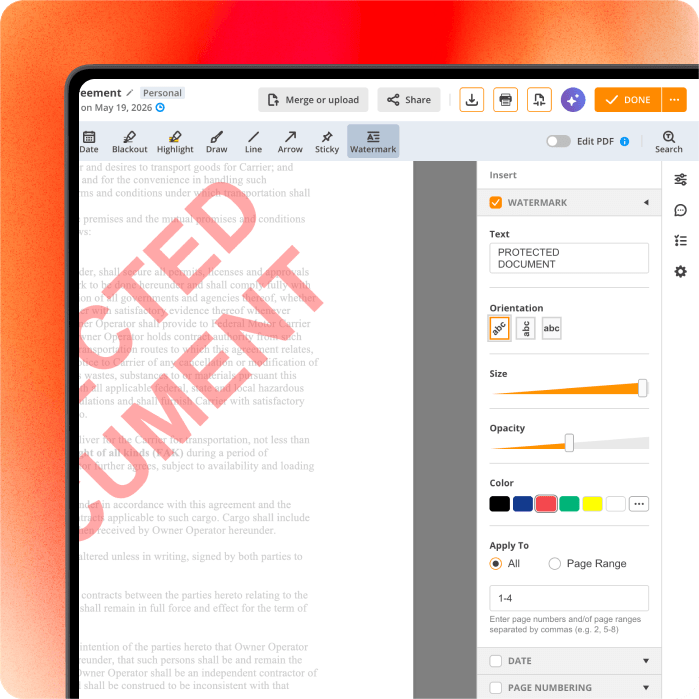
The watermark tool is a feature that allows you to add visual elements to your PDF documents for branding or confidentiality purposes. You can create a watermark using either text or images, providing flexibility depending on your needs. Text watermarks can display your company name or a specific message, while image watermarks can include logos or other graphics. Customization features enable you to adjust the size, color, and transparency of the watermark, ensuring it fits seamlessly into your document. Additionally, document-wide stamping tools allow you to apply the watermark across multiple pages, enhancing your document's professional appearance without the need for technical jargon.
How Does Watermarking Improve Document Security?
Watermarking serves as an effective method to protect sensitive information within your documents. By adding a watermark, you can deter unauthorized use and enhance brand visibility, making it clear that the document is proprietary. This is especially useful for drafts and internal documents, where maintaining confidentiality is crucial. The presence of a watermark can signal to viewers that the document is not for public distribution, thus reinforcing your brand's integrity and security.
How to Add a Text Watermark
- Open your PDF document in pdfFiller.
- Select the watermark tool from the menu options.
- Choose the option to add a text watermark.
- Enter your custom text in the provided field.
- Adjust the size of the text using the size settings.
- Select the color for your text watermark from the color palette.
- Set the transparency level to ensure the watermark does not overpower the document content.
- Preview the watermark and make any necessary adjustments before applying it.
How to Upload an Image Watermark
- Access your PDF document in pdfFiller.
- Navigate to the watermark tool in the editing menu.
- Select the option to upload an image watermark.
- Choose an image file from your device that you want to use as a watermark.
- Position the image on the document as desired.
- Adjust the opacity of the image to ensure it complements the document's content.
- Resize the image if necessary to fit your layout.
- Review the watermark placement and finalize the changes.
Customizing Your Watermark's Appearance
You can customize your watermark's appearance to suit your branding needs. Options for size, color, and rotation allow you to create a unique look. Adjusting transparency levels helps ensure that the watermark is visible without distracting from the main content. Additionally, you can set page scope settings to determine whether the watermark appears on all pages or just specific ones, giving you control over how your document is presented.
Applying Watermarks to Specific Pages
When applying watermarks, you have the option to select specific pages within your document. You can choose to apply the watermark to the current page or to all pages in the document. Custom page range settings allow you to specify which pages should receive the watermark. This flexibility ensures that you can tailor your document's appearance according to your specific needs without complicating the process.
Editing or Removing a Watermark
- Reopen your PDF document in pdfFiller.
- Access the watermark tool from the editing menu.
- Select the watermark you wish to edit or remove.
- To edit, modify the text or image as needed.
- Adjust any settings such as size or transparency if necessary.
- To remove the watermark, select the delete option.
- Confirm the removal to ensure the watermark is no longer present.
- Save your document to finalize the changes.
Applying a Date Stamp to Your Document
- Open your PDF document in pdfFiller.
- Locate the date stamp tool in the editing options.
- Select the option to add a date stamp.
- Choose your preferred date format from the available options.
- Position the date stamp on the document as desired.
- Set the transparency level to blend the stamp with the document.
- Decide if you want to apply the date stamp to all pages or specific ones.
- Preview the date stamp and apply it to finalize your document.
Adding Page Numbers to Your Document
- Access your PDF document in pdfFiller.
- Find the page numbering tool in the editing menu.
- Select the option to add sequential page numbers.
- Choose the format for the page numbers from the available options.
- Position the page numbers on the document as needed.
- Decide whether to apply page numbers to all pages or just specific ones.
- Preview the page numbering to ensure it meets your expectations.
- Finalize the changes by saving your document.
What is Bates Numbering?
Bates numbering is a method used to assign unique identifiers to documents, particularly in legal and archival contexts. This feature is essential for organizing and referencing documents efficiently. Bates numbering helps ensure that each page can be easily identified and retrieved. To apply Bates numbers, you can use the numbering tool in pdfFiller, specifying the format and starting number according to your requirements.
Browser Compatibility and Access
pdfFiller supports a range of browsers and operating systems, ensuring accessibility for all users. You can access the platform from popular browsers like Chrome, Firefox, and Safari, as well as on mobile devices. There are no installation requirements, allowing you to work from any device without the need for complex setups. This compatibility makes it easy for small and medium-sized businesses to manage their documents efficiently.
Limitations of the Watermark Tool
While the watermark tool offers many features, there are some limitations to consider. Supported image formats may include JPEG and PNG, with specific size limits for uploads. Additionally, there is a maximum text length for watermarks, which can restrict longer messages. Differences between free and paid plans may also affect the availability of certain features, so it's important to review these before proceeding.
Next Steps After Watermarking
Once you've added watermarks to your documents, you can proceed with additional actions such as signing the documents electronically. pdfFiller allows you to share watermarked PDFs easily, ensuring that your branding remains intact. You can also track document changes and versions, making it simple to manage updates and revisions as needed.