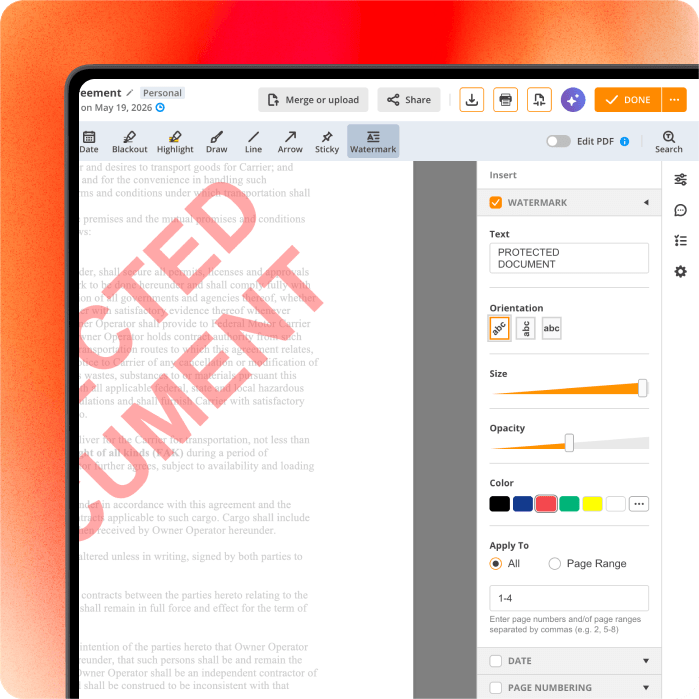
Create Watermark and Line in PDF
Learn how to create a watermark in your PDF documents quickly and easily.
What is the Watermark Tool?
The watermark tool is a feature that allows you to create a watermark in your PDF documents for branding and protection. There are two types of watermarks you can use: text and image. Text watermarks can display your brand name or a message, while image watermarks can showcase your logo or any graphic. Both types come with customization options, allowing you to adjust size, color, and transparency. You can access the watermark tool via the Tools menu in your PDF editor.
How Does Watermarking Solve Document Issues?
Watermarking is essential for small and medium businesses (SMBs) looking to protect sensitive information and enhance branding. By adding a watermark, you can ensure that your documents are recognizable and secure. This is particularly important for marketing proposals and legal documents, where branding and confidentiality are crucial. Watermarking helps prevent unauthorized use of your documents while reinforcing your brand identity.
How to Add a Text Watermark
- Open your PDF document in the PDF editor.
- Navigate to the Tools menu and select the watermark tool.
- Choose the option to add a text watermark.
- Enter your custom text in the designated field.
- Select the desired font size and color for your text.
- Preview the watermark to see how it appears on the document.
- Adjust the position of the watermark on the page if necessary.
- Save the changes to apply the text watermark to your PDF.
How to Upload an Image Watermark
- Access the watermark tool from the Tools menu in your PDF editor.
- Select the option to upload an image watermark.
- Choose a supported image format, such as PNG or JPEG.
- Upload your logo or image file from your device.
- Position the image on the page as desired.
- Adjust the transparency and size to fit your document.
- Preview the watermark to ensure it meets your expectations.
- Save the document to apply the image watermark.
Customizing Your Watermark
Customizing your watermark is crucial for achieving the desired look and feel. You can adjust the size, color, and rotation of your watermark to match your branding. Additionally, you can set the page scope to determine where the watermark appears in your document. For effective watermarking, consider using a semi-transparent overlay that does not obstruct the main content of your PDF.
Editing and Removing Watermarks
To edit an existing watermark, access the watermark tool from the Tools menu and select the watermark you wish to modify. You can change the text, image, or customization settings as needed. If you want to remove a watermark, simply select the option to delete it from the watermark tool. Be aware that the Erase tool may have limitations, especially if the watermark is embedded deeply within the document.
Applying Date Stamps to Documents
Adding date stamps using the watermark tool is straightforward. Start by accessing the watermark tool and selecting the option to add a date stamp. You can customize the date format to suit your needs, whether you prefer a numerical or written format. Placement tips include positioning the date stamp in a corner or along the bottom of the page to ensure it is visible but not intrusive.
Page Numbering Options
To add sequential page numbers to your document, navigate to the watermark tool and select the option for page numbering. You can customize the numbering format, such as starting from a specific number or using a specific style. Ensure that the placement of the page numbers is consistent throughout the document for a professional appearance.
Understanding Bates Numbering
Bates numbering is a method used primarily in legal documents to assign a unique identifier to each page. To apply Bates numbers, access the watermark tool and select the Bates numbering option. This is particularly useful for legal settings where documents must be organized and easily referenced. Ensure that the Bates numbers are clear and do not interfere with the document's content.
Browser Compatibility for Watermarking
The watermark tool is compatible with various browsers and operating systems, allowing you to create watermarks from any device. Mobile access is available, ensuring you can manage your documents on the go. No installation is required, making it easy to use the watermark tool directly from your web browser.
Limitations of the Watermark Tool
While the watermark tool is versatile, it does have some limitations. Supported image formats include PNG and JPEG, and there may be a maximum file size for uploads. Additionally, free plans may have restrictions compared to paid plans, affecting the features available for watermarking.
Next Steps After Watermarking
After watermarking your documents, you can proceed to sign them digitally using e-signatures. Sharing options for watermarked PDFs are available, allowing you to distribute your documents securely. Additionally, consider tracking the status of your documents to ensure they are received and reviewed as intended.
How Does pdfFiller Compare?
Adobe Acrobat offers comprehensive PDF editing features but can be complex for SMBs, with a higher cost and requiring installation.
Smallpdf provides a simple interface for basic tasks but lacks advanced watermarking options, resulting in limited customization features compared to pdfFiller.
ilovepdf has free options available for watermarking but comes with restrictions that may not meet professional needs for branding.