Create Watermark and Note in PDF
Create watermarks in your PDFs to protect and brand documents easily.
What is the Watermark Tool?
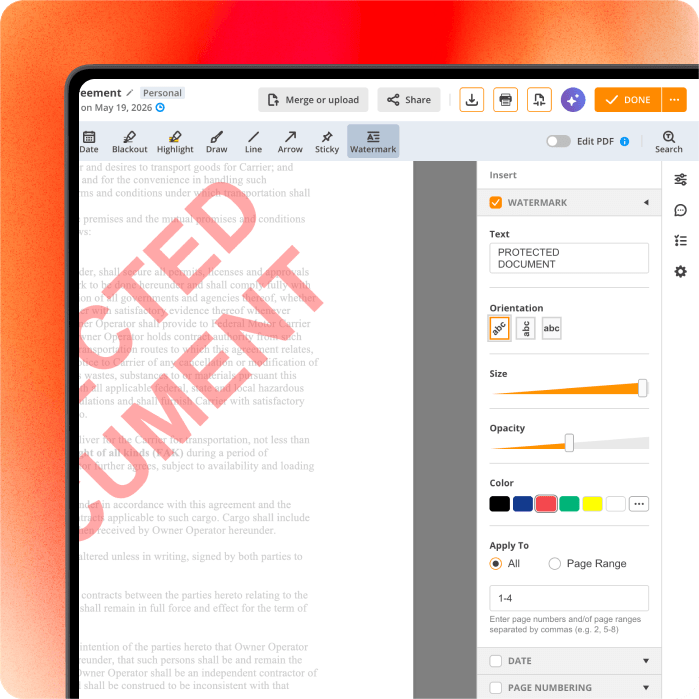
The watermark tool is a feature that allows you to add protective or branding elements to your PDF documents. There are two types of watermarks you can create: text and image watermarks. Text watermarks can be customized with your choice of font, size, and color, while image watermarks allow you to upload logos or other images. You can access the watermark tool easily via the Tools menu in your PDF editor.
Why Use Watermarks in Your PDFs?
Adding watermarks to your PDFs offers several benefits. First, they protect sensitive information by indicating ownership or confidentiality. Second, watermarks enhance brand visibility, making your documents recognizable. Finally, they are useful for drafts and proposals, helping to prevent unauthorized use or distribution of your work.
How to Add a Text Watermark
- Open your PDF document and navigate to the Tools menu.
- Select the watermark tool from the available options.
- Choose the option to add a text watermark.
- Enter your desired text in the provided field.
- Customize the size and color of the text as needed.
- Adjust the position of the text on the document.
- Set the transparency level to ensure the text does not overpower the content.
- Click 'Apply' to add the text watermark to your PDF.
How to Add an Image Watermark
- Open your PDF document and go to the Tools menu.
- Select the watermark tool from the list of features.
- Choose the option to add an image watermark.
- Upload the image you want to use as a watermark.
- Customize the size and position of the image on the document.
- Adjust the transparency to blend the image with the content.
- Click 'Apply' to finalize the image watermark on your PDF.
Customizing Your Watermark
You can customize your watermark to fit your specific needs. Adjust the size and transparency to ensure it complements your document. You can also change the rotation and color of the watermark to match your branding. Additionally, you can choose to apply the watermark to specific pages, allowing for greater control over its visibility.
Applying Watermarks to Specific Pages
When applying watermarks, you have options for targeting specific pages. You can choose to apply the watermark to the current page or to all pages in the document. If you only want to watermark certain pages, you can set a custom page range. Be mindful of how this may impact the overall layout of your document.
Editing or Removing a Watermark
- Open your PDF document and access the watermark tool again from the Tools menu.
- Select the watermark you wish to edit or remove.
- To edit, modify the text or image as needed.
- To delete the watermark, choose the option to remove it completely.
- Confirm your changes to ensure they are applied to the document.
Using Date Stamps in Your PDFs
Adding date stamps to your PDFs can help track document versions. You can configure the date stamp format to display the date in a way that suits your needs. Placement options allow you to position the date stamp where it is most visible. Using date stamps can enhance the professionalism of your documents and provide clear timelines.
Applying Page Numbers to Your Document
Adding page numbers to your PDF helps organize your document effectively. You can configure the format of the page numbers to match your style. Placement options allow you to position the numbers at the top or bottom of the page, and you can choose the font style. Page numbering is crucial for maintaining order in multi-page documents.
Understanding Bates Numbering
Bates numbering is a method used primarily in legal documents to assign unique identifiers to each page. You can apply Bates numbering in pdfFiller by selecting the appropriate tool and configuring the settings. This method is particularly useful for organizing and identifying documents in legal contexts, ensuring each page is easily referenced.
Browser Compatibility for Watermarking
When using the watermark tool, it's important to consider browser compatibility. The tool supports various browsers and operating systems, ensuring that you can access it from different devices. Mobile access capabilities allow you to watermark documents on the go, and there is no need for installation, making it convenient for all users.
Limitations of the Watermark Tool
While the watermark tool offers many features, it does have some limitations. Supported image formats may vary, and there are size limits for images used as watermarks. Additionally, there is a maximum text length for watermarks, which can restrict how much information you can display. Differences between free and paid plans may also affect the availability of certain features.
Next Steps After Watermarking
After watermarking your documents, you can proceed with signing them if needed. Sharing watermarked PDFs is straightforward, allowing you to distribute your documents securely. Tracking changes in your documents becomes easier with watermarks, as they indicate the version and status of each file.