Create Watermark and Page Number in PDF
Learn how to add watermarks and page numbers to your PDFs quickly and easily.
What is the Watermark Tool?
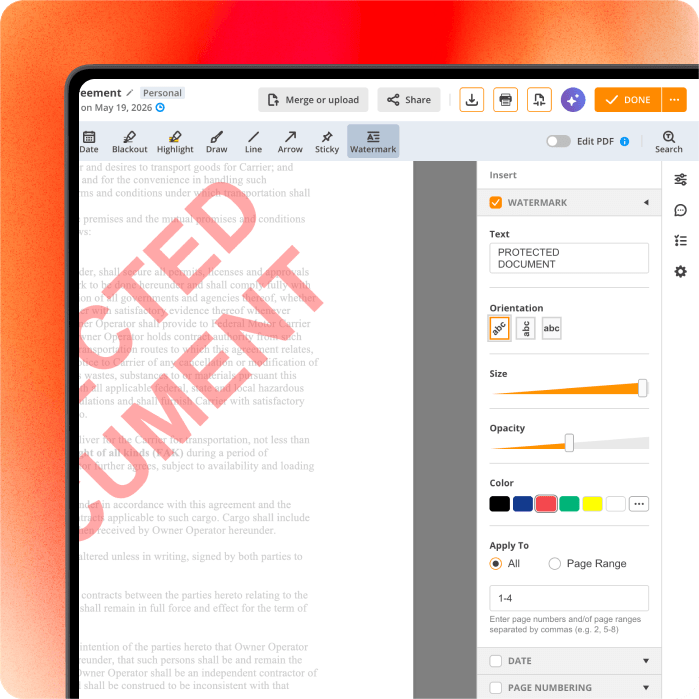
The watermark tool allows you to enhance your PDF documents with branding and legal protection. You can choose between text and image watermark options, which provide flexibility for your specific needs. Document-wide stamping tools are available, making it easy to apply watermarks across all pages or just selected ones. You can easily access the watermark tool via the editor toolbar, ensuring a user-friendly experience for small and medium-sized businesses.
How Does Watermarking Solve Workflow Problems?
Watermarking is an effective way to protect sensitive information in your documents. By branding documents with logos, you enhance the professionalism of proposals and contracts. This practice is especially important for legal documents, where maintaining confidentiality is crucial. Watermarks serve as a visual reminder of ownership and can deter unauthorized use of your documents.
How to Add a Text Watermark
- Open your PDF document in the editor.
- Select the watermark tool from the toolbar.
- Enter your custom text for the watermark in the designated field.
- Adjust the size and transparency of the text to fit your design.
- Choose whether to apply the watermark to all pages or specific pages.
- Preview the watermark to ensure it appears as desired.
- Click 'Apply' to add the text watermark to your document.
- Save your document to retain the changes.
How to Add an Image Watermark
- Open your PDF document in the editor.
- Access the watermark tool from the toolbar.
- Upload your logo or emblem by selecting the upload option.
- Customize the appearance settings, including size and placement.
- Decide whether to apply the watermark to all pages or specific pages.
- Preview the watermark to check its visibility and placement.
- Click 'Apply' to add the image watermark to your document.
- Save your document to ensure the watermark is included.
Customizing Your Watermark's Appearance
You can customize your watermark's appearance by adjusting its size, color, and opacity. Rotating the watermark may also be necessary to fit your design preferences. Before applying changes, always preview them to ensure they meet your expectations. This customization allows you to create a watermark that aligns with your branding and document style.
Applying Watermarks to Specific Pages
To control where watermarks are applied, select the specific pages for watermark application. You can choose to apply the watermark to all pages or define custom ranges for targeted application. Be aware of any limitations that may exist with free plans, as they might restrict the number of pages you can watermark at once.
Editing and Removing Watermarks
To edit a watermark, access the watermark tool and make your desired changes. If you need to remove an existing watermark, follow the steps provided in the tool to ensure it is completely deleted. Understanding the limitations of the Erase tool is important, as it may not work in all scenarios.
Applying Date Stamps to Your PDF
To add a date stamp to your PDF, insert today's date or a custom date as needed. You can configure the format and placement of the date stamp to suit your document's style. This feature is particularly useful for legal and archival purposes, ensuring that your documents are accurately dated.
Adding Page Numbers to Your PDF
To add sequential page numbers, choose your preferred numbering format and placement within the document. You can select options for sequential numbering to ensure consistency throughout the PDF. Additionally, customize the font and transparency settings to match your document's design.
Understanding Bates Numbering
Bates numbering is a method used to apply unique identifiers to legal documents. You can customize the prefix, suffix, and starting number to fit your needs. This numbering system is essential in legal discovery, allowing for easy reference and organization of documents.
Browser Compatibility and Access
Ensure that you are using supported browsers and operating systems for optimal performance with the watermark tool. Mobile access is available, allowing you to work on your documents from any device. No installation is required, making it easy to get started immediately.
Limitations of the Watermark Tool
Be aware of the supported image formats and size limits when using the watermark tool. There are also constraints on the opacity range for watermarks, which may affect your design choices. Differences between free and paid plans can impact the features available to you, so consider upgrading if you need additional capabilities.
Security and Data Handling
Security measures are in place during the watermarking process, including TLS encryption to protect your documents. Be informed about file retention and deletion timelines, as well as compliance considerations for document handling. These measures ensure that your data remains secure throughout the process.
Free vs. Paid Access to Watermarking
Understand the features available on free plans, as they may have limitations compared to paid options. Free watermarking may restrict certain functionalities, while upgrading to a paid plan can provide additional benefits and features that enhance your experience.
Comparison of pdfFiller with Other PDF Tools
How does pdfFiller compare to other PDF tools? pdfFiller offers unique features tailored for small and medium-sized businesses, making it an accessible choice. In comparison to Adobe Acrobat, it provides a more user-friendly experience at a lower cost. While Smallpdf offers a range of PDF tools, it lacks the depth of watermark customization found in pdfFiller. Sejda provides similar tools but has restrictions on document size and usage frequency, making pdfFiller a more flexible option.
Next Steps for Document Workflows
Linking watermarking to signing and sharing can streamline your document workflows. Emphasize the importance of tracking document changes to maintain accuracy and accountability. Additionally, using templates can enhance efficiency, allowing you to create consistent documents quickly.