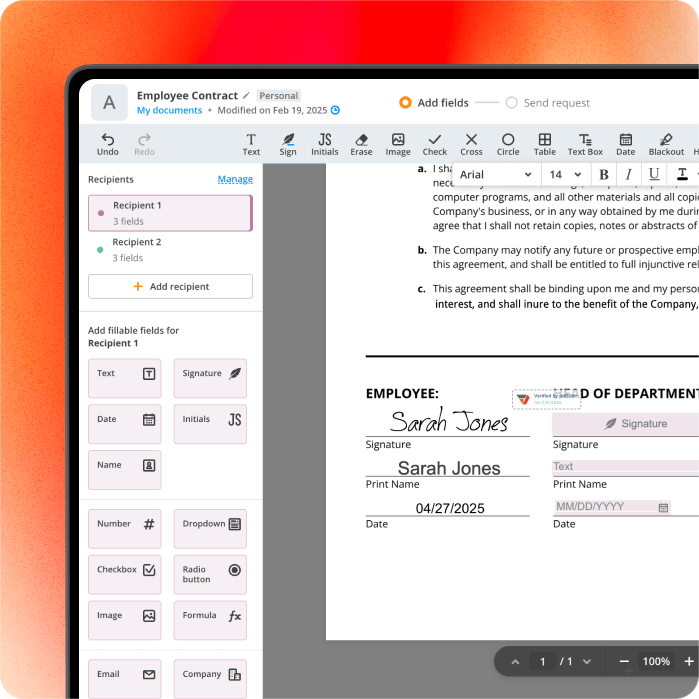
Delete Pages from JPEG and Save For Free

Drop document here to upload
Select from device
Up to 100 MB for PDF and up to 25 MB for DOC, DOCX, RTF, PPT, PPTX, JPEG, PNG, JFIF, XLS, XLSX or TXT

Last updated on Sep 19, 2026

Delete Pages from JPEG and Save

Delete unwanted pages from JPEG files quickly and easily using pdfFiller's intuitive tools.

What Are Page Management Tools?

Page management tools are essential features that help you organize and manipulate the pages within your documents. In pdfFiller, these tools allow you to delete pages from JPEG files, rearrange them, and even rotate them for better clarity. You can access these tools directly from the dashboard, making it easy to manage your documents efficiently. For small businesses, these features are particularly beneficial as they save time and reduce the complexity often associated with traditional document editing. By utilizing pdfFiller's page management tools, you can streamline your document workflow and focus on what truly matters in your business.

How to Fix Page Order in JPEGs

  • Open your JPEG file in pdfFiller.
  • Navigate to the page management section on the dashboard.
  • Select the pages you wish to rearrange.
  • Drag and drop the selected pages into the desired order.
  • Review the new order to ensure it meets your requirements.
  • Save the changes to finalize the new page arrangement.

How to Rotate JPEG Pages

  • Access your JPEG file in pdfFiller.
  • Select the page you want to rotate.
  • Choose the rotation option from the toolbar.
  • Preview the rotated page to confirm the orientation is correct.
  • Apply the changes to rotate the page permanently.
  • Save your document to keep the adjustments.

How to Delete Pages from JPEG Files

  • Open your JPEG file in pdfFiller.
  • Select the page or pages you want to delete.
  • Click on the delete option in the toolbar.
  • Confirm the deletion in the dialog box that appears.
  • Check the document to ensure the pages are removed.
  • Save the updated JPEG file to maintain the changes.

Adding Blank Pages to JPEGs

  • Open your JPEG file in pdfFiller.
  • Navigate to the page management section.
  • Select the location where you want to insert a blank page.
  • Choose the option to add a blank page.
  • Adjust the layout if necessary to accommodate the new page.
  • Save your document to keep the blank page.

How to Duplicate Pages in JPEGs

  • Open your JPEG file in pdfFiller.
  • Select the page you wish to duplicate.
  • Click on the duplicate option in the toolbar.
  • Review the newly created page to ensure it matches the original.
  • Adjust any content if necessary to fit your needs.
  • Save the document to keep the duplicated page.

Using the Manage Modal for Batch Operations

The Manage modal in pdfFiller allows you to perform batch operations efficiently. To access it, simply click on the Manage button in the toolbar. From there, you can select multiple pages at once, making it easy to apply changes such as deletion or rearrangement. This feature is particularly useful for users who need to manage large documents quickly, ensuring that you can maintain an organized workflow without unnecessary delays.

Quick Sidebar Controls for Page Management

The sidebar controls in pdfFiller provide a user-friendly interface for quick actions related to page management. You can easily access functions such as deleting, rotating, or rearranging pages without navigating away from your current view. This functionality enhances efficiency, allowing you to manage your documents swiftly and effectively, which is crucial for maintaining productivity in small business environments.

Editing Pages After Deletion

After deleting pages from your JPEG files, you may want to edit the remaining pages. pdfFiller allows you to add text or images to enhance your document. You can also adjust the layout to ensure everything fits well after the changes. With user-friendly editing tools, you can make these adjustments easily, ensuring your document remains clear and professional.

Scenarios for Deleting Pages from JPEGs

There are several practical scenarios where deleting pages from JPEG files is beneficial. For instance, a graphic designer may need to remove unnecessary pages from a portfolio presentation. In the legal field, attorneys often need to delete irrelevant pages from case files for clarity. Efficient page management helps in maintaining a streamlined document workflow, ensuring that only the most relevant information is presented.

Supported File Formats for Page Management

pdfFiller supports a variety of file formats for page management, including JPEG, PNG, and PDF. When you delete pages from JPEG files, the output remains in the same format, ensuring compatibility with common file types. This flexibility allows you to work with different document types without worrying about format issues, making pdfFiller a versatile tool for document management.

Security and Data Handling During Operations

Security is a top priority when managing documents in pdfFiller. All uploads are encrypted to protect your data during operations. Additionally, pdfFiller adheres to strict file retention policies and complies with data regulations, ensuring that your information is handled securely throughout the process. This commitment to security provides peace of mind for small businesses managing sensitive documents.

Next Steps After Deleting Pages

After deleting pages from your JPEG files, it’s important to consider the next steps in your document workflow. Organizing your documents effectively can enhance productivity. You may want to edit and sign the remaining pages to finalize your documents. By maintaining a streamlined workflow, you can ensure that your business operations run smoothly and efficiently.

How Does pdfFiller Compare?

pdfFiller offers integrated page management tools that simplify document editing, unlike ilovepdf, which provides a range of PDF tools but lacks this feature. Users may find ilovepdf less intuitive for batch operations. Smallpdf provides basic editing features but does not support advanced page management, limiting functionality for those needing comprehensive document solutions. Adobe Acrobat is the industry standard with extensive features, but its complexity and higher cost can be a barrier for small businesses compared to pdfFiller.

Try most popular PDF tools

Discover a full set of tools to handle any document task.

Edit PDFs

Make quick PDF edits online.

Sign

Add legally binding signatures.

Merge

Combine multiple PDFs.

Request signatures

Send a document for signing.

Convert

Transform PDFs into other formats.

Rearrange

Change the order of pages.

Share

Send PDFs for review or editing.

Compress

Reduce PDF file sizes.

How to rearrange a PDF?

1. Upload

Reorganize PDFs right in the editor

  • Rearrange & edit in one go Easily reorder PDFs while editing. Add or remove pages, change the order, or duplicate without leaving the editor.
  • Reorder for easy signing Organize contracts and agreements before adding fillable fields and eSignatures. Make the signing process easy for you and your recipients.
  • Share perfectly organized PDFs Rearrange pages to create polished, easy-to-read documents before sharing for review, editing, or approval. pdfFiller makes it easy to send your documents via email or a quick link.
  • Keep documents secure in the cloud Once edited and reorganized, your documents are backed up in pdfFiller’s cloud, so you can access them from any location or device.

Who uses this tool?

Explore how professionals use pdfFiller to organize and manage documents.

Business Owners

Reorder pages in business reports, contracts, or invoices to create polished, professional documents. Keep everything organized and ready to share with clients or stakeholders.

  • Business reports
  • Client contracts
  • Invoices and receipts
Business Owners
  • G2 — Users Most Likely To Recommend
  • G2 — Grid Leader in Small-Business
  • G2 — High Performer
  • G2 — Regional Leader
  • G2 — Easiest To Do Business With
  • G2 — Best Meets Requirements
  • G2 — Best Support

pdfFiller scores top ratings on review platforms

pdfFiller is rated 4.6 out of 5 stars across 1,000+ G2 reviews.

I was filling out a stubby pencil application, and thought there has to be a better way. Now I'm happily dragging and dropping scanned files into PDF filler and like magic I have an automated workable document, it's fantastic.
Bill
I love the ease of use and capabilities… I love the ease of use and capabilities of emailing or printing. Everything I need!
Sylvia Alvarado-bailey
perfect use it for all PDF edits perfect use it for all PDF edits , highly recommend to anyone and everyone
A.S
Great to use for all work type, easy conversion tools. My pdf's are looking very professional using pdfFiller.
Stephen M
I'm computer illiterate and pdfFiller makes it easy as can be for me.
KIRK H
Very good product Very good product. No watermarks. Can totally use to sign PDF documents.
Siyuan Zhu

Rearrange PDFs with a trusted, all-in-one solution

Try pdfFiller for all your document management needs.

pdfFiller workspace for creating, filling and managing PDF forms

Why trust pdfFiller to rearrange your documents?

All-in-one solution

Watch our PDF tools in action

Check out this video tutorial to learn how to rearrange and merge PDF pages right in the editor.

FAQs

If you can't find what you're looking for, please contact us anytime!

To delete pages from a JPEG and save the changes, upload your JPEG to pdfFiller, select the page you want to remove, and click the 'Delete' option. This process is straightforward and allows you to manage your images effectively. After deletion, ensure to save your changes by clicking 'Save As' to keep your edited image secure in the cloud. This method is particularly useful for remote professionals and legal teams needing precise document management.

pdfFiller supports various file formats, including JPEG, PNG, and PDF, allowing you to delete pages from these images easily. After editing, you can save your document in the same format or convert it to another format as needed. This cross-platform compatibility ensures that you can work seamlessly across different devices and operating systems, making it an ideal solution for SMEs and legal teams focused on document automation.

Yes, pdfFiller employs robust security protocols to protect your JPEG files during the editing process. When you delete pages from a JPEG and save it, your data is encrypted and stored securely in the cloud. To enhance security, always use strong passwords for your account and enable two-factor authentication. This is crucial for remote professionals and legal teams who handle sensitive information and require a secure document management solution.

Currently, pdfFiller allows you to delete one page at a time from a JPEG. However, you can quickly repeat the process for multiple pages. To do this efficiently, upload your JPEG, delete the first page, save it, and then re-upload if necessary. This step-by-step approach ensures that you maintain control over your document edits. For legal teams and SMEs, this method helps streamline document management without compromising quality.

Using pdfFiller to delete pages from JPEG files offers several advantages, including an intuitive user interface, cloud-based accessibility, and comprehensive editing features. Unlike many other tools, pdfFiller allows you to not only delete pages but also annotate, eSign, and collaborate on documents all in one platform. This all-in-one solution is particularly beneficial for remote professionals and legal teams who need efficient document management without switching between multiple applications.

pdfFiller maintains the quality of your JPEG images even after you delete pages. The platform uses advanced image processing technology to ensure that the remaining pages retain their original resolution and clarity. After editing, you can choose to save your image in high quality, which is essential for legal documents and professional presentations. This focus on quality makes pdfFiller a reliable choice for SMEs and remote professionals who prioritize document integrity.

If you accidentally delete the wrong page from a JPEG in pdfFiller, you can easily recover it by using the 'Undo' feature immediately after the action. If you have already saved the changes, you can upload the original JPEG again and repeat the editing process. To avoid such issues, consider saving a backup of your original file before making edits. This practice is especially useful for legal teams and remote professionals who must ensure document accuracy and reliability.

Transforming businesses with pdfFiller

Check out these success stories.

I was happy to do this for patients, but I simply didn't have 30–60 minutes to fill out each form. It was a true waste of resources to do it that way, and as a surgeon, my time is better spent in patient care, which was often delayed.

Marshall Orthopaedics

One tool. Every document task.

One workflow shouldn’t take five tools

Start free trial