Delete Word in PAGES
Delete words in your PDF documents easily with pdfFiller's Edit Mode.
What is Edit Mode?
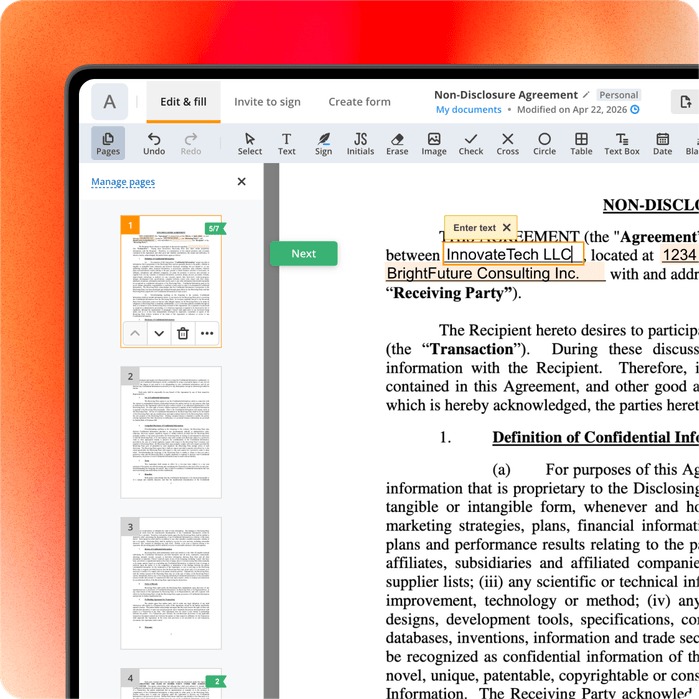
Edit Mode in pdfFiller allows you to modify PDF content directly. You can access it by clicking the Edit button in the toolbar. This feature enables you to delete words and make other changes without needing complex software. Unlike annotation tools, Edit Mode provides a user-friendly interface tailored for small and medium businesses, allowing for straightforward document modification. You can directly edit text, images, and other elements within your PDF, ensuring a seamless editing experience.
How to Delete Words in Your PDF
- Click on the text block you want to edit in your PDF document.
- Select the unwanted text you wish to delete.
- Press the delete key on your keyboard to remove the selected text.
- Save your changes by clicking the save button in the toolbar.
- Check your document to ensure the changes are as you intended.
- This process works on any device, making it accessible wherever you are.
Why Use pdfFiller for PDF Editing?
pdfFiller is trusted by over 68 million users, making it a reliable choice for PDF editing. With over 1 million templates available, you can easily find the right document format for your needs. There’s no IT setup required, allowing you to start editing immediately. Additionally, pdfFiller includes legally binding e-signatures, enhancing your document's authenticity and compliance.
Common Scenarios for Deleting Words
- Editing contracts for accuracy to ensure all terms are correct.
- Updating marketing materials to reflect the latest information.
- Correcting invoices to avoid discrepancies in billing.
- Adjusting legal documents to comply with current regulations.
Limitations of Edit Mode
Edit Mode has certain constraints that users should be aware of. For instance, you cannot edit scanned PDFs without Optical Character Recognition (OCR) technology. Additionally, font matching is not guaranteed, which may affect the appearance of your document. There are also limitations when dealing with password-protected documents, and it's important to understand the difference between whiteout and blackout features when modifying text.
How to Access Edit Mode
- Locate the Edit button in the toolbar after opening your PDF document.
- Ensure your document is uploaded first before attempting to edit.
- Check that your file format is supported for editing.
- Confirm compatibility with various devices to ensure a smooth experience.
Text Formatting Options in Edit Mode
Edit Mode offers several text formatting options to enhance your document. You can choose different font families and sizes to suit your style. Features like bold, italic, and underline help emphasize important text. Additionally, you can adjust text color and alignment settings to create a visually appealing document. Applying these formatting changes is straightforward and enhances the overall presentation of your PDF.
Find and Replace Feature
The Find and Replace tool in pdfFiller allows you to locate specific text within your document easily. To use this feature, follow the steps to search for the text string you want to replace. Once located, you can replace it with new text, streamlining your editing process. This feature is beneficial for making bulk changes quickly, although it does have some limitations, such as not being able to replace text in images.
Comparison with Other PDF Editors
When comparing pdfFiller to Adobe Acrobat, pdfFiller stands out for its user-friendly interface and affordability. Unlike Foxit and Nitro, pdfFiller does not require extensive IT setup, making it accessible for small and medium businesses. Unique features of pdfFiller include its extensive template library and built-in e-signature capabilities, offering significant advantages over its competitors.
Next Steps After Deleting Words
After deleting words in your PDF, it’s essential to save and share your edited documents effectively. Integrate your edits with other pdfFiller features to enhance your document management process. Following best practices for document management ensures that your files remain organized and accessible. We encourage you to explore more tools within pdfFiller to maximize your productivity.