Edit Word in RTF
Edit your RTF documents quickly and easily using pdfFiller's intuitive editing tools. No complex software needed.
What is Edit Mode in pdfFiller?
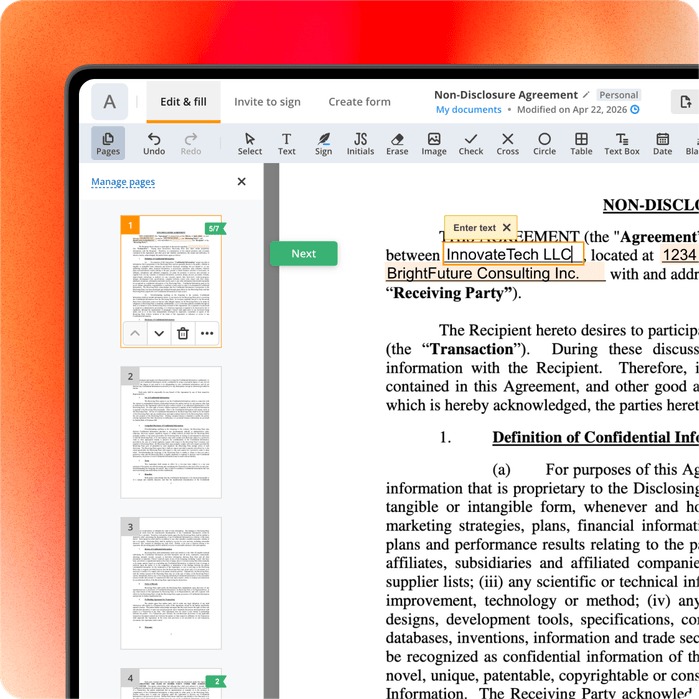
Edit Mode in pdfFiller allows you to modify text directly within RTF documents. This feature includes tools for editing existing text, adding new text blocks, and removing unwanted content. Unlike annotation tools that overlay changes, Edit Mode modifies the original document content, ensuring that your edits are permanent and integrated. You can easily access these tools to correct or enhance your documents without needing complex software or extensive training.
How Does Editing Work?
- Open your RTF document in pdfFiller.
- Click the Edit button (pencil icon) in the toolbar to activate Edit Mode.
- To edit existing text, click directly on the text block you wish to modify.
- Make your changes and navigate between text elements using your keyboard.
- To add new text, click anywhere on the document to create a new text block.
- Format your new text using the available formatting options.
- To remove text, select the text you want to delete and press the delete key.
- Save your changes once you are satisfied with your edits.
Adding New Text Blocks
To add text to your RTF documents, simply click on the area where you want the new text block to appear. A new text box will be created, allowing you to type your content. You can set the initial formatting, such as font size and style, to match the existing document. This user-friendly interface makes it easy to enhance your documents without hassle.
Removing Text from RTF
To effectively delete text from your RTF document, select the text you wish to remove. Once highlighted, press the delete key to remove it. Ensure that you confirm the deletion if prompted, as this action cannot be undone. This straightforward method helps maintain the clarity of your document by eliminating unnecessary content.
Formatting Your Text
pdfFiller offers various formatting options to enhance your RTF documents. You can change the font family, size, and style, including bold, italic, and underline. Additionally, you can adjust the text color and alignment to ensure consistency throughout your document. Using these formatting tools effectively can improve the overall presentation of your text.
Using Find and Replace
To locate specific text within your RTF document, use the Find feature. Enter the text you want to find, and pdfFiller will highlight all occurrences. If you wish to replace it, use the Replace function to substitute the old text with new content. This feature is particularly useful for document correction, allowing you to make multiple changes quickly.
Editing Native vs. Scanned RTFs
Editing capabilities differ between native and scanned RTF documents. Native RTFs allow for direct text editing, enabling you to modify content easily. In contrast, scanned RTFs are image-based, meaning you cannot edit the text directly without using Optical Character Recognition (OCR) tools first. Understanding these differences is crucial for effective document management.
Common Scenarios for Editing RTF
Editing RTF documents is essential for various professionals. For instance, a small business owner may need to update an invoice template, while a freelancer might adjust a contract for a client. Additionally, administrative staff often correct reports or proposals. These scenarios highlight the importance of efficient document editing in everyday business operations.
Browser Compatibility
pdfFiller is compatible with all major web browsers, including Chrome, Firefox, and Safari, ensuring that you can access your documents from any device without installation. This browser-based approach allows for convenient online editing, making it accessible for small businesses and self-employed professionals.
Limitations of Edit Mode
While Edit Mode offers robust editing capabilities, there are limitations. For example, you cannot edit scanned RTFs without first applying OCR. Additionally, certain document types, like password-protected files, cannot be modified. Understanding these constraints helps set realistic expectations for your editing tasks.
How Does pdfFiller Compare?
pdfFiller stands out for its user-friendly interface and affordability, making it ideal for small businesses. In contrast, Adobe Acrobat offers extensive features but requires complex setup and high costs, which may overwhelm smaller operations. Foxit provides similar editing capabilities but lacks the intuitive design of pdfFiller. Nitro is known for powerful features but can be complicated and costly for casual users.