Format Image Text
Format image text in PDFs quickly using pdfFiller's intuitive tools.
What Does the Image Tool Do?
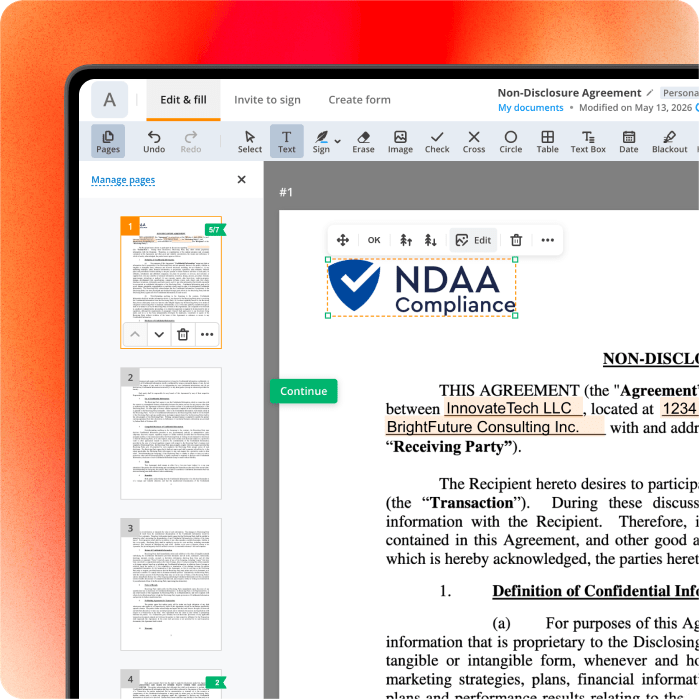
The Image Tool in pdfFiller allows you to format image text in PDFs effortlessly. You can insert logos, photos, or diagrams directly into your documents without the need for complex software. This tool provides movable and resizable overlay elements, making it easy to adjust images as needed. Importantly, you don't have to rebuild documents from scratch; the Image Tool works on any device, ensuring you can edit PDFs wherever you are.
How to Upload Images for Editing
- Select the PDF document you want to edit in pdfFiller.
- Click on the Image Tool option to access the upload feature.
- Drag and drop your images into the designated area or click to browse your files.
- Supported formats include JPEG, PNG, and GIF for smooth uploads.
- Once uploaded, the images will convert automatically for editing.
- No IT setup is required; you can start editing right away.
Resizing and Repositioning Images
To resize images in pdfFiller, use the corner handles that appear when you select an image. This allows you to maintain the aspect ratio by default, ensuring that your images do not become distorted. You can also drag the images to reposition them anywhere on the page, which is particularly useful for logos and graphics that need to fit perfectly within your layout.
Rotating and Layering Images
With the Image Tool, you can rotate images freely to achieve the desired orientation. Additionally, you can manage the layering of image elements by bringing them forward or sending them backward in relation to other PDF content. This feature is especially useful for creating complex layouts where multiple images and text elements need to coexist harmoniously.
Adjusting Image Opacity
You can adjust image opacity based on your plan tier, which allows for greater control over the visual impact of your document design. This feature enhances the aesthetics of your PDFs by enabling layering effects with transparency, making it easier to integrate images into your overall design without overwhelming the content.
How to Replace an Existing Image
- Select the image you wish to replace in your PDF document.
- Remove the current image element by clicking the delete option.
- Insert a new image by following the upload steps outlined previously.
- Ensure that the new image maintains the integrity of the document layout.
- This process allows for quick updates, especially useful for branding purposes.
Managing Image Elements After Placement
Once images are placed in your document, you can easily manage them. Select images to move or resize them as needed. You can also duplicate or delete image elements to refine your document. If you make a mistake, the undo feature allows you to revert actions easily, streamlining your document editing process.
Common Scenarios for Image Editing
- Inserting logos for branding in business proposals and reports.
- Adding diagrams in technical reports to clarify complex information.
- Editing photos for presentations to enhance visual appeal.
- Enhancing marketing materials with images that capture attention.
Browser Compatibility for Image Tools
The Image Tool in pdfFiller is compatible with various browsers, ensuring optimal performance across devices. You can access the tool on mobile devices without any installation required, allowing for cross-device functionality. This means you can edit your PDFs from anywhere, whether on a desktop or a mobile device.
Limitations of the Image Tool
While the Image Tool offers many features, it does have some limitations. There is no dedicated crop tool available, which may restrict certain editing capabilities. Additionally, unsupported formats include SVG, TIFF, and WebP. Opacity control is also dependent on your plan tier, and bulk editing features are not available, which may limit efficiency for larger projects.
Security and Data Handling
pdfFiller prioritizes security with TLS encryption in transit, ensuring that your uploaded images are protected. The platform has a clear file retention and deletion timeline, complying with data regulations to safeguard your documents. You can trust that your uploaded images are handled securely throughout the editing process.
How Does pdfFiller Compare to Other Image Editing Tools?
When comparing pdfFiller to other image editing tools, several key differences emerge. Adobe Acrobat has a complex interface and higher costs, making it less accessible for small businesses. PDF24 offers limited features and is less user-friendly, while Smallpdf provides fewer customization options. In contrast, pdfFiller stands out with its intuitive design, affordability, and no IT setup required.
Next Steps for Image Editing
To maximize your image editing capabilities, integrate this feature into your overall document workflow. Explore other pdfFiller features to enhance your productivity further. By using templates, you can speed up your editing process and ensure consistency across your documents. Start leveraging these tools today to improve your document management.