Highlight Watermark and Initial Field in PDF
Add a watermark to your PDF documents for branding or confidentiality using pdfFiller's easy-to-use online tool.
What is the Watermark Tool?
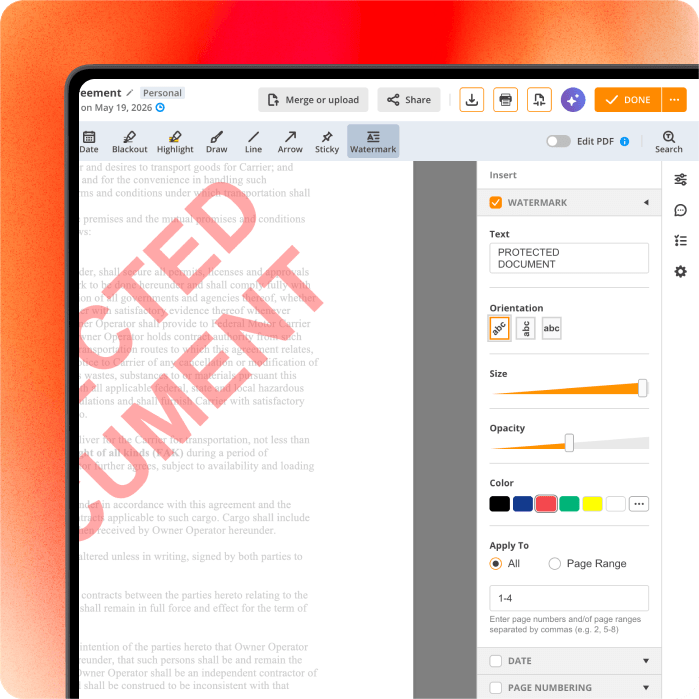
The watermark tool allows you to add a watermark PDF feature to your documents, enhancing their branding and confidentiality. It offers both text and image watermark options, enabling users to choose the best fit for their needs. You can customize the appearance of the watermark, including size, color, and transparency, ensuring it aligns with your branding. The tool also includes document-wide stamping features, making it suitable for small and medium-sized businesses (SMBs) that require user-friendly interfaces. With a straightforward design, the watermark tool simplifies PDF editing, allowing users to protect their documents effectively.
How Does Watermarking Solve Document Issues?
Watermarking is essential for branding and protecting documents. It helps establish your brand identity by adding a distinctive mark that signifies ownership. For small businesses, this is particularly important as it enhances the professionalism of proposals and reports. Additionally, watermarking serves as a confidentiality measure, especially for sensitive documents. By incorporating a watermark, you can deter unauthorized use and maintain control over your intellectual property, making it a valuable tool for protecting confidential PDFs.
How to Add a Text Watermark
- Open your PDF document in the pdfFiller tool.
- Select the watermark option from the editing menu.
- Enter your custom text in the designated field.
- Choose the font size and color that suits your branding.
- Decide whether to apply the watermark to all pages or specific pages.
- Preview the watermark to ensure it appears as desired.
- Save the document with the newly added text overlay.
- Marketers can use this feature to enhance brand visibility in their documents.
How to Add an Image Watermark
- Access the watermark tool within pdfFiller.
- Select the option to upload an image for the watermark.
- Choose your logo or desired image from your device.
- Adjust the size and position of the image on the document.
- Customize the transparency to ensure it does not obscure the text.
- Review the placement and appearance of the watermark.
- Save the document with the image overlay applied.
- Graphic designers can utilize this feature to reinforce brand identity.
Customizing Your Watermark
Customizing your watermark enhances its effectiveness. You can adjust the size, color, and transparency to match your branding needs. Additionally, rotation options allow for creative placements, ensuring the watermark complements the document's layout. You can also set the watermark to appear on specific pages or throughout the entire document, providing flexibility in how you present your brand. This level of watermark customization ensures that your branding remains consistent and professional.
Editing or Removing a Watermark
- Reopen the watermark tool in pdfFiller.
- Select the document containing the watermark you wish to edit.
- Choose the option to modify the existing watermark.
- Make the necessary changes to the text or image.
- To remove the watermark, select the removal option from the menu.
- Confirm the changes and save the document.
Applying a Date Stamp
- Open your PDF document in the pdfFiller tool.
- Select the date stamp option from the editing features.
- Choose the format for the date stamp (e.g., MM/DD/YYYY).
- Position the date stamp where it is most visible.
- Customize the font size and color to match your document.
- Review the placement and appearance of the date stamp.
- Save the document with the date stamp applied.
- This feature is beneficial for legal documents requiring a timestamp.
Page Numbering in Your PDF
- Access the page numbering feature in the pdfFiller tool.
- Select the format for the page numbers (e.g., 1, 2, 3).
- Choose the placement of the page numbers (top or bottom).
- Decide whether to start numbering from a specific page.
- Preview the document to ensure page numbers appear correctly.
- Save the document with the page numbers added.
- This feature is useful for organizing multi-page documents.
Bates Numbering for Legal Use
- Open the Bates numbering tool in pdfFiller.
- Choose the document that requires Bates numbering.
- Enter the starting number for the Bates sequence.
- Select the format for the Bates number (e.g., Bates #001).
- Decide on the placement of the Bates number on the page.
- Preview the document to ensure the Bates numbers are correctly applied.
- Save the document with the Bates numbering included.
- This feature is crucial for legal discovery processes.
Browser Compatibility and Access
The watermark tool is compatible with various browsers and operating systems, ensuring accessibility for all users. You can access the tool from any device without requiring installation. This flexibility allows you to watermark PDFs from your desktop, laptop, or mobile device, making it convenient for professionals on the go. The tool's design ensures that you can work efficiently without technical barriers.
Limitations of the Watermark Tool
While the watermark tool is powerful, it does have some limitations. Supported image formats include JPEG and PNG, which may restrict the types of logos you can use. Additionally, there is a maximum file size for watermarks, which can affect larger documents. Users should also be aware of differences between free and paid plans, as certain features may be limited in the free version.
Next Steps After Watermarking
After watermarking your PDF, consider the next steps in your document workflow. You can sign and share the document directly from pdfFiller, ensuring that it remains secure and professional. Tracking the status of your documents is also simplified, allowing you to manage your workflows effectively. Integrating watermarking into your overall document processes enhances efficiency and maintains a consistent brand presence.
How Does pdfFiller Compare?
ilovepdf: Offers a range of PDF tools but lacks the intuitive watermark customization of pdfFiller. This may require additional steps for advanced features.
Smallpdf: Provides a simple interface for PDF tasks but does not offer as many document-wide stamping options as pdfFiller. Users may find limited customization compared to pdfFiller.
Adobe Acrobat: Industry standard with extensive features but often complex and costly for SMBs. It comes with a higher price point and requires software installation.