Watermark PDF
Add a watermark to your PDF documents to enhance branding and confidentiality quickly and easily using pdfFiller's intuitive online tool.
What is the Watermark Tool?
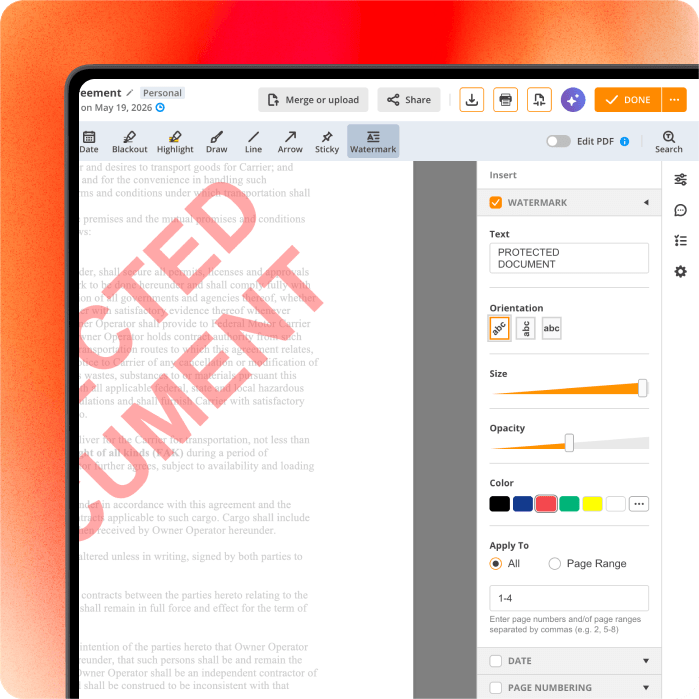
The watermark tool allows you to watermark PDFs to enhance PDF security and branding. It offers options for both text and image watermarks, enabling you to customize your documents effectively. You can apply document-wide stamping tools, ensuring that your watermark appears consistently throughout your PDF. The user-friendly interface makes it easy for small and medium-sized businesses to protect their documents without needing complex software.
How Does Watermarking Solve Document Issues?
Watermarking addresses critical issues related to branding and document security. For small businesses, adding a watermark to documents helps protect drafts and enhances professionalism. This practice ensures that your documents are easily identifiable and less likely to be misused, thereby maintaining your brand's integrity and confidentiality.
How to Add a Text Watermark
- Open your PDF document in pdfFiller.
- Select the watermark tool from the toolbar.
- Enter your custom text for the watermark.
- Adjust the transparency to ensure it does not overpower the document content.
- Choose the specific pages where you want the watermark to appear.
- Preview the watermark to ensure it meets your expectations.
- Click 'Apply' to add the watermark to your PDF.
- Save your document with the watermark applied.
How to Add an Image Watermark
- Open your PDF document in pdfFiller.
- Select the watermark tool from the toolbar.
- Upload your logo or desired image for the watermark.
- Adjust the image size to fit your document appropriately.
- Choose the placement options for your image watermark.
- Set the transparency level to ensure the watermark is visible but not distracting.
- Preview the image watermark to confirm its appearance.
- Click 'Apply' to finalize the watermark on your PDF.
Customizing Your Watermark
To customize your watermark appearance, you can adjust the size, color, and rotation options. This flexibility allows you to create a watermark PDF that aligns perfectly with your branding. A semi-transparent watermark can be particularly effective, as it maintains the readability of your document while still providing a clear indication of ownership.
Applying Watermarks to Specific Pages
You can apply watermarks to selected pages in your PDF. Options include applying the watermark to the current page, all pages, or custom page ranges. This feature is particularly useful for document management, allowing you to tailor the watermarking process to your specific needs.
Editing and Removing Watermarks
To modify or delete existing watermarks, access the watermark tool in pdfFiller. Follow these steps:
- Open your PDF document in pdfFiller.
- Select the watermark tool from the toolbar.
- Choose the watermark you wish to edit or remove.
- To edit, make your changes and click 'Apply'; to remove, select 'Delete'.
- Save your document after making the necessary changes.
Using Date Stamps in Your Documents
Applying date stamps can be essential for maintaining records in legal documents. You can format the date, set placement settings, and adjust transparency to ensure visibility. This feature is particularly useful for ensuring that your documents are time-stamped and can be tracked effectively.
Adding Page Numbers to Your PDF
To add page numbers to your PDF, you can set sequential numbering, choose format options, and adjust placement settings. This process enhances document management by ensuring that your documents are organized and easily navigable.
Understanding Bates Numbering
Bates numbering is a method used primarily for legal documents that assigns unique identifiers to each page. You can customize the prefix and suffix for your Bates numbers, making them suitable for various legal use cases. This feature is crucial for maintaining order in legal documentation.
Next Steps After Watermarking
After watermarking your PDF, consider connecting this process to broader document workflows. You can sign documents, explore sharing options, and track changes effectively. Incorporating digital signatures can further enhance the security and authenticity of your watermarked documents.
How Does pdfFiller Compare?
Adobe Acrobat offers extensive PDF editing features but is more complex and costly than pdfFiller. Users may find it overwhelming for simple tasks like watermarking.
Smallpdf provides basic watermarking capabilities but lacks the extensive template library and ease of use found in pdfFiller. Users may miss out on advanced features.
ilovepdf is a free tool with limited watermark options compared to pdfFiller's robust features. Users may find it less reliable for professional documents.